Peakboard hub
Link list cell to variable
You can link individual cells in Peakboard Hub lists with Peakboard Hub variables. This creates a bidirectional synchronization where changes to the variable automatically update the linked cell and vice versa.
Link cell to variable
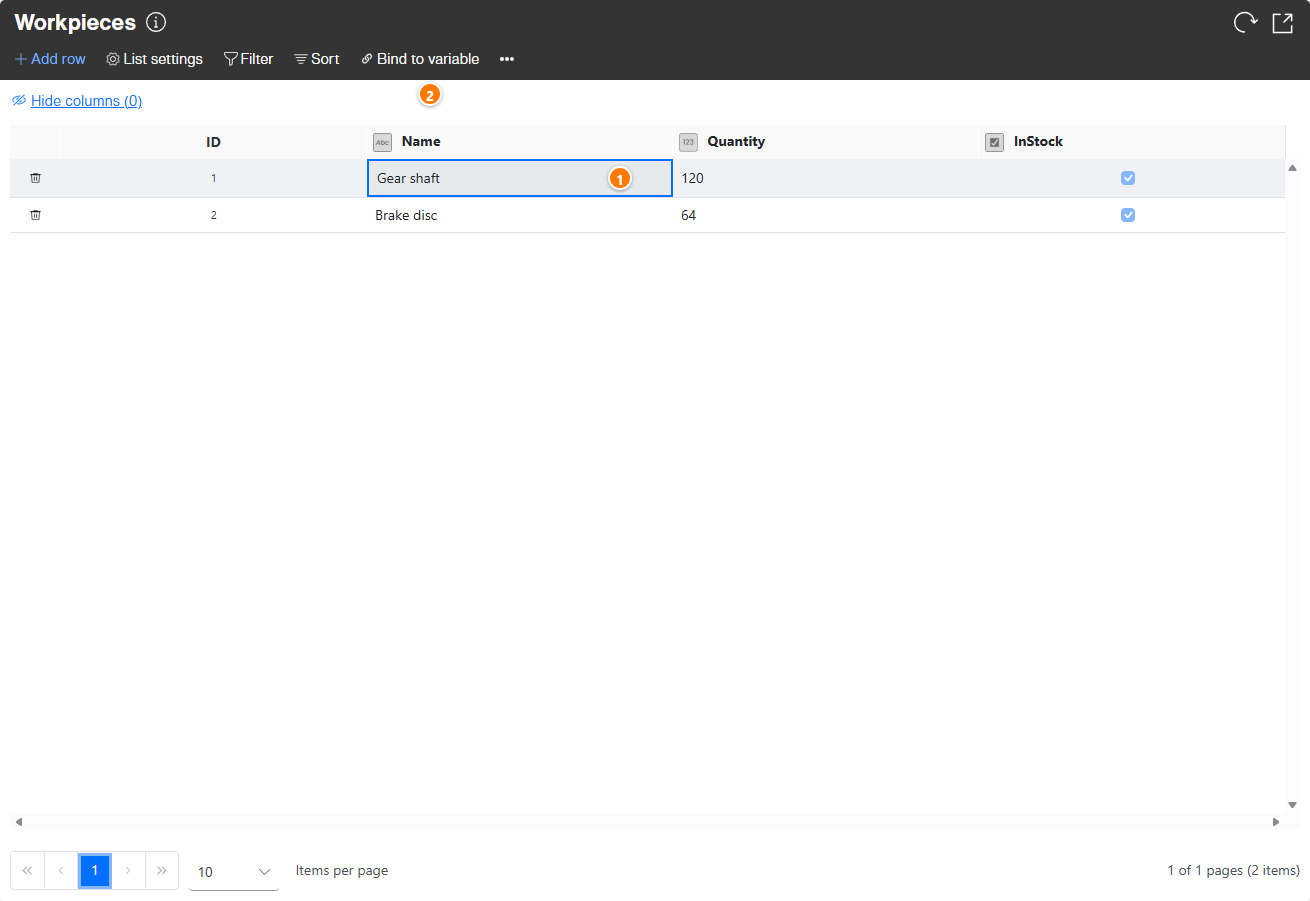
- Select cell (1): Click on the cell in your list that you want to link to a variable. The selected cell is highlighted.
- Start the link (2): Click [Bind to variable] in the upper menu bar.
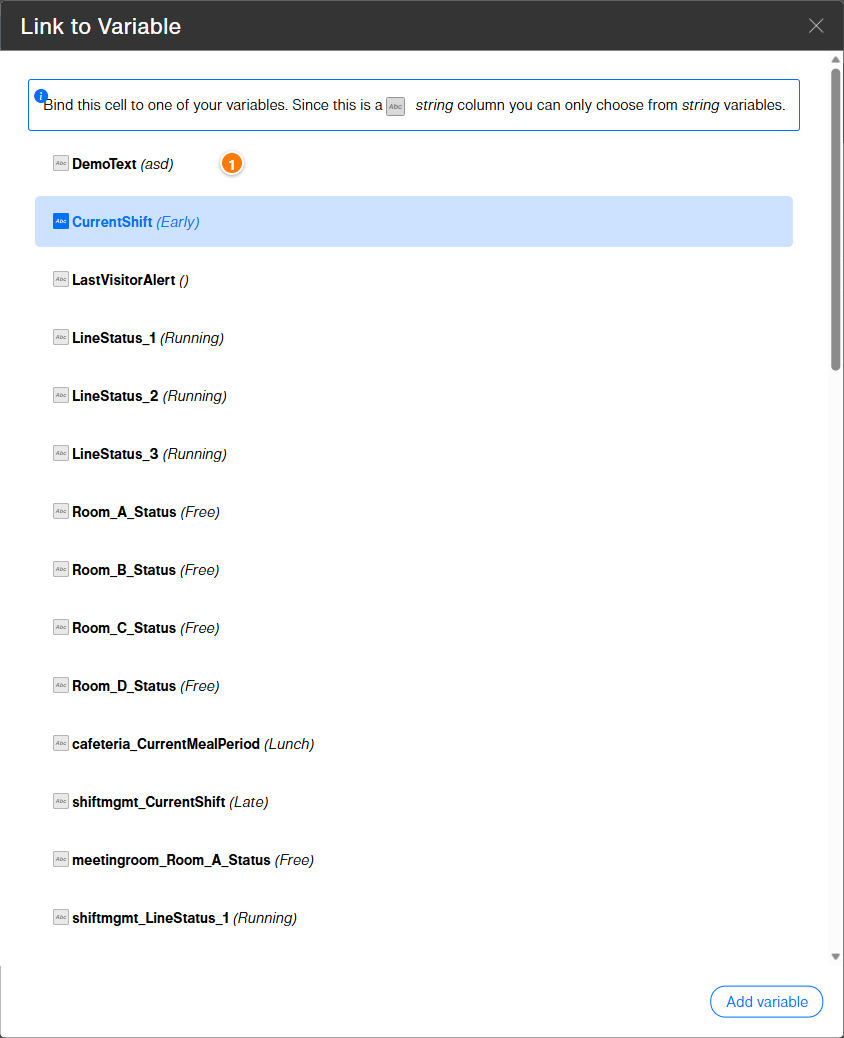
- Select variable (1): The [Link to Variable] dialog opens with the available variables. Since this example uses a string column, only string variables are shown for selection. Choose the desired variable.
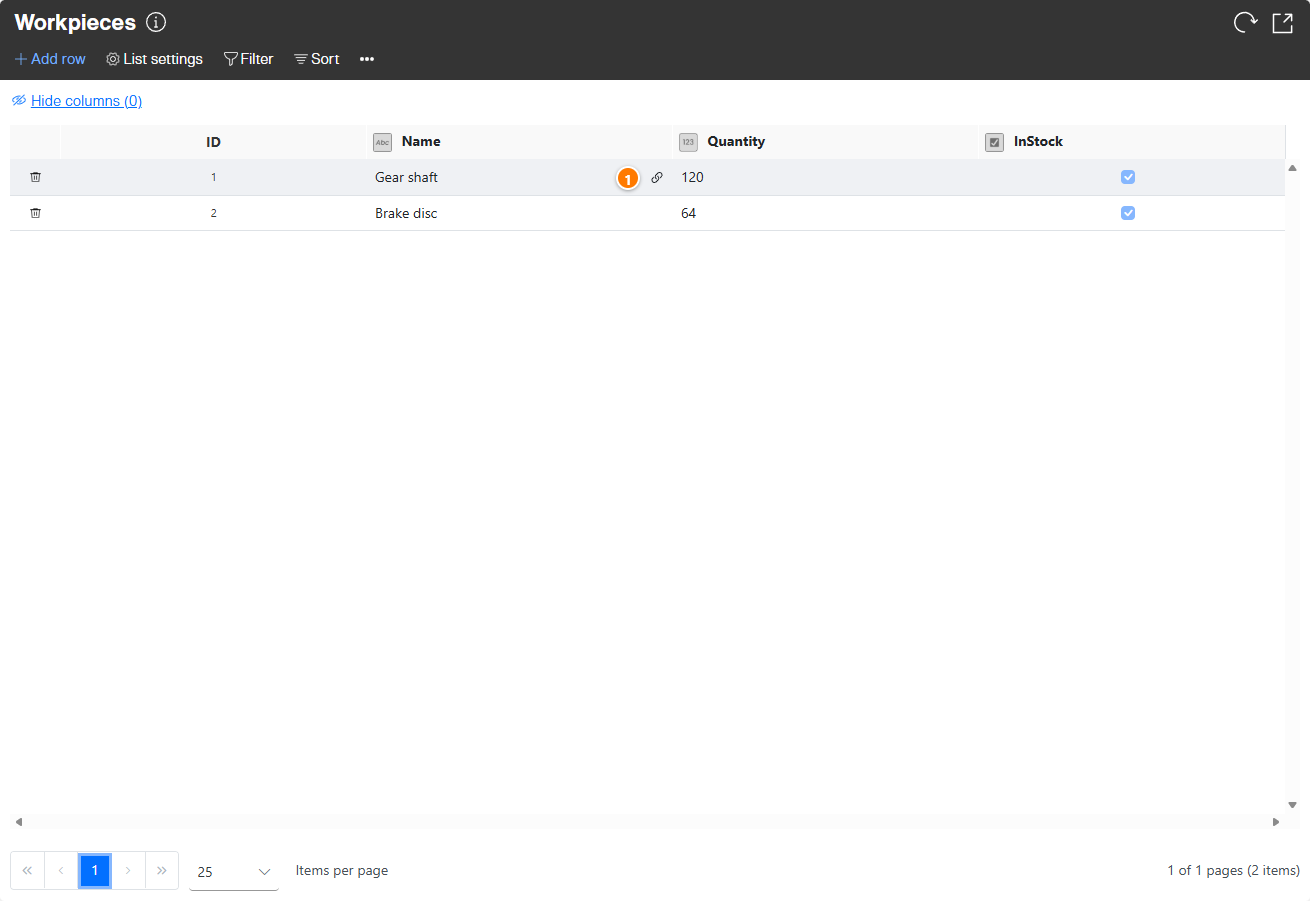
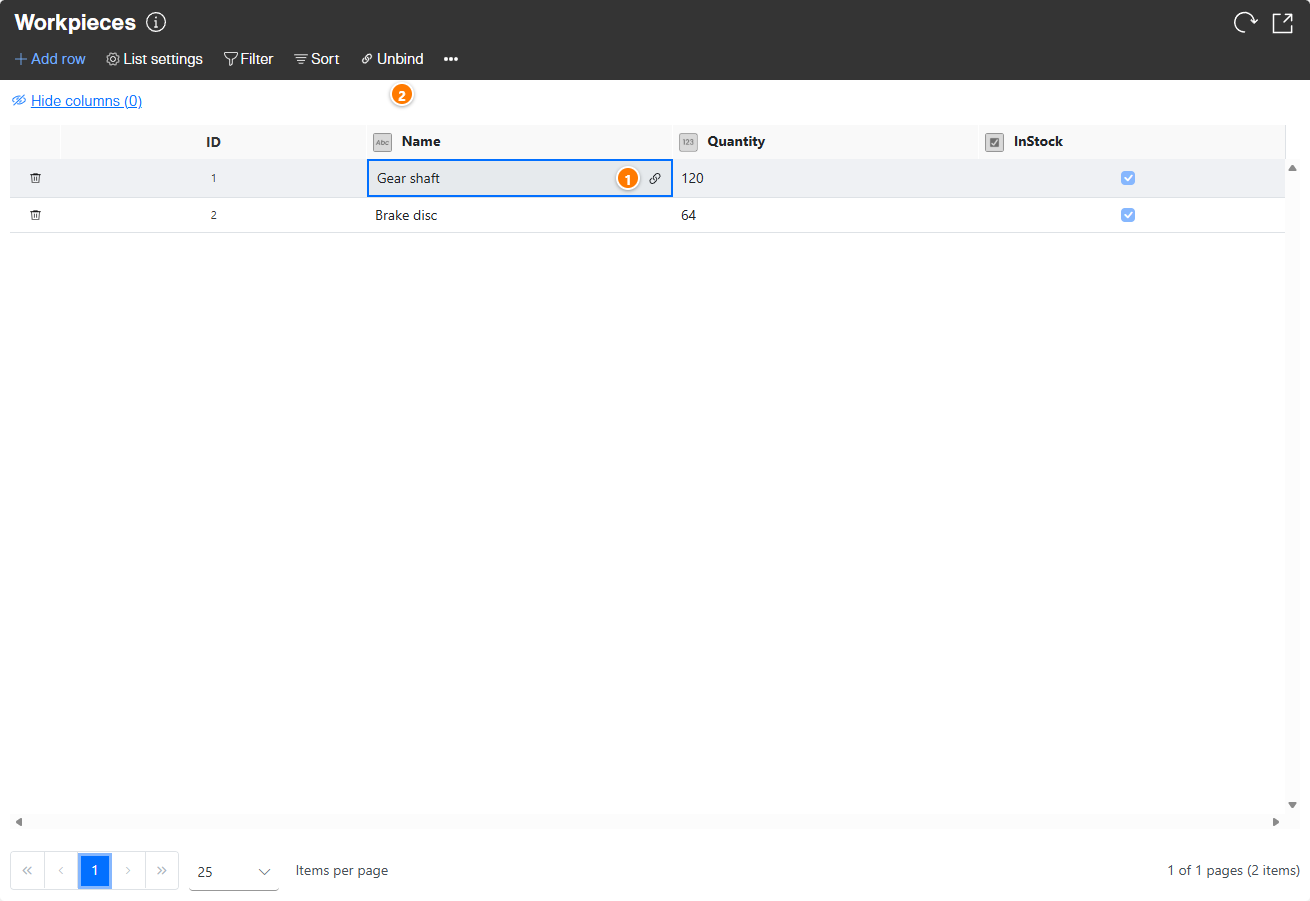
After selection, the variable is linked to the cell. A link icon (1) in the cell indicates the existing connection.
Remove link
- Select linked cell (1): Select the cell whose link you want to remove.
- Select unbind (2): Click [Unbind] in the menu bar.
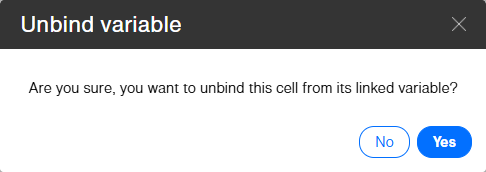
- Confirm removal: A confirmation dialog appears. Click [Yes] to remove the link between the cell and the variable.