
Get started
Create and edit projects with AI (Peakbot)
With the built-in AI Peakbot - the AI generator of the Peakboard Designer - you can create a complete application from a simple text description, by prompting. You describe in your own words what the application should show – Peakbot then creates the screen, the controls and matching sample data. In the same way you can let the AI adjust a project that is already open. This takes you from an idea to a finished first draft in just a few minutes, which you then refine in the Peakboard Designer as usual.
Create an application with AI
Open the [Home] screen of the Peakboard Designer. The [Create with AI] section contains everything Peakbot needs to generate the application.
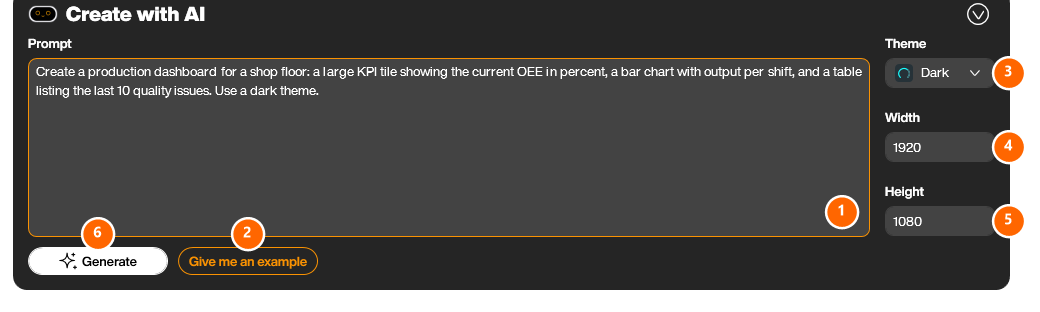
- Prompt – Describe your desired application as precisely as possible: which key figures, which controls (for example table, chart, tile) and which data source. The more precise the description, the better the result.
- [Show examples] – Opens the [Example] dialog. It shows a ready-made prompt together with the [Outcome] it produced, [Show next] leafs through the examples, [Copy prompt] takes the prompt over into your field, and [Open project] opens the finished example project. A helpful starting point if you are not yet sure how to phrase a prompt.
- [Theme] – The visual theme the application is styled with.
- [Width] – The width of the application in pixels (for example
1920). - [Height] – The height of the application in pixels (for example
1080). - [Generate] – Starts the generation. Peakbot creates the project and then opens it directly in the Peakboard Designer.
- [Attach file] – Attaches a file to the prompt, for example a screenshot of the board that is to be replaced or a sketch of the intended layout.
Tip for good prompts: Name the controls and content you want explicitly, for example: “Create a production dashboard: a large tile showing the current OEE in percent, a bar chart with output per shift, and a table listing the last 10 quality issues.” Also mention the theme you want.
Choose a theme
Use the [Theme] selection to define the style of your application. Several predefined themes are available, such as Light, Dark, Indigo, Petrol, Aurora and Retro. You can also change the theme at any time after generation in the Peakboard Designer.
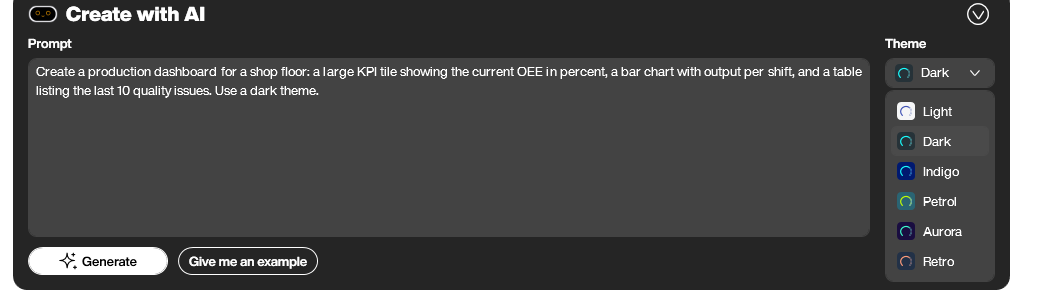
Once you have set the prompt, the theme and the desired resolution, click [Generate]. Three things then happen before the project is built:
- If the project that is currently open has unsaved changes, you are asked what should happen to them – the generation replaces it with a new project.
- You are asked to confirm that data from your project is sent to Anthropic (Claude) for the request. [Yes, don’t ask again] remembers the answer.
- The Peakboard Designer switches to an empty project with the theme and the size you chose, and opens the chat.
In the chat Peakbot asks back about anything that is still unclear in your description. Answer in your own words – as long as you keep talking, nothing is generated yet. Only when you confirm with [Yes, create] does the actual generation start; [No, keep talking] returns you to the conversation. Generating a project can take up to 20 minutes, and the Peakboard Designer tells you so before it starts.
Edit an existing project with AI
You can also let Peakbot adjust a project that is already open. For this there is the AI icon [Edit with AI] (1) in the editor’s top menu bar – right next to [Preview] and [Upload].
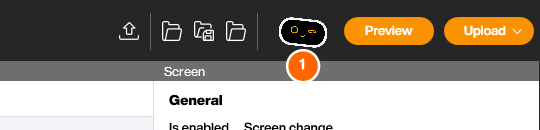
Click the icon (1) and describe in your own words what should change – for example “Add a table with the open orders below the chart” or “Change the background color of the screen to dark blue”. Peakbot applies the change directly in the current project. You can then continue to edit the result manually, just like any other project.
Note: The AI features require an internet connection. Always review the result generated by the AI and adjust it manually if needed – Peakbot delivers a fast first draft, the final fine-tuning is done in the Peakboard Designer.


