Data sources
BACnet
BACnet (Building Automation and Control Networks) is an open, vendor-independent communication protocol for building automation. It is primarily used for connecting HVAC systems (heating, ventilation, air conditioning), lighting, access control, and other building services equipment. Peakboard acts as a BACnet/IP client and can query the values of individual objects (e.g. temperatures, setpoints, states) live and display them on a dashboard. More information about BACnet can be found at bacnet.org.
Throughout this article we use a BACnet/IP room controller (RoomController) as a running example – a device that can also run as a BACnet simulator for testing. Among others it exposes the objects Temperature.Indoor, Temperature.Outdoor, Temperature.Water, SetPoint.Value, State (the running mode) and State.VentilationLevel (the fan stage).
Add the data source
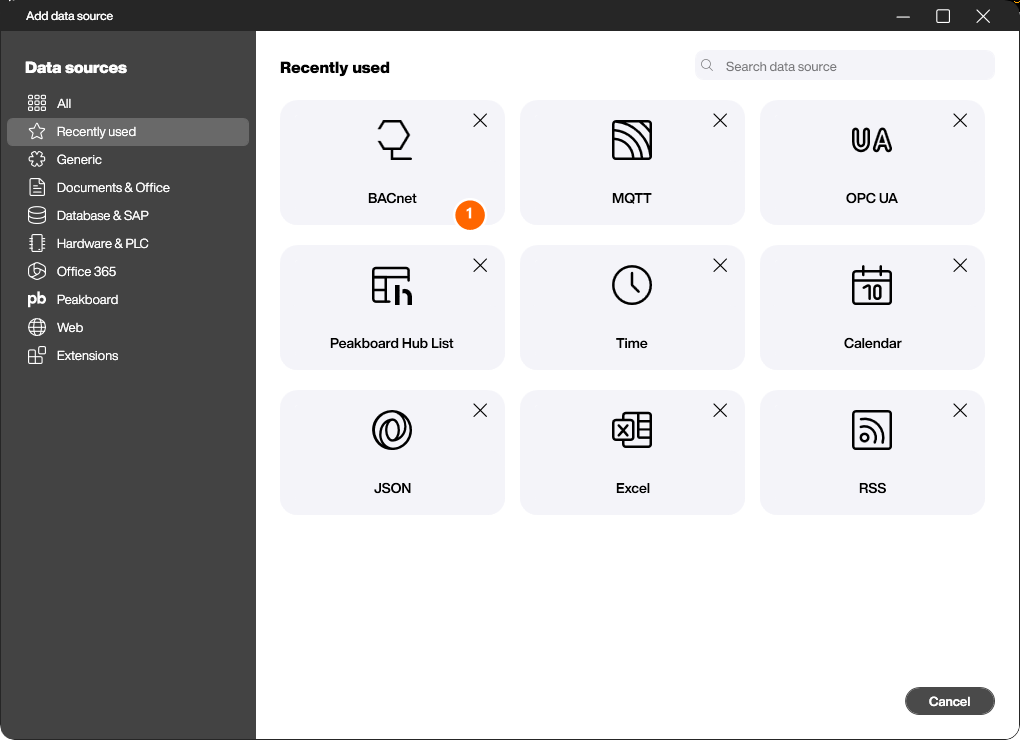
In the Explorer, select [Data] and click the plus button to create a new data source. In the following dialog, select the data source [BACnet] (1) – the search box in the top right is the fastest way to find it.
Configure the connection
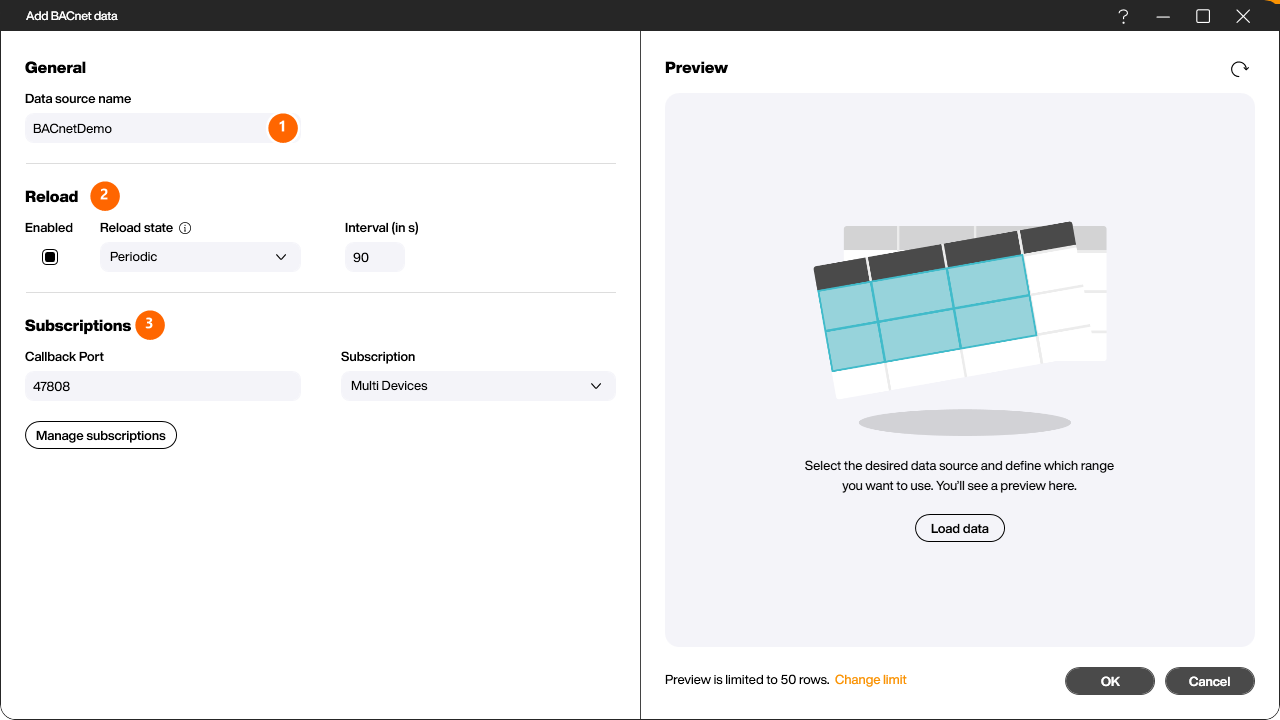
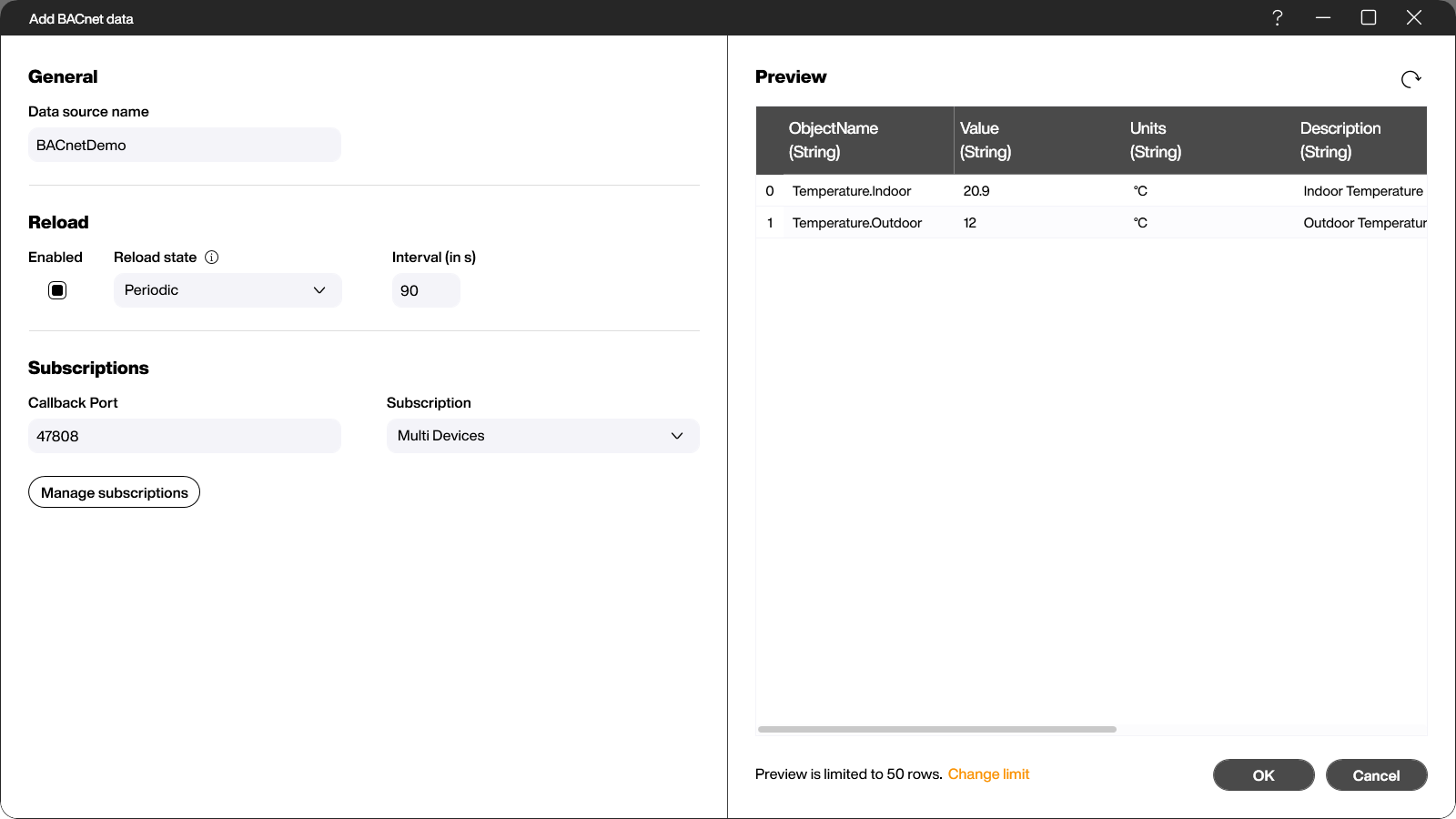
In the [Add BACnet data] dialog, first give the data source a name in the [General] section (1).
In the [Reload] section (2) you define whether and at which interval (in seconds) Peakboard re-reads the subscribed values. Under [Reload state] you choose between [Startup], [Periodic] and [Manual].
In the [Subscriptions] section you configure the connection to the BACnet network:
- [Callback Port] (3) – the local UDP port on which Peakboard listens for the BACnet responses of the devices. The default is
47808(the standard BACnet/IP port). - [Subscription] (4) – the subscription mode of the data source. It defines how the data source is bound to the devices:
- Multi Devices – objects from several devices can be subscribed to at the same time. Every subscribed object remembers its own device. This is the usual mode when you want to combine values from different controllers in one data source.
- Single Device – the data source is bound to exactly one device. In this mode the device IP and device ID can also be set dynamically (e.g. via a script using [Reload with parameters]), so the same data source can query different, identical devices one after another.
Then click the [Manage subscriptions] button (5) to open the device picker.
Manage subscriptions
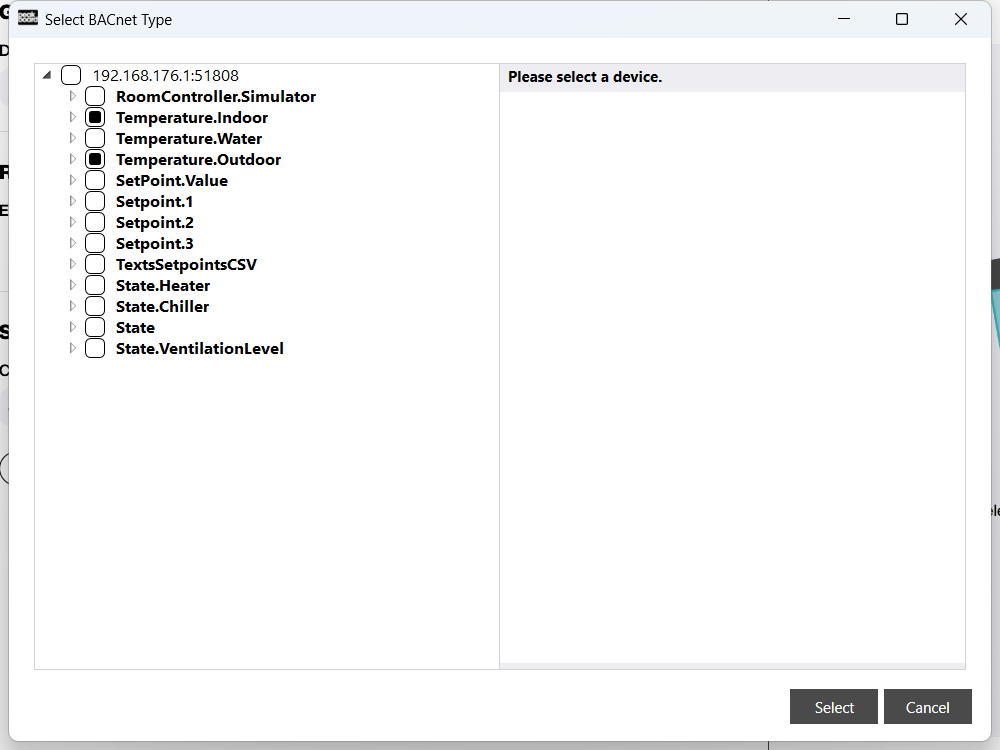
In the [Select BACnet Type] dialog, Peakboard automatically scans the network for reachable BACnet devices and displays them as a tree. Each entry shows the IP address and port of the device (1).
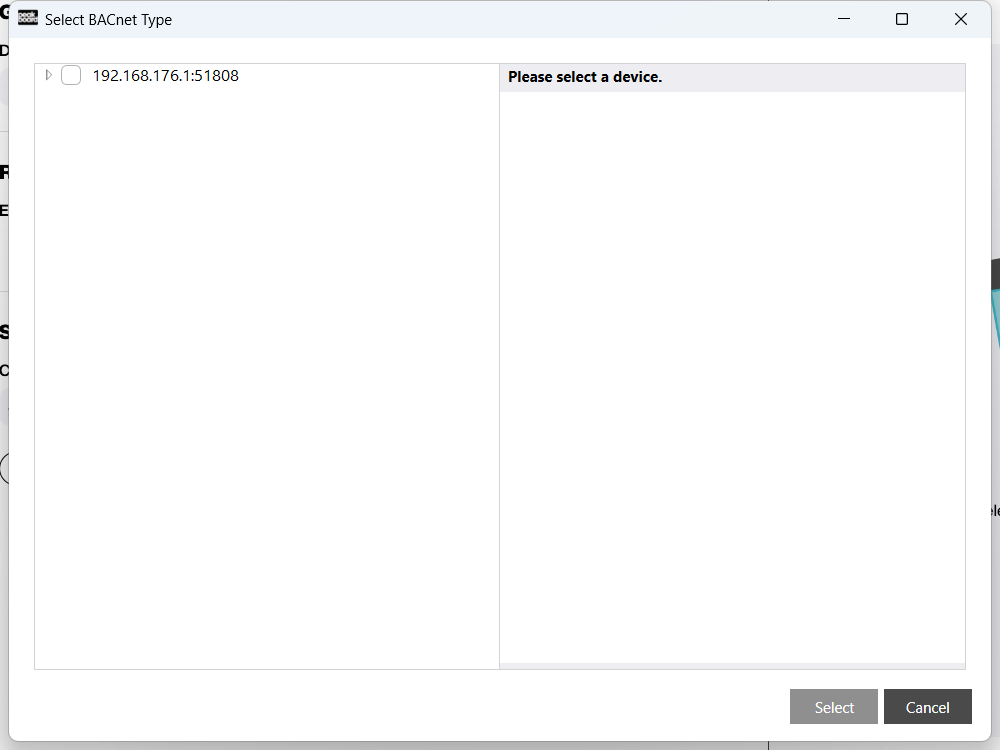
Expand the device with the arrow to reveal the individual objects it offers. Tick the objects whose values you want to use in Peakboard (1) – in the example Temperature.Indoor, Temperature.Outdoor, Temperature.Water, SetPoint.Value, State and State.VentilationLevel – and confirm with [Select] (2).
Load preview data
Back in the BACnet dialog, click [Load data] (1) to generate a preview of the values that are currently being read. Each subscription produces one row with the object name ([ObjectName]), the current value ([Value]), the unit ([Units]) and a description ([Description]) (2). This lets you verify on the spot that the connection works and the correct values are being read.
Click [OK] to create the data source. It then appears in the Explorer under [Data] and can be bound to any control, just like any other data source.
Display the data on a dashboard
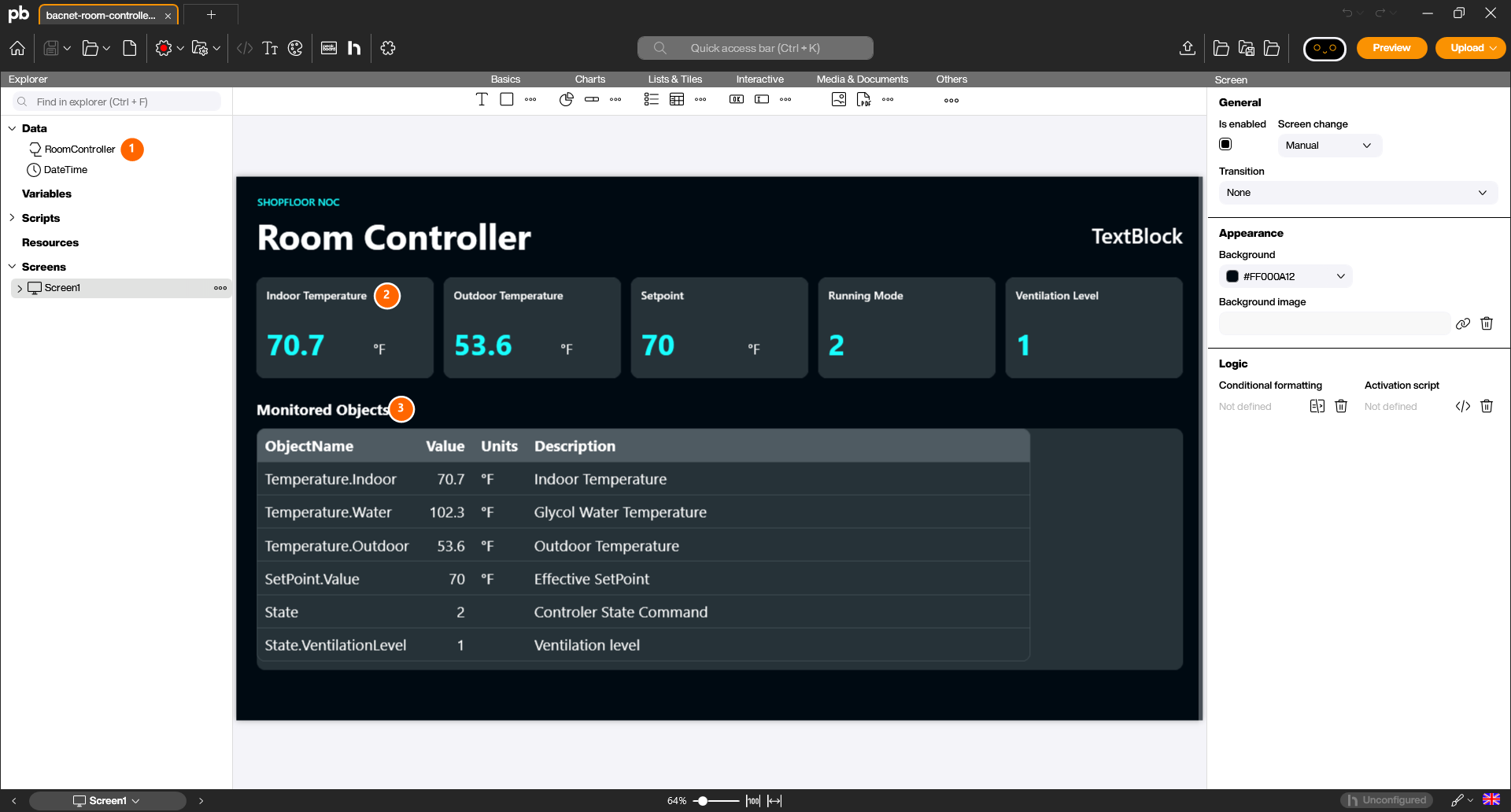
Link the data source to controls to show its values. Each control is bound to the [RoomController] data source (1). In the example, a row of stat tiles at the top shows the key readings – indoor and outdoor temperature, setpoint, running mode and ventilation level (2) – and a [Table] below lists all subscribed objects with their name, value, unit and description (3). All controls refresh automatically at the configured reload interval.
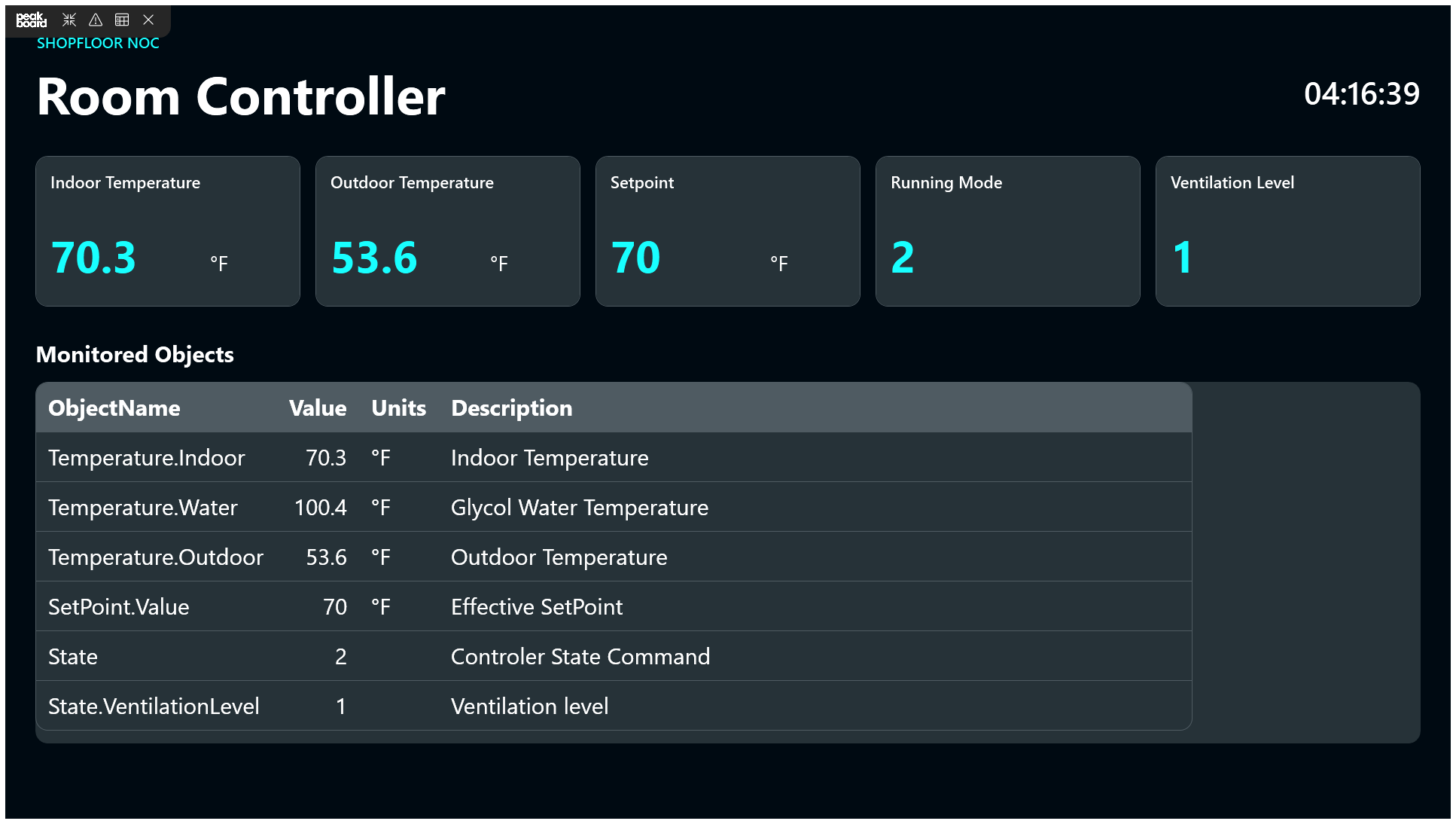
Click [Preview] to run the project in the Peakboard Runtime. The values are now refreshed at the configured interval and displayed exactly as they will later appear on a Peakboard Box or a BYOD device.
Extend BACnet with Building Blocks
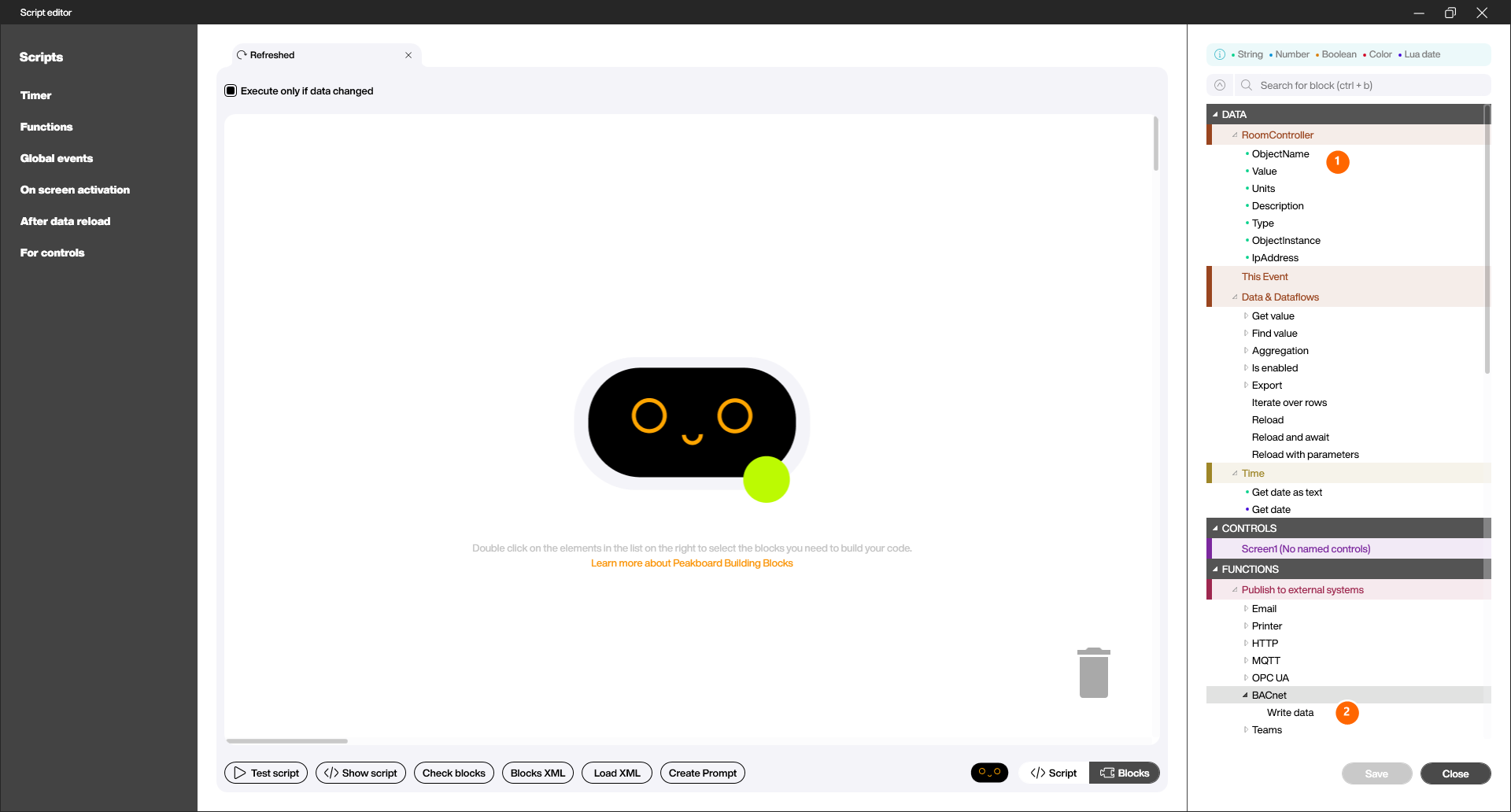
A BACnet data source is not limited to reading only. With the [Building Blocks], Peakboard’s visual script editor, you can react to the data and even write values back to the BACnet device. To do so, right-click the data source and choose [Edit reloaded script] – the script runs after every reload of the data.
The block catalog gives you two things here:
- Under [DATA] you find the [RoomController] data source with its fields [ObjectName], [Value], [Units], [Description] and more (1). This lets you reuse the read values in your logic – for example to raise a warning when a temperature gets too high.
- Under [Functions] → [Publish to external systems] → [BACnet] there is the [Write data] block (2). With it you write a value back to a BACnet object, for example to set a new setpoint or switch the running mode. This makes BACnet usable in both directions: reading via the subscriptions, writing via the Building Blocks.
You can download the finished example project and open it in the Peakboard Designer to explore the BACnet data source, the subscriptions and the Table binding. Because BACnet provides live data, you need a reachable BACnet device (or a simulator) in your network to display values: Room controller dashboard (.pbmx).