
Peakboard hub
Alert as browser push notification
In this article you will learn how to receive alerts from Peakboard Hub as browser push notifications. Once configured, you will receive direct browser notifications when new alerts occur.
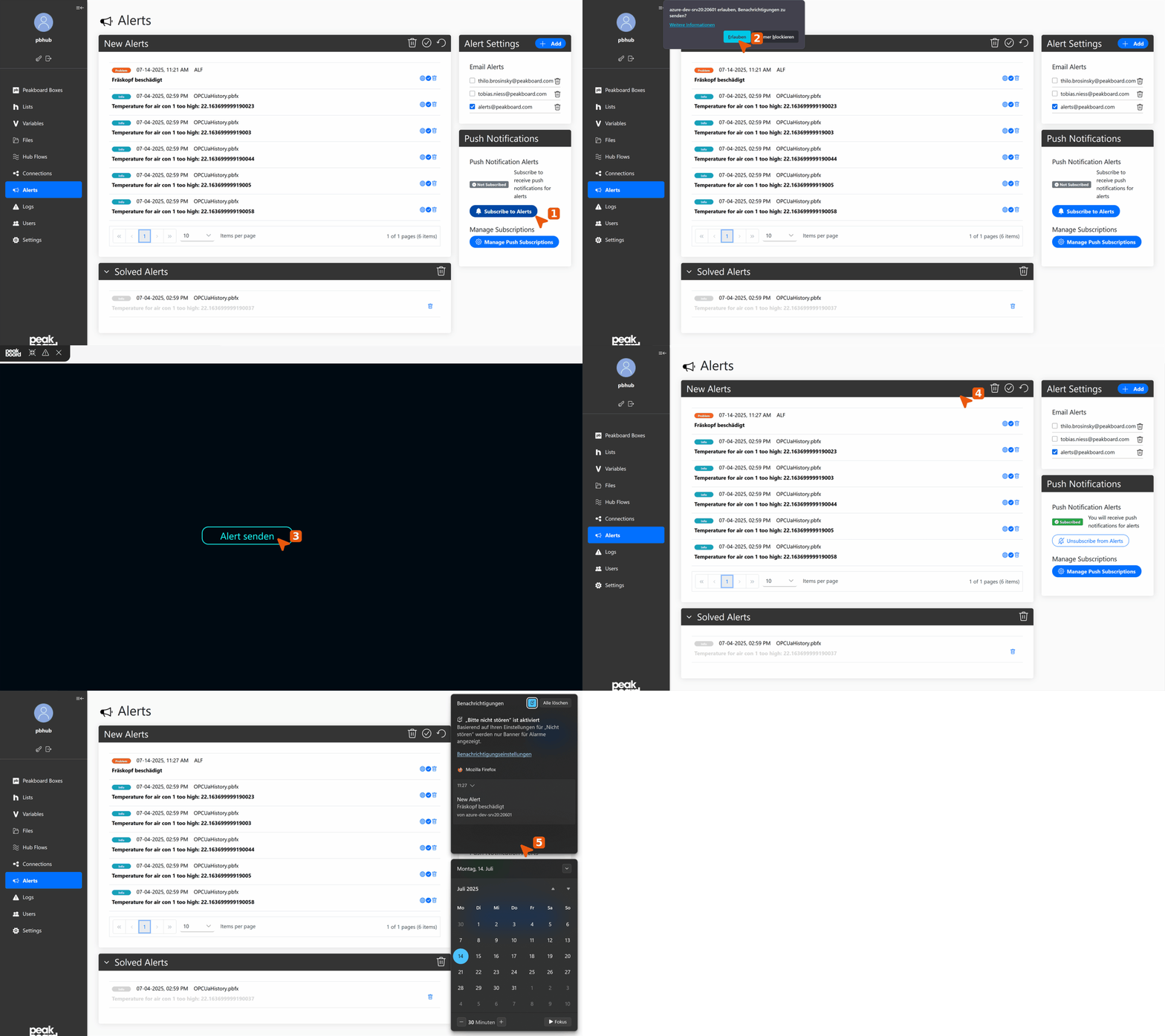
Activate push notifications
- Open alerts page and subscribe: Open the Alerts page in Peakboard Hub. In the right panel, find the [Push Notifications] section with the status [Not Subscribed]. Click [Subscribe to Alerts] to activate notifications. The subscription must be made on the device that will receive the notifications (Windows, MacOS, Android, or iOS).
- Grant browser permission: The browser will prompt you via a popup to allow notifications. Click [Allow] to enable push notifications. This permission is mandatory.
Send and test alert
After successful setup, you can test the function by sending an alert from your visualization. The alert will be displayed both in Peakboard Hub and as a Windows notification via the notification center.
To deactivate push notifications, click [Unsubscribe from Alerts] in the same section.


