
Peakboard hub
Value constraints for variables
In this article you will learn how to set value constraints for variables in Peakboard Hub.
Numeric variables
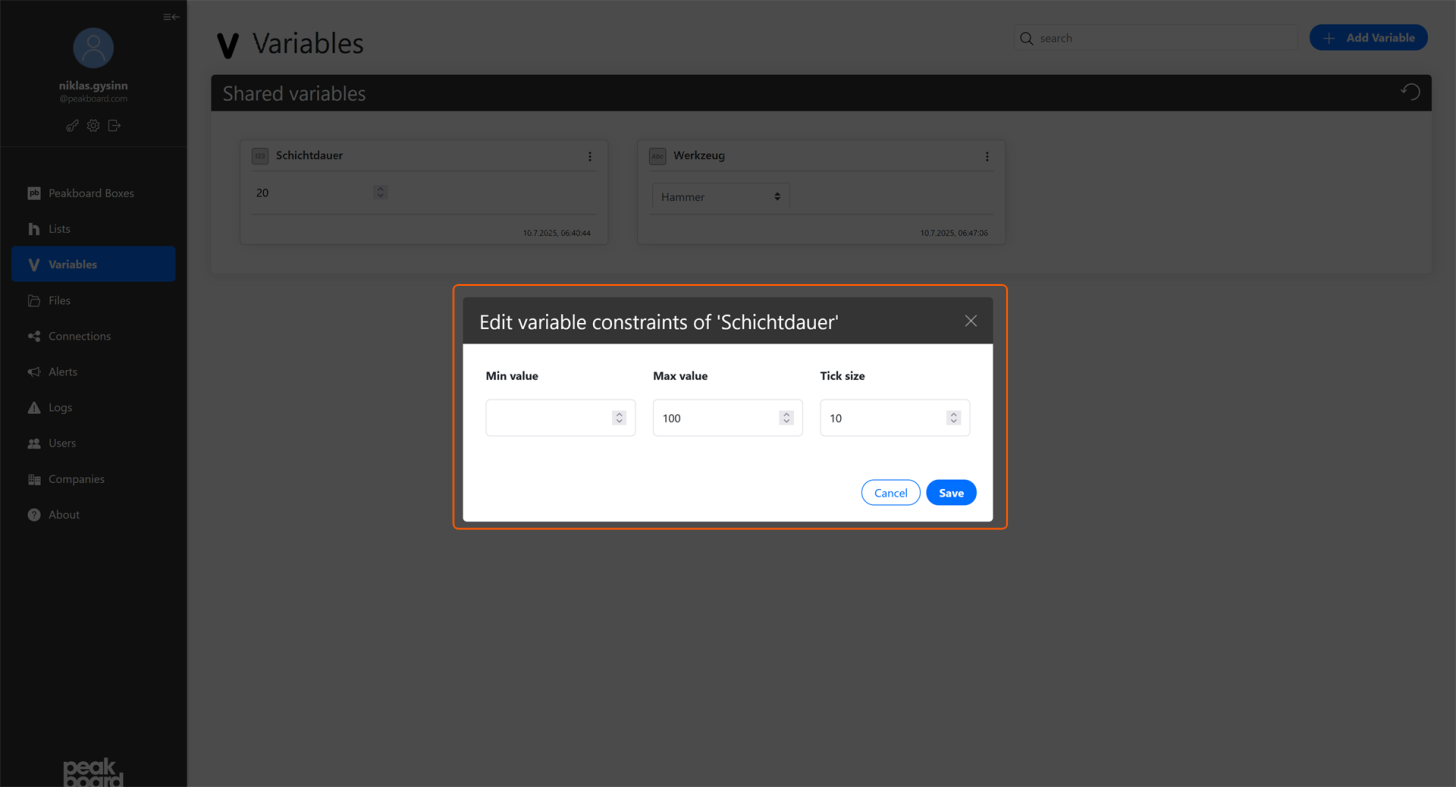
For variables of type Number, three constraint options are available:
- Min value: Sets the lowest allowed value.
- Max value: Determines the maximum allowed value.
- Tick size: Defines the step size for value changes.
Confirm the settings with [Save] or discard them with [Cancel].
String variables
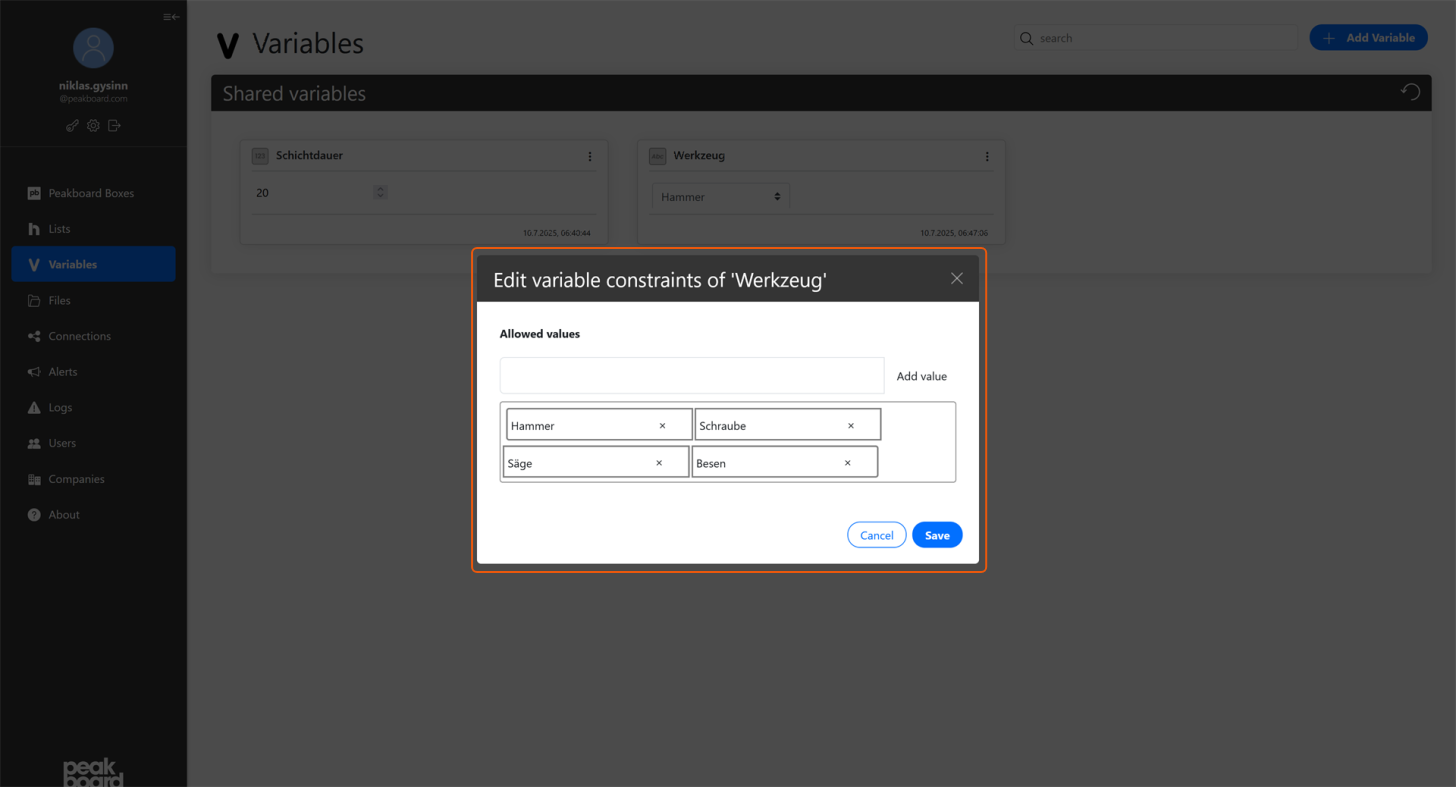
For string variables, you can define allowed values via [Edit Constraints]. You can add individual allowed entries that will then appear in a dropdown list when using the variable. Values can be removed individually or new entries can be added.
Alternatively, you can define constraints using regex patterns to ensure format requirements.
Constraints when creating new variables
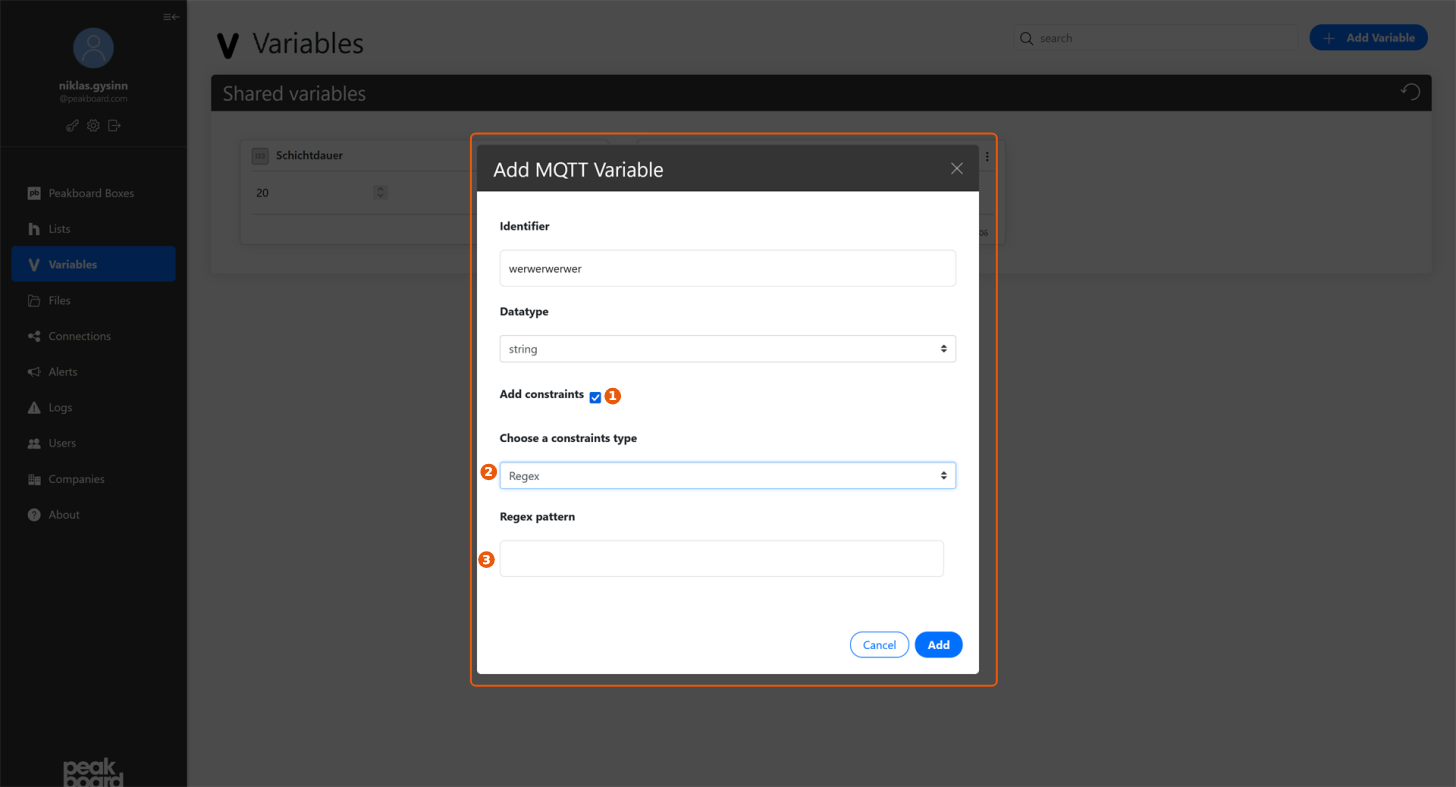
When creating a new variable via [+ Add Variable], you specify an identifier (variable name) and the data type. By activating [Add constraints], data type-specific options are displayed:
- For String: Choose between [Values] (individual allowed entries) or [Regex] (pattern matching for format validation).
- For Number: Define Min value, Max value, and Tick size.
Complete the process with [Add].


