
Peakboard hub
Flows – Introduction
Peakboard Hub Flows are server-side data projects that run directly in Peakboard Hub – not on a Peakboard Box or a BYOD device. A flow has no user interface: it reads, processes, and distributes data in the background. Flows are built in Peakboard Designer and executed in Peakboard Hub.
Two project types
In Peakboard Designer you work with two types of project:
- Design projects (
*.pbmx): The classic projects with a user interface. They run on the Peakboard Runtime on a Peakboard Box or a BYOD device. - Flow projects (
*.pbfx): Data projects without a user interface. They run in Peakboard Hub and execute your data logic there.
Everything except the user interface
A flow project uses the same building blocks as a regular project – just without screens:
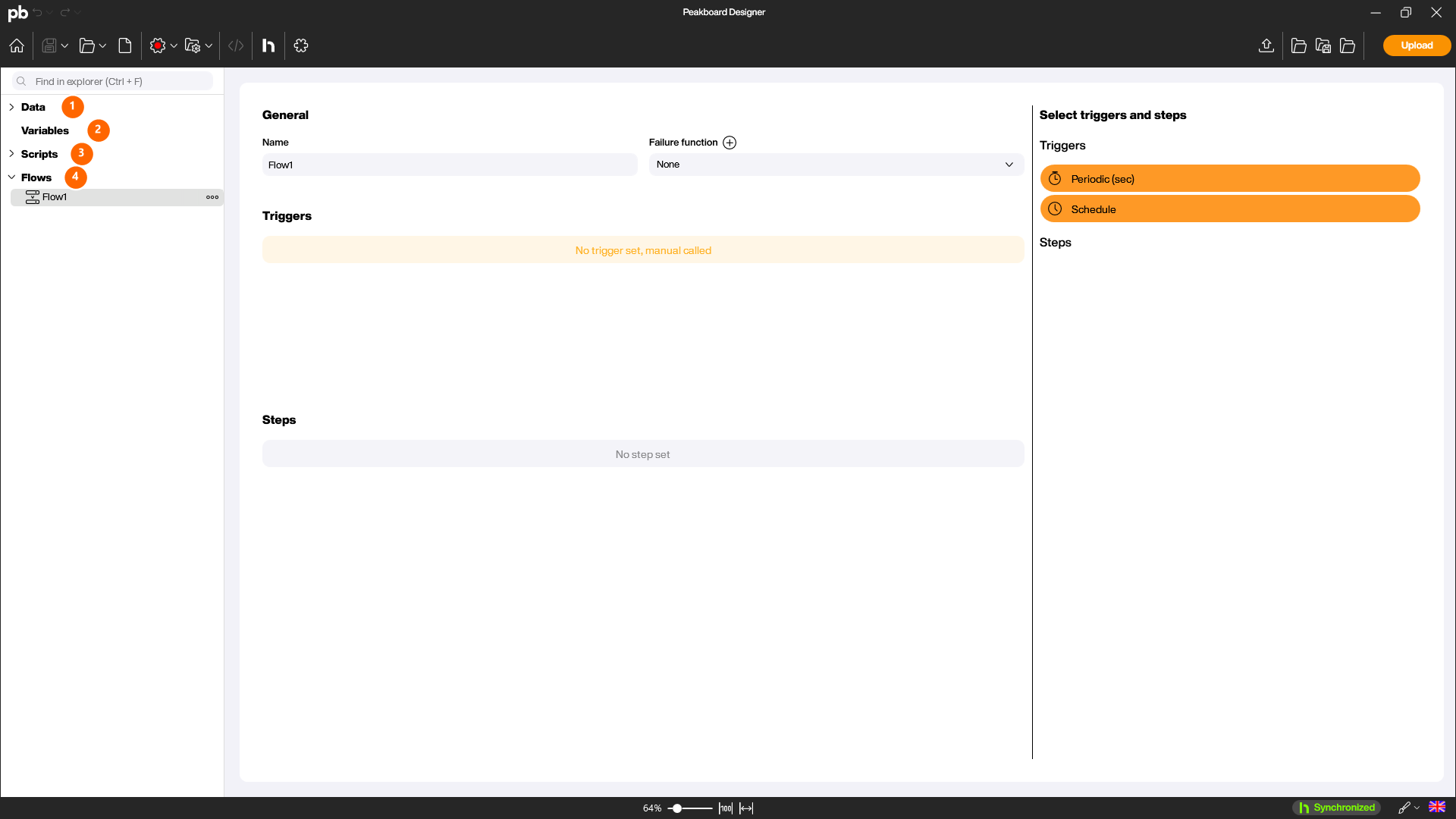
- Data (1): Data sources such as SQL Server, SAP, OPC UA, MQTT, or Siemens S7 – exactly the same selection as in a design project. Dataflows for cleaning and preparing the data are available too.
- Variables (2): Variables, optionally with a Peakboard Hub connection, to distribute values live.
- Scripts (3): Functions that you build with the Building Blocks (or in Lua).
- Flows (4): The flows themselves, which bring triggers and steps together.
One node is missing here: Screens. Because a flow has no user interface, the entire UI part is gone.
Nothing runs on its own
This is the most important difference from a design project: in a flow, data sources, dataflows, and functions are never executed automatically. Instead, the flow controls the whole sequence.
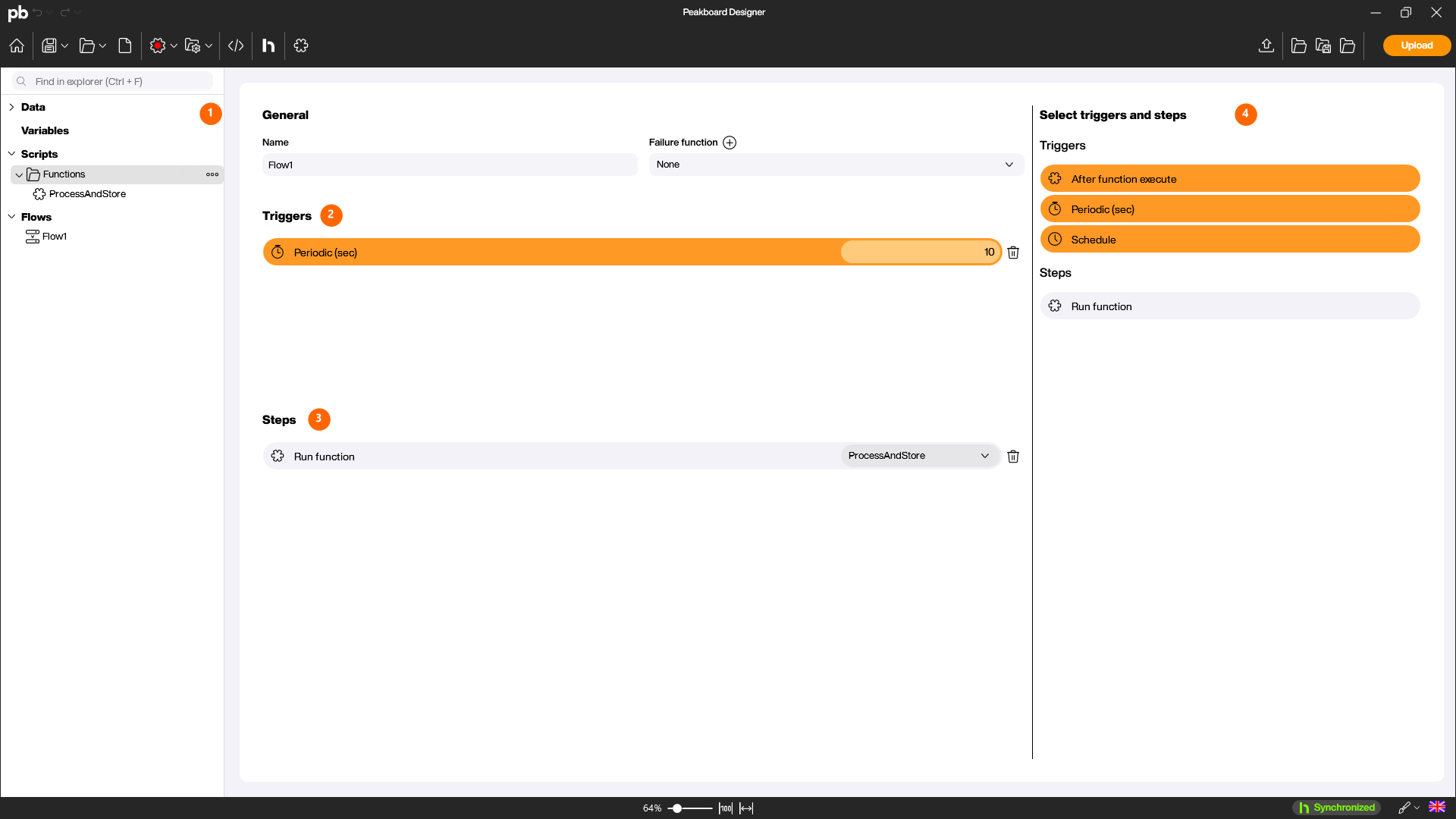
A flow consists of two parts:
- Trigger (2): Determines when the flow starts – for example [Periodic (sec)] for time-based execution at a second interval, [Schedule] for fixed times, [After function execute], or a manual call.
- Steps (3): The steps the flow runs one after another – such as [Run function] to execute one of your functions. That function might reload a data source, process the data, and write the result to a Peakboard Hub list or variable.
In the [Select triggers and steps] (4) area you drag the available triggers and steps into your flow. On the left you also see the project structure with all data sources, variables, and functions (1).
Requirement: Peakboard Hub on premise
Flow projects require a Peakboard Hub on premise. Peakboard Hub Online does not currently support data projects.
What you use flows for
With flows you build data logic centrally in Peakboard Hub. Typical scenarios:
- Workflows and notifications: for example, send an email when a machine goes down.
- Stage data and save connections: a single connection to the data source whose result many Peakboard Boxes retrieve from the Hub.
- Live broker for PLC values: read a PLC once and distribute the values live via Peakboard Hub variables.
For a detailed description of these scenarios, see Flows – Use cases. To build your first flow step by step, see Create flow.


