Peakboard hub
Peakboard Hub API
The Peakboard Hub API enables seamless integration of Peakboard applications into custom environments. A Peakboard Hub Online or Peakboard Hub On-Premises license is required to use the API.
Setting Up the Peakboard Hub API – On-Premises Only
To install the Peakboard Hub API, you need the Peakboard Hub Setup, which can be downloaded here.
Prerequisites
The Peakboard Hub On-Premises is hosted locally on your server and requires Windows Server 2016 or newer. The API runs as its own Windows service — IIS is not needed. The required ASP.NET Core Runtime is installed by the setup if it is missing.
Note: A running Peakboard Hub instance is essential for full API functionality. The API does not need to reside on the same server but must have access to the same database.
Installation
Download the setup and run it with administrator privileges. On the first Choose Components page select Peakboard Hub Public API. If you only want to install the API, uncheck Peakboard Hub. On the Installation Folders page choose the folder of the API; the default is C:\Program Files\Peakboard\PeakboardHubApi.
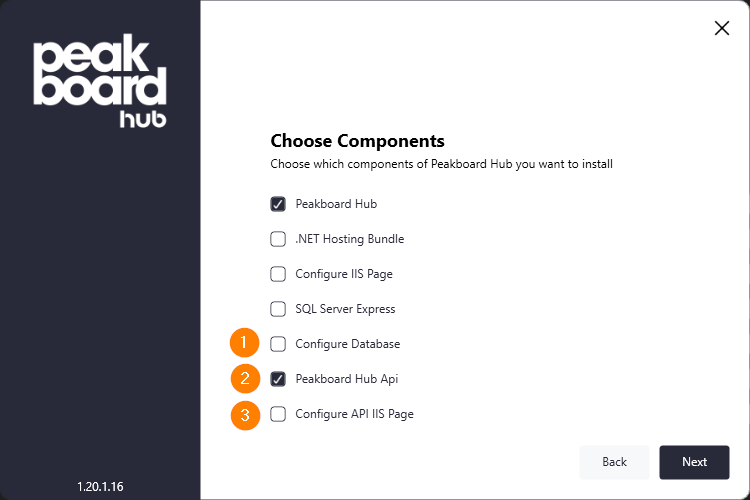
The Install Public API page lists what the setup does for a new API: it copies the program files, sets up the database connection and creates the Windows service PeakboardHubApi. On the Service Configuration page you choose its HTTP port (default 20688) and, optionally, HTTPS (default port 20689).
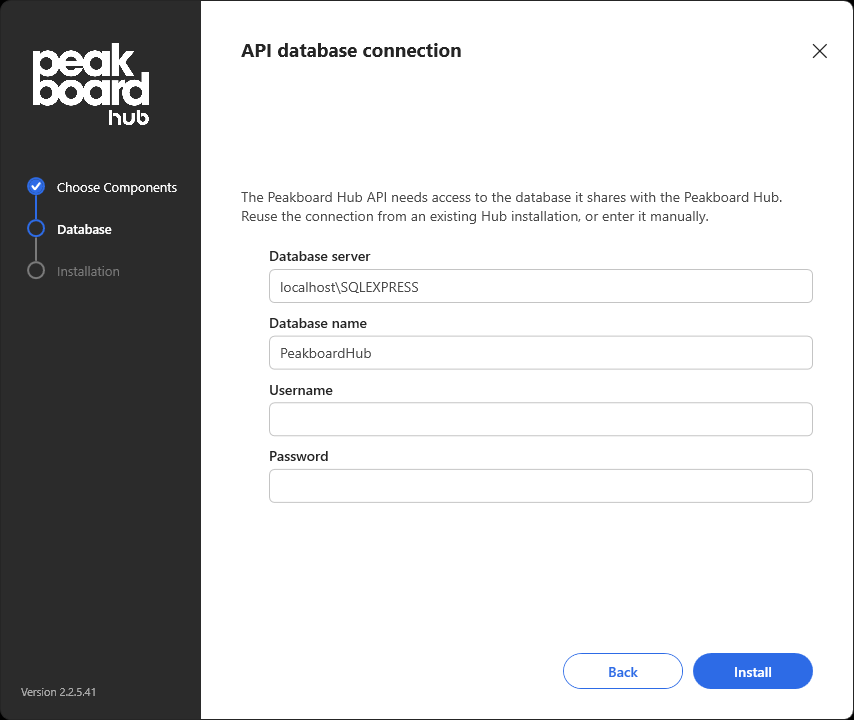
The API shares the database of the Peakboard Hub. On the API database connection page the setup fills in the connection of a Peakboard Hub on the same server; otherwise enter the database server, database name, username and password yourself.
All steps of the setup are described in the Installation article.
Updating the API
To update the API:
- Download the latest setup version here.
- Select Peakboard Hub Public API on the first page and the folder of the existing API on the Installation Folders page.
- The API keeps its own database connection unless you choose to configure the database again.
An API that still runs in IIS is migrated to a Windows service during the update, see Migration from IIS to a Windows service.
Using the Peakboard Hub API
API Key

An API key is required to access the API. Generate the key from the user group page:
- Peakboard Hub Online: Log in at hub.peakboard.com and navigate to Organization → API KEYS.
- Peakboard Hub On-Premises: Log into your local Hub and navigate to Users → API KEYS.
API keys are tied to the permissions of the respective user group and grant access to specific resources within that group. Additionally there are api key specific permissions, which are
- read:lists
- write:lists
- read:alerts
- write:alerts
- read:box
- write:box
You can also set an expiration period for each key.
Tip: Keys can be managed, edited, or deleted from the same page.
Note: You need Users access rights to manage API keys. If unavailable, ask an admin to create a key for you.
Authorization
To use the API: Access the main API page for available calls:
- Peakboard Hub Online: https://api.peakboard.com/public-api/index.html
- On-Premises:
<your-local-api-path>/public-api/index.html
Obtain an authorization token by making a GET request to:
- Online: https://api.peakboard.com/public-api/v1/auth/token
- Peakboard Hub On-Premises:
<your-local-api-path>/public-api/v1/auth/token
Include the header: 'apiKey': '<your-api-key>'.
Use the token in subsequent calls by including the header:
'Authorization': 'Bearer <your-authorization-token>'.
Note: Tokens are temporary and must be renewed once expired.