Controls
Rich Text
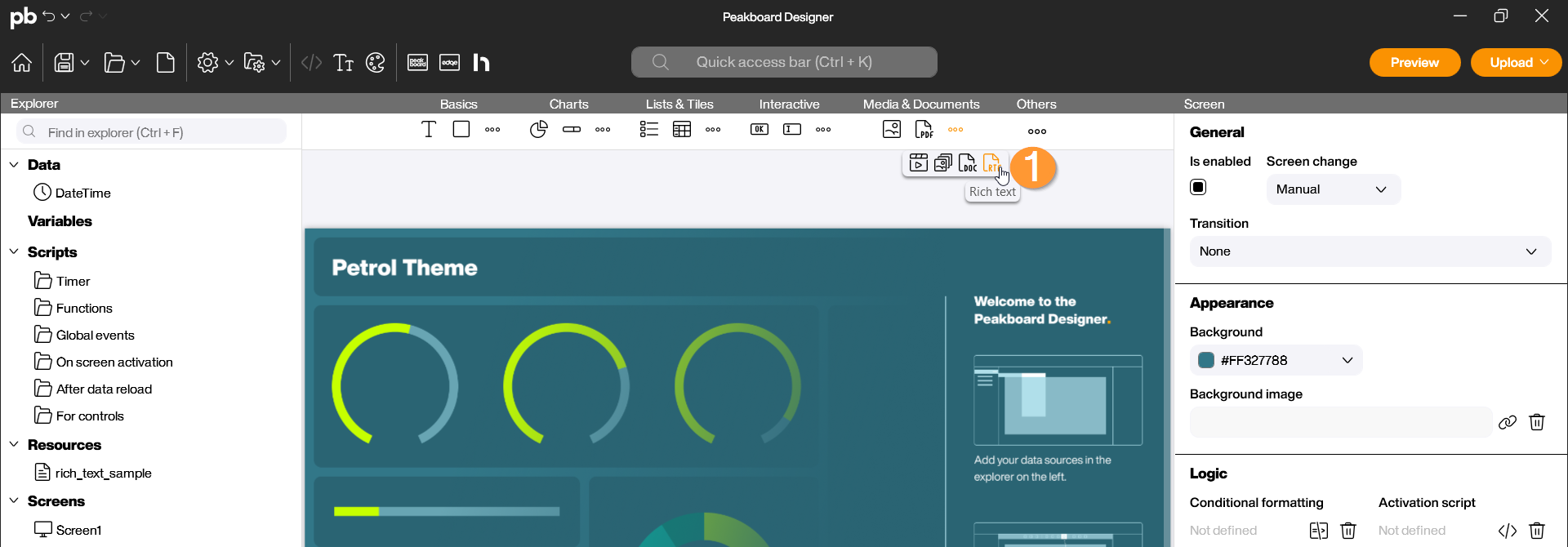
The Rich-Text control enables you to integrate formatted text such as work instructions, detailed descriptions, or formatted messages directly into your visualization. Unlike the standard Text control, it supports various font styles, colors, and alignments within a single element and can process both static and dynamic content. You can find the Rich-Text control in the Peakboard Designer in the Media & Documents group (1). Drag and drop the icon into your designer or place it on your workspace with a double-click.
Configuration and Data Binding
1 Data Source and Selection
A Rich-Text control can be filled with content flexibly. Once the control is placed on the workspace, the configuration dialog opens automatically. Here, the data source can be added to the control.
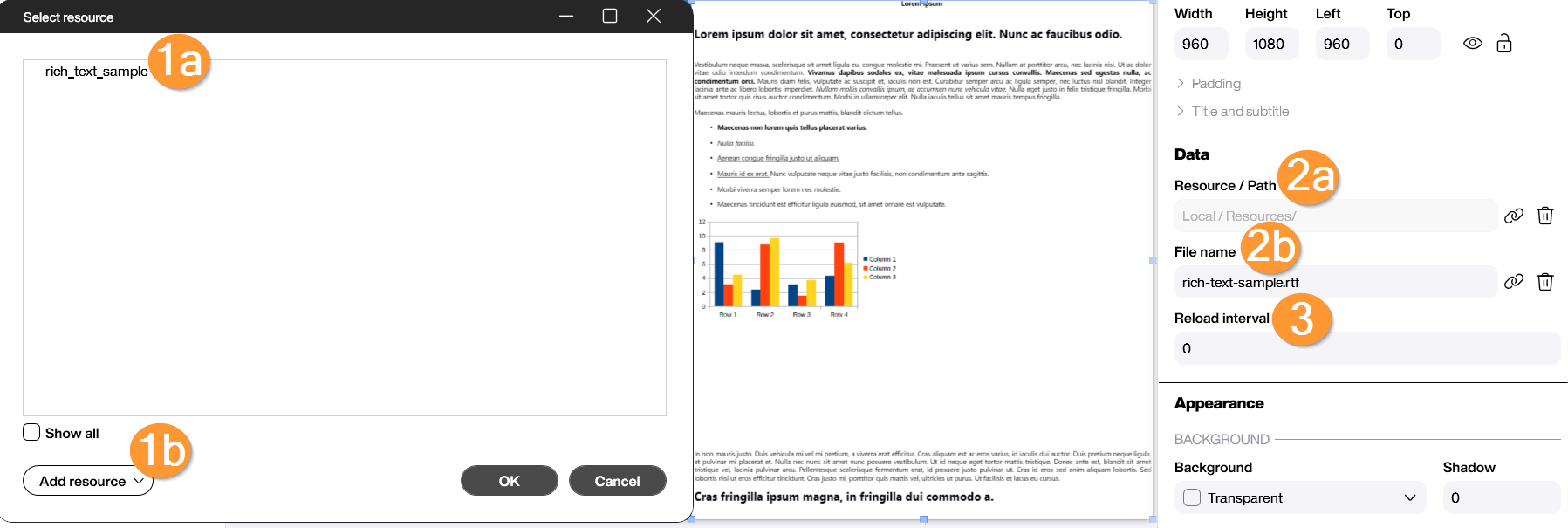
- Select Resource: In this window, you can choose from the document resources already added by the Designer (1a). The resource can be inserted from the local storage using “Add first resource,” or the location of the document can be selected and added to the Designer using “Add resource” (1b).
- Dynamic Linking (Data): Under Data and Resource/Path, you can select the document from the added resources (2a). The content can also be linked to a data source under Filename (2b).
- Reload interval (Data): Specify the number of seconds after which the document should automatically reload. This is particularly useful for live dashboards or news tickers (3).