Controls
Time Picker
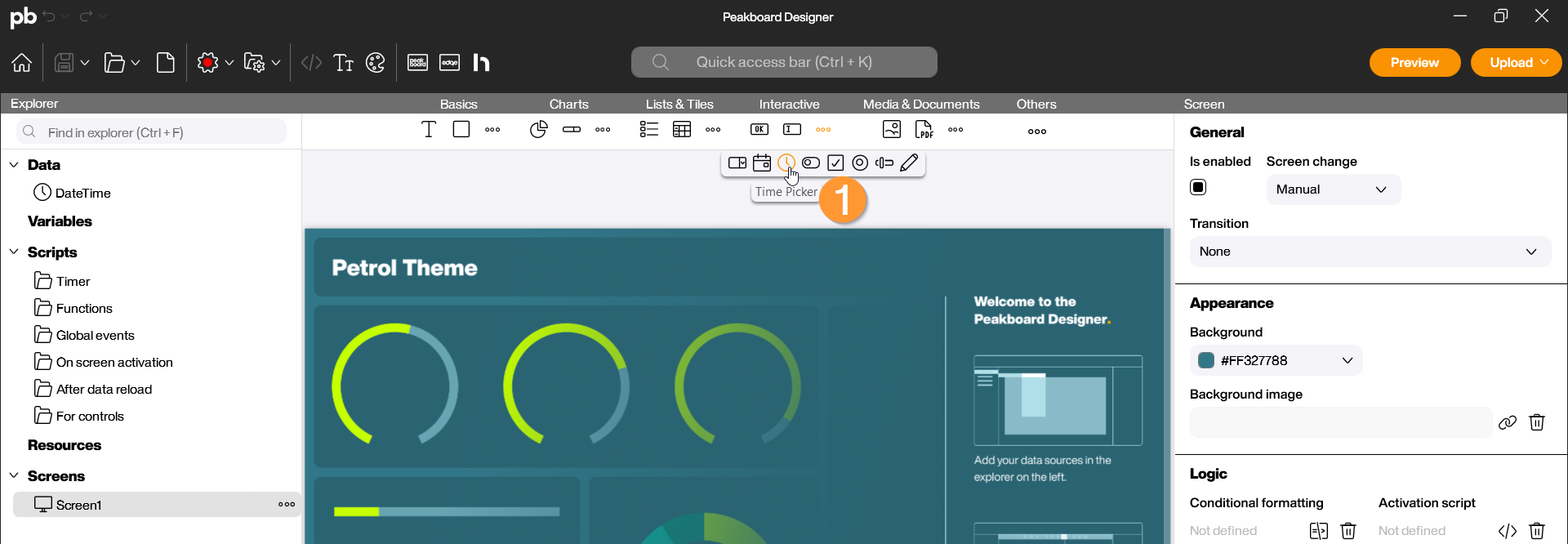
The Time Picker control is an interactive control that allows for a time to be conveniently set via a selection dialog. This is particularly useful for applications where time periods need to be defined (e.g., shift start times, booking timestamps, or alarm settings). Important distinction: While the DateTime data source only represents the current system time as a read-only value, the Time Picker serves for active user input and is thus changeable at runtime. You can find the Time Picker in the Peakboard Designer in the Interactive group (1). Drag and drop the icon into your designer or place it on your workspace with a double-click.
Configuration and Properties
1 Data Source and Selection
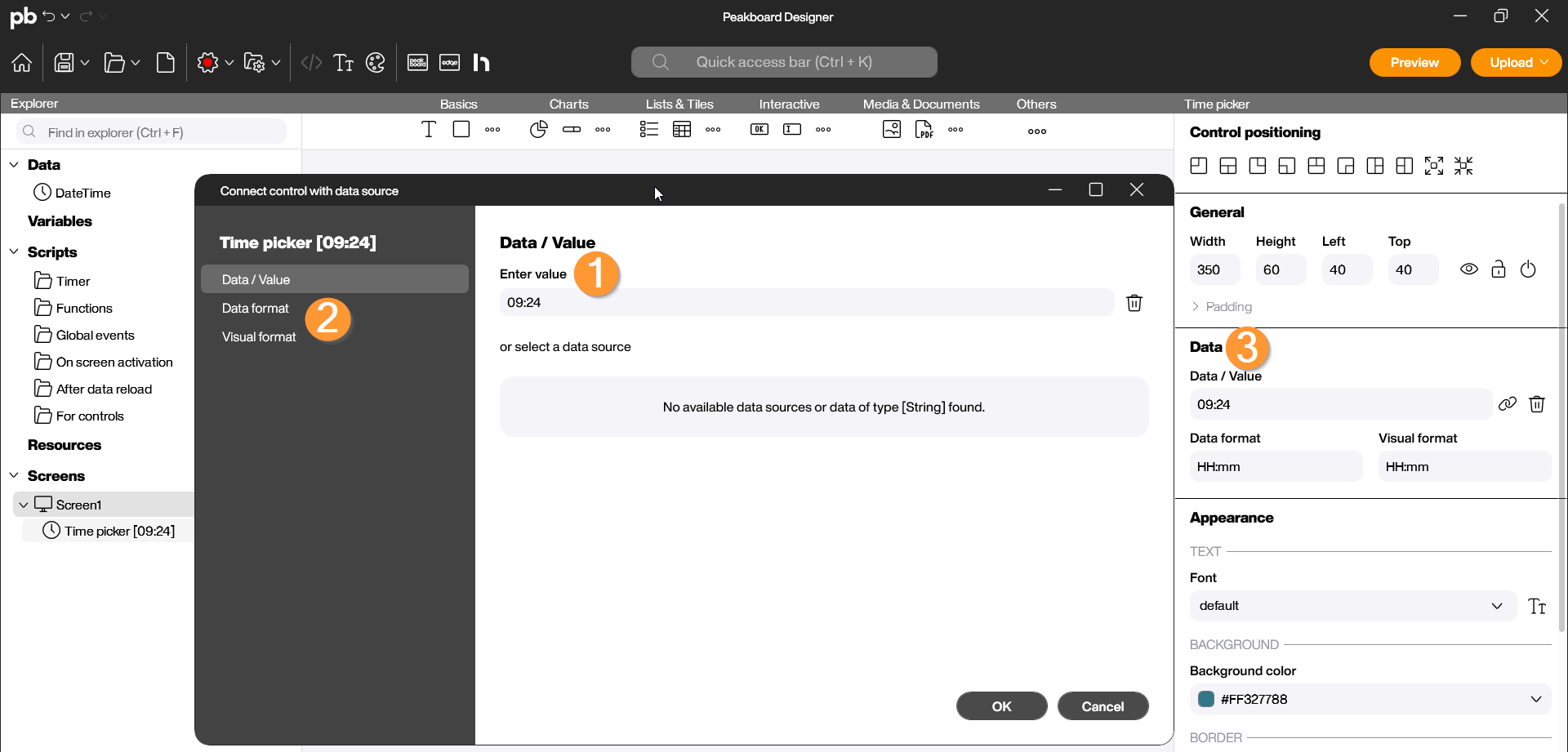
A Time Picker is usually initialized with a start time and can react dynamically to inputs. Double-click the control to open the configuration dialog:
- Enter Data/Value: Set which time should be displayed by default when the visualization starts. You can choose a fixed time (e.g., 08:00) or bind the value dynamically to a data source (1).
- Data Format/Display Format: Determine the format in which the time is displayed in the input field (e.g., HH:mm for hours and minutes or HH:mm:ss if seconds are also relevant) (2).
- This specification can also be adjusted in the control’s properties on the right side under Data (3).
2 Output language and icon color
Two further properties are worth knowing, because both of them can also be driven by conditional formatting and can therefore react to your data:
- Output language (Data section): the language the time is written out in. This becomes visible as soon as your display format contains a text component — with the format
hh:mm ttthe same time reads 02:30 PM in English and 02:30 nachm. in German. The default is English. - Icon color (Appearance section): the color of the clock icon inside the input field. By default it takes on the background color of the control. Via conditional formatting you can, for example, color the icon red as soon as the selected time lies outside of the shift.
Scripting
The Time Picker control provides access to the selected time to use it for logic operations or data updates.
Example: Output selected time in the log
In this example, we use the “TextChanged” event of the Time Picker to generate a message in the log with every change of time.
Steps in the Script Editor:
- In the Designer, open the Script Editor on the bottom right under Logic and the “TextChanged” event.
- Select the “get value” building block (value) in the area of your screen under the name of the control (e.g., TimePicker_Control) and drag it into the editor.
- Link this value to the “Write to log” block from the Peakboard Box category.
- Save the script via Save and Close.
Start the preview and check in the Log (1) to see if the return value is correctly returned depending on the content of the control.

In this video, it is once again illustrated how the script for this example is built and tested for successful functionality: