
Administration
Installing the Peakboard Runtime
The Peakboard Runtime Setup installs the Peakboard Runtime on any Windows device, turning it into a Peakboard BYOD. The graphical wizard guides you step by step through component selection, the installation path and the installation itself. Afterwards the device can be added to the Peakboard Designer.
If you want to install unattended from the command line (e.g. for automated rollout), use the Silent Installation instead.
Download the PeakboardRuntimeSetupUI.exe and run it. Because the setup configures Windows services, registry entries and certificates, it must be run as an administrator – confirm the Windows User Account Control prompt that appears with [Yes].
Starting the setup
After launching, the wizard greets you. Click [Start] (1) to begin the installation. If a Peakboard Runtime is already installed on the device, the wizard shows the installed version instead and offers to update it to the new version.
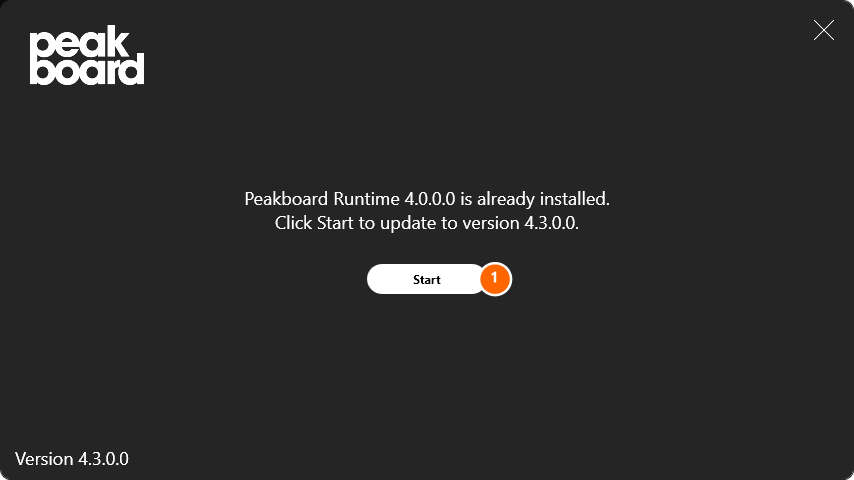
Choosing the components
Decide which components should be installed:
- [Create Start menu shortcuts] (1) – creates a shortcut in the Start menu (enabled by default).
- [Run Peakboard on startup] (2) – adds the Peakboard Runtime to the Windows autostart so it launches automatically after logon.
- [Block unencrypted connection] (3) – blocks the unencrypted connection channel (port 40404), allowing encrypted connections only.
Confirm your selection with [Next].
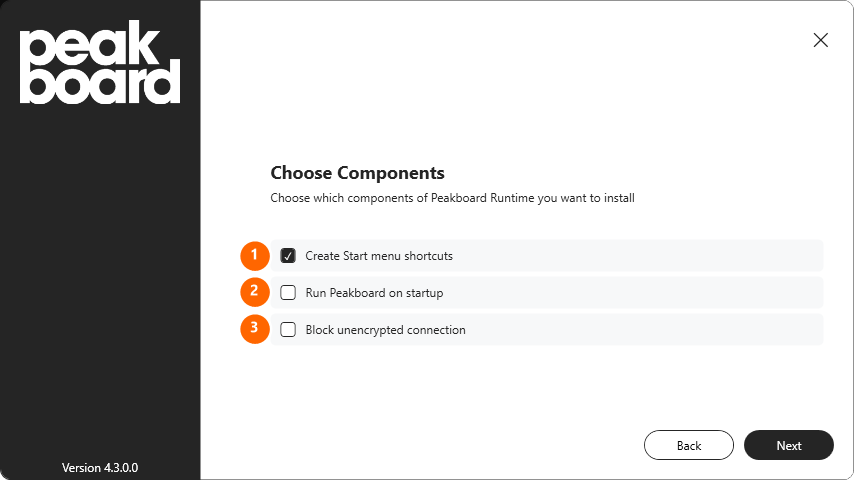
Choosing the installation path
In the [Installation path] field (1), enter the target directory into which the Peakboard Runtime should be installed. The default is [C:\Program Files\Peakboard]. Use the button with the folder icon (2) to pick a different directory. Then click [Next].
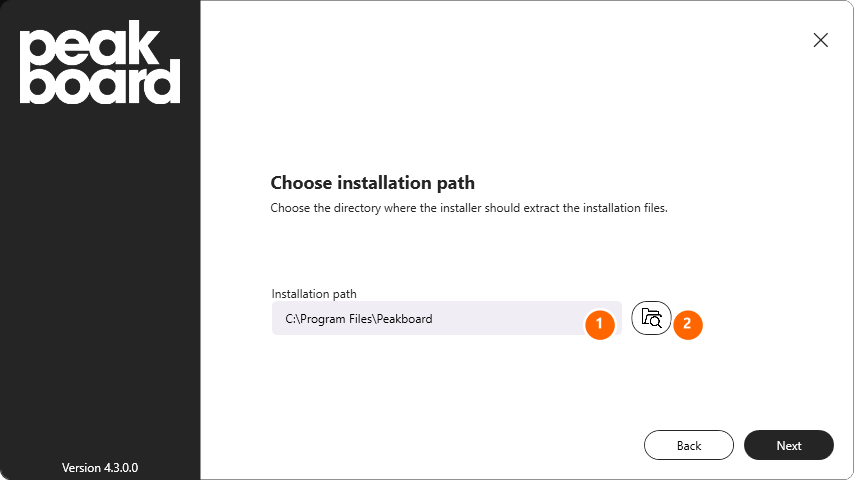
Running the installation
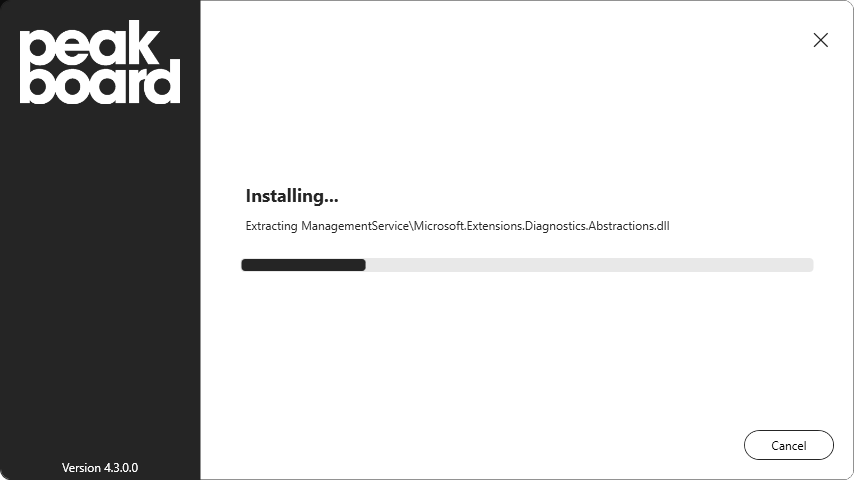
If a Peakboard Runtime is already running on the device, the wizard notifies you and closes it before updating. The installation then runs – a progress bar shows the current status. Among other things, the program files are extracted and the Windows services of the Peakboard Runtime are set up.
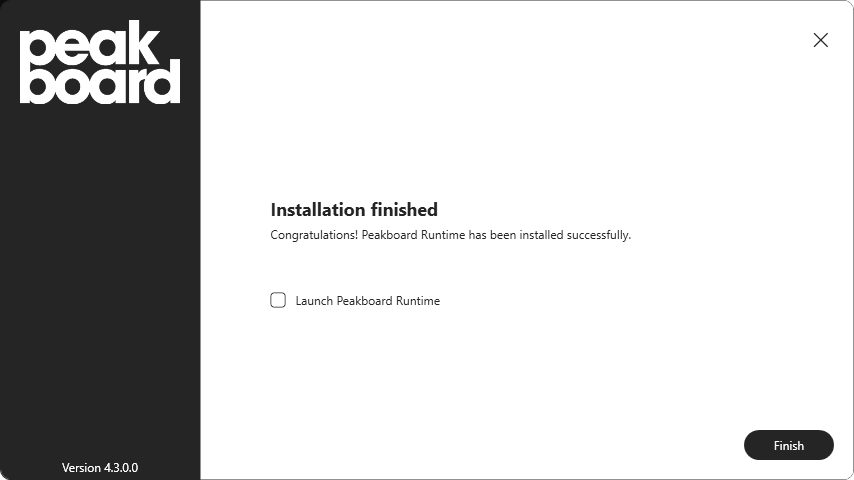
Once finished successfully, the wizard reports the completed installation. Enable the [Launch Peakboard Runtime] option if the Peakboard Runtime should start right after the wizard closes, and close the wizard with [Finish].
The installation requires Windows 10 (version 20H1, build 19041) or newer.


