Peakboard hub
Peakboard LINK licensing
Every screen that shows a Peakboard LINK needs a license. There are two kinds of licenses, and a screen needs only one of them:
- Device license: belongs to one screen. It is bound to one browser, so if several Windows users work on the same PC, each of them needs their own device license. Anybody who opens a board on this screen sees it, no sign-in needed. Use it for screens that always hang in the same place, such as a TV on the shop floor.
- User license: belongs to one Hub user. The user signs in on the license page of any screen and opens the Peakboard LINKs of their user group there. Use it for people who move between screens, for example with a tablet.
Note: Peakboard LINK is currently a beta feature and available in the Peakboard Hub on premise only. The number of device licenses and user licenses is part of your Hub license. If you need more, contact sales@peakboard.com.
Device licenses
A screen is one browser on one device. The Peakboard Hub recognizes it by an identifier that it stores in this browser. A second browser or a private window on the same PC therefore counts as another screen. One device license covers everything the screen opens: all Peakboard LINKs and all of their instances.
To manage the device licenses, click the tile Available device licenses on the Peakboard LINK page. The dialog Peakboard LINK devices opens:
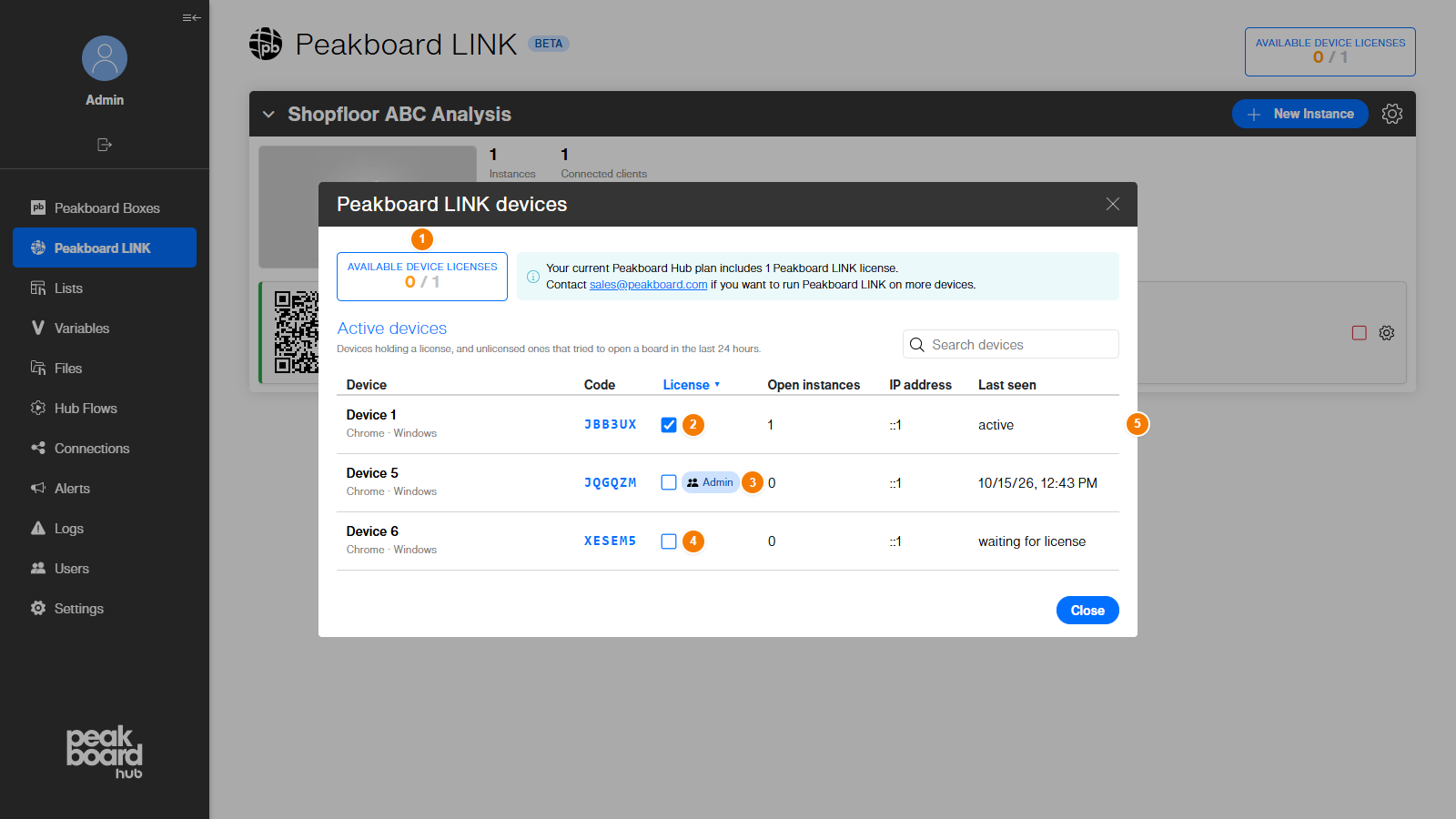
- Available device licenses: free device licenses, out of all device licenses in your Hub license. The info box next to it shows how many device licenses your Hub license includes. The number turns orange when all device licenses are assigned.
- License: select the check box to assign a device license to the screen with this Code. The screen shows the board after a few seconds, without anybody touching it. Clear the check box to take the license back. The screen then returns to the license page.
- User license: a screen that is used by a signed-in Hub user shows the name of the user next to the check box. It needs no device license (see User licenses).
- Check box not available: if all device licenses are assigned, you can’t select the check box of another screen. Free a license on another screen first.
- Last seen: active while the screen shows a board, waiting for license while an unlicensed screen tries to open a board, otherwise the time the screen was last connected.
The list contains all screens that hold a device license, and all unlicensed screens that tried to open a board in the last 24 hours. Open instances shows how many instances the screen has open right now, and IP address the address it connected from last. Use the pencil next to the device name to give a screen a meaningful name, for example Hall 2 - line 1. A screen that never got a name is called Device 1, Device 2 and so on.
A device license stays with its screen until you clear the check box. It is never removed automatically. Unlicensed screens that are not used any more are deleted after 7 days. If such a screen opens a board again later, it gets a new screen code.
User licenses
A user who holds a user license can sign in on the license page of any screen. The screen itself then needs no device license.
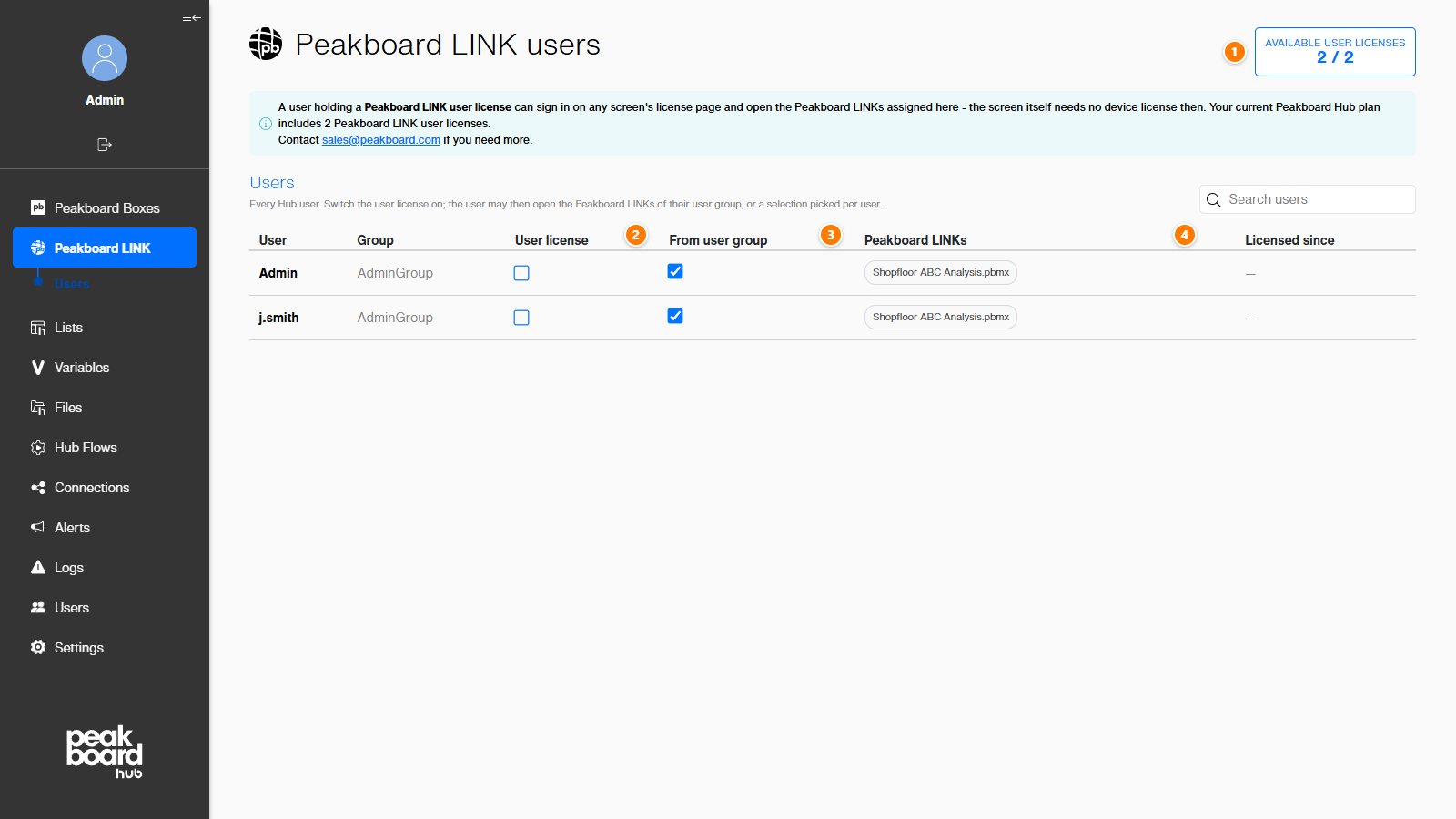
To assign a user license, open [Users] in the sidebar:
- Licensing: the tab with the user licenses, next to User Groups.
- Available user licenses: free user licenses, out of all user licenses in your Hub license.
- LINK license: select the check box to give the user a user license. Clear it to take the license away again.
- Group: the user group of the user. A click opens the user group.
The list shows all users of the Peakboard Hub. Use the search field to find a user, and click a column header to sort the list. Last seen shows the last Peakboard LINK connection of a user who holds a user license.
Sign in on a screen: open the board URL on the screen. The license page appears, and the user enters their Hub user name and password on the right side and clicks [Sign in]. The user can only open the Peakboard LINKs that are assigned to their user group. You assign them under [Users] > user group > tab Peakboard LINK with [Add]. If a Peakboard LINK is not assigned, the screen says so instead of showing the board.
The sign-in stays on the screen until one of these things happens:
- the user signs out on the license page,
- the user signs in on another screen,
- you take the user license away,
- the user is removed from the Peakboard Hub.
One screen at a time: a user license is good for one screen at a time. If the user signs in on a second screen, the first screen is signed out and returns to the license page. There it shows which user signed in on another screen:
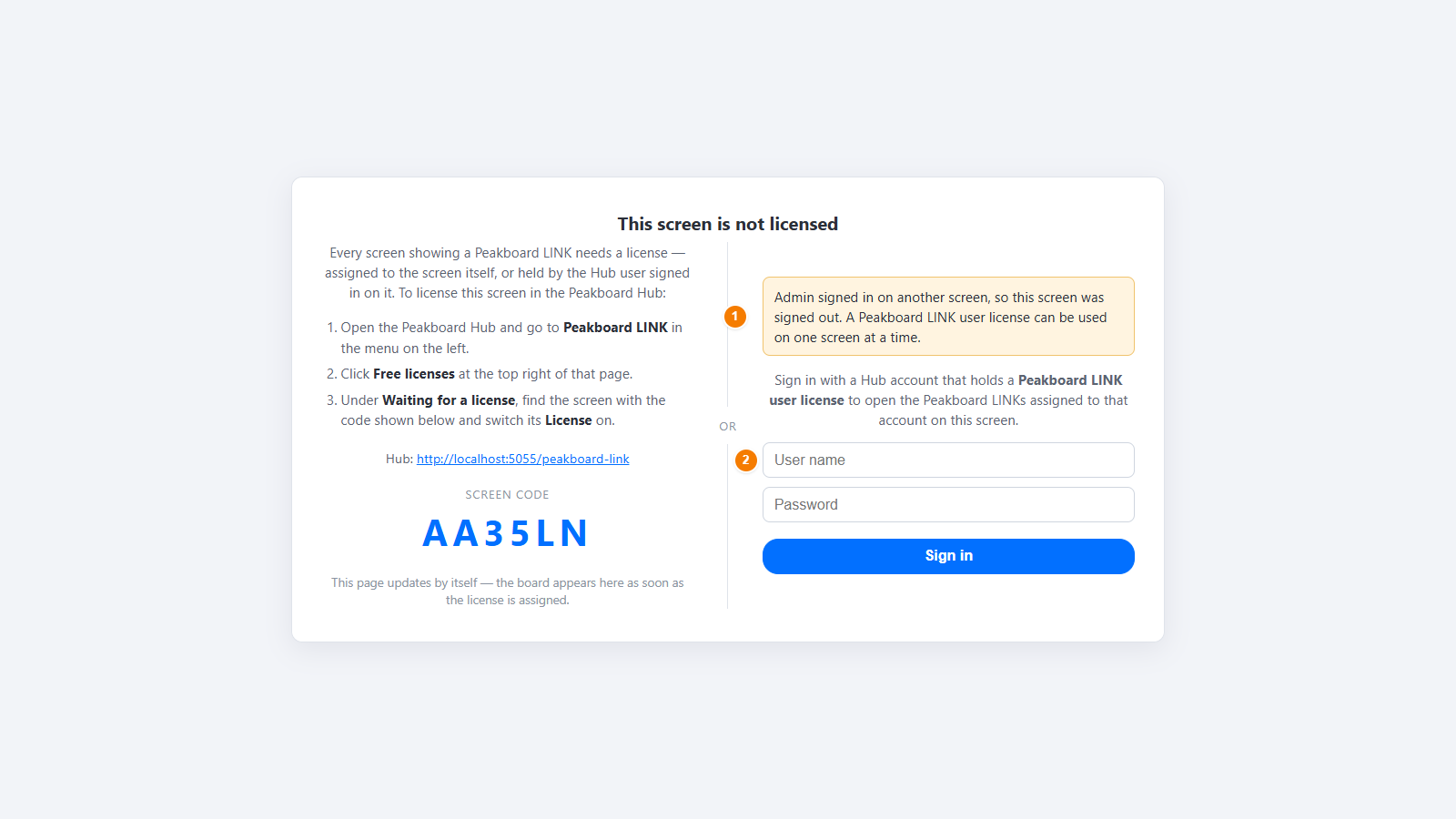
- The message <user> signed in on another screen, so this screen was signed out. A Peakboard LINK user license can be used on one screen at a time.
- The sign-in fields. A user can sign in here again, and the other screen is then signed out in turn.
If the user is not allowed to sign in, the license page shows why. For example, This account is not licensed for Peakboard LINK. Ask your Hub administrator to switch on its LINK user license. means that the user has no user license yet.
When the licenses run out
- All licenses are assigned: screens that already hold a license keep it. A new screen stays on the license page until you free a device license or a user license.
- Your Hub license includes fewer licenses than before: licenses that are already assigned stay assigned. You can’t assign new ones until there are fewer assigned licenses than your Hub license includes.
- Your Hub license includes no Peakboard LINK licenses, or it is no longer valid: the tile on the Peakboard LINK page shows No Peakboard LINK license. You can’t create or start instances any more. Instances that are already running keep running.