
Peakboard hub
Add Peakboard Box
In this article you will learn how to add a new Peakboard Box to your Peakboard Hub. After completing the steps, your Peakboard Box is successfully created and can be managed.
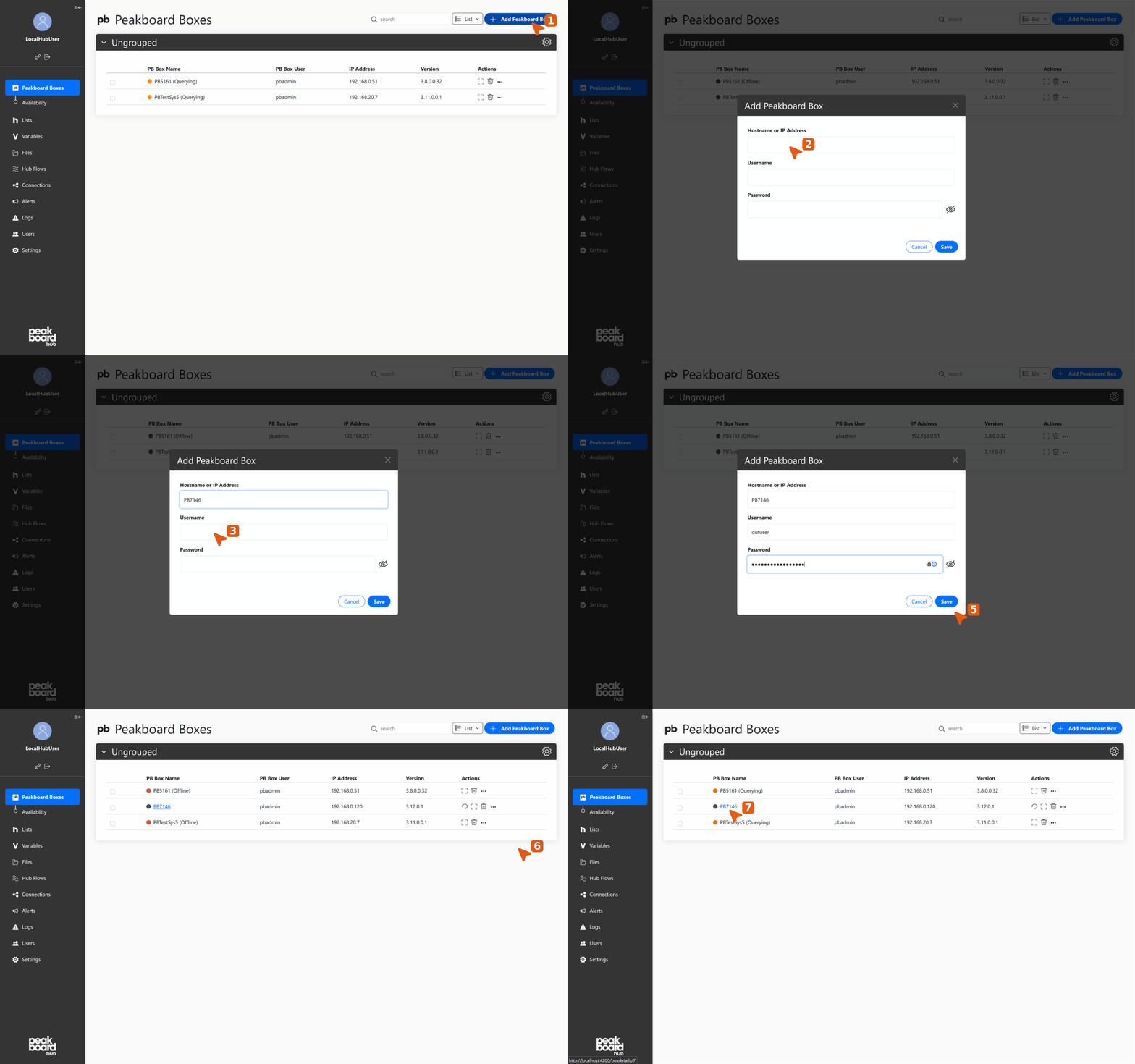
Add and configure Peakboard Box
- Start adding Peakboard Box: Click the [Add Peakboard Box] button in the upper right corner to start the process.
- Enter connection data: In the dialog that appears, enter the required information: the Hostname or IP Address of your Peakboard Box, your username and the associated password.
- Save configuration: Click [Save] to save the entered data and create the Peakboard Box.
View Peakboard Box details
- Access Peakboard Box overview: After saving, your new Peakboard Box is displayed in the overview. Wait until the status has loaded and the Peakboard Box is reachable.
- View Peakboard Box details: Once the Peakboard Box is reachable, you can click on the Peakboard Box name to access detailed information and further management options.
Your Peakboard Box is now successfully added and can be managed via the user interface.


