
Peakboard hub
Files
The [Files] section allows you to centrally manage your files in Peakboard Hub. Here you organize files and folders, upload content, adjust permissions, and keep track of your storage space.
Sidebar and Folder Navigation
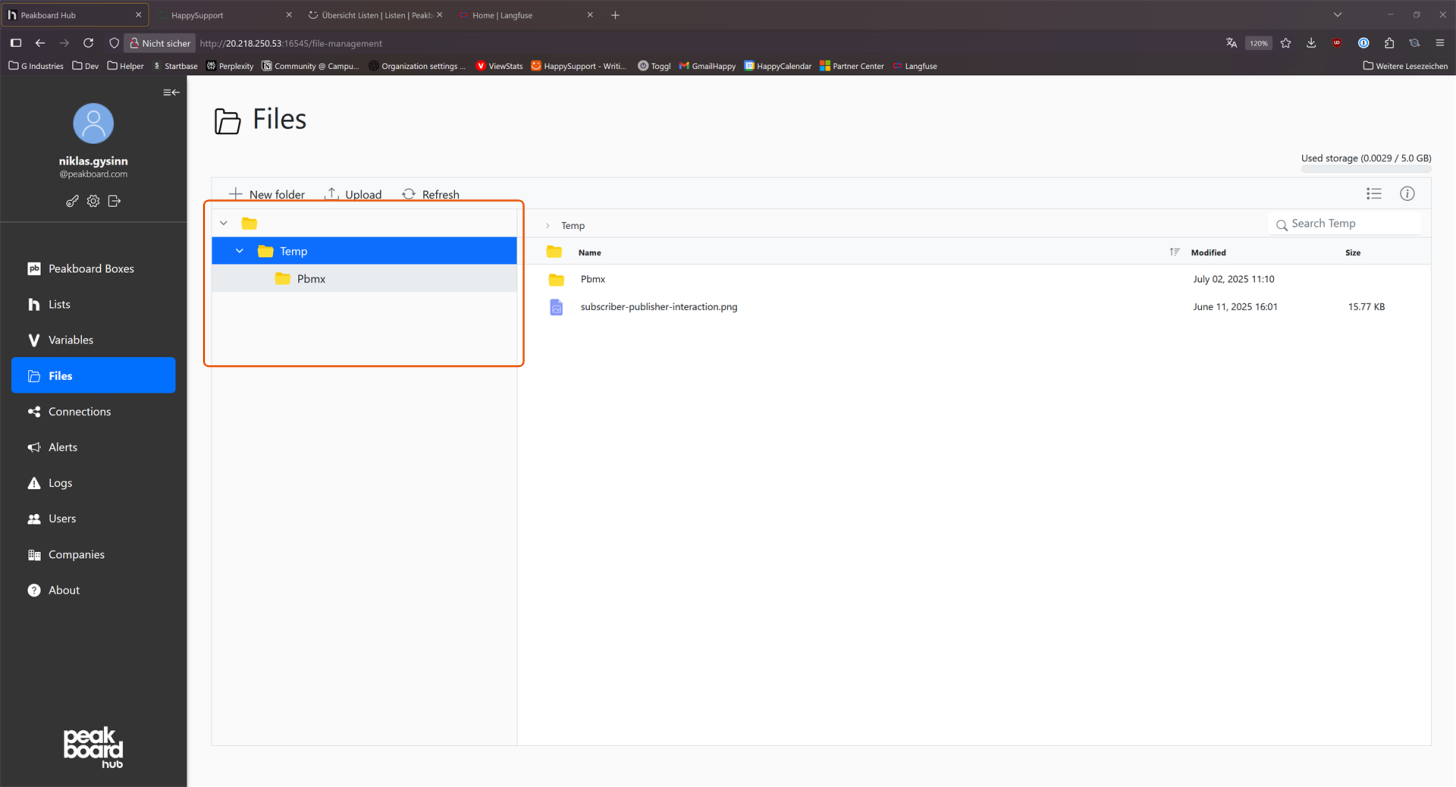
Access the [Files] section via the sidebar. In the left area of the main window you will find the folder structure where you can select folders or navigate through existing directories.
Main Toolbar
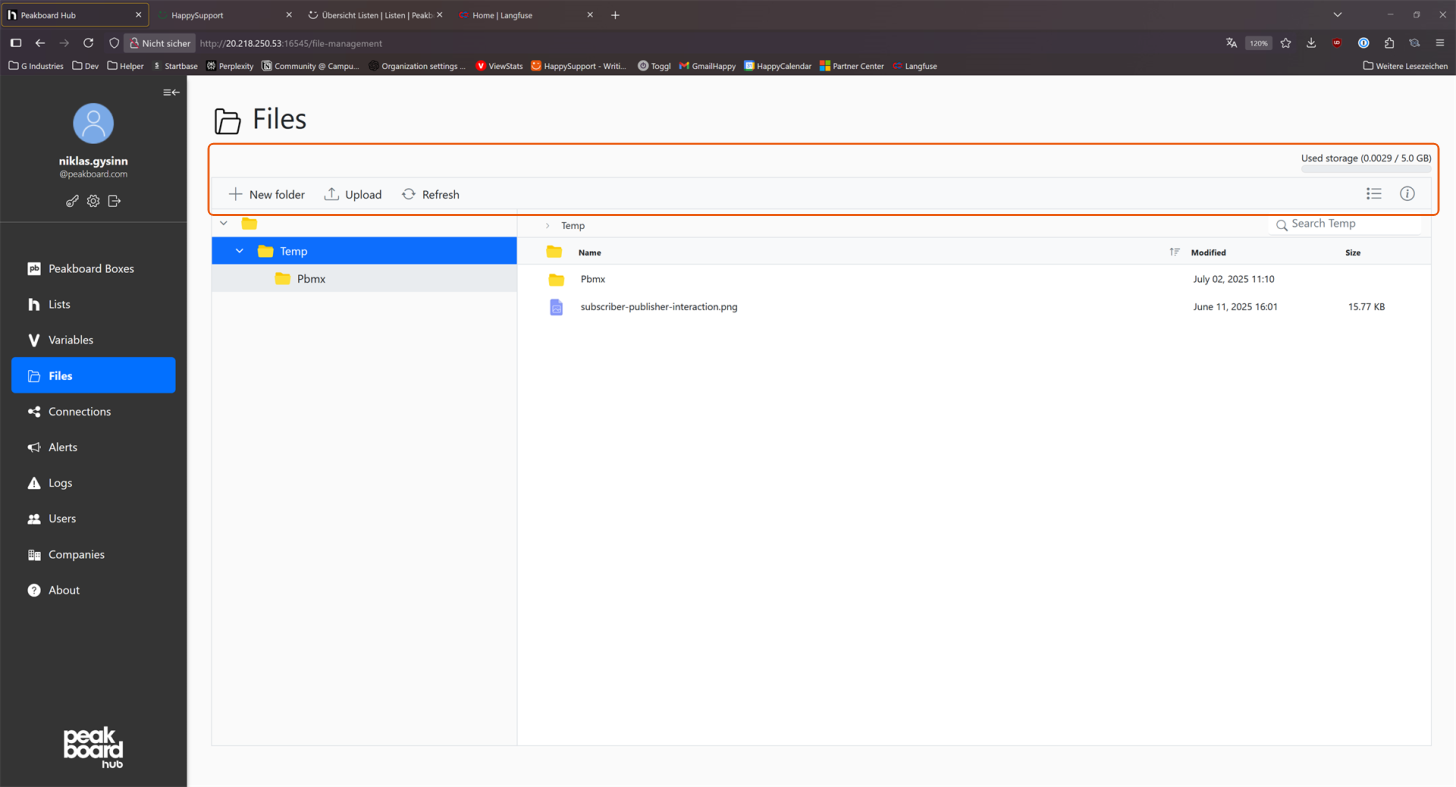
At the top of the file area, the following central functions are available:
- New folder: Create a new folder to organize files in a structured way.
- Upload: Add new files.
- Refresh: Update the display to always see the latest state after changes or uploads.
- Storage display: In the upper right corner you can see how much of your storage quota is already used.
File and Folder List
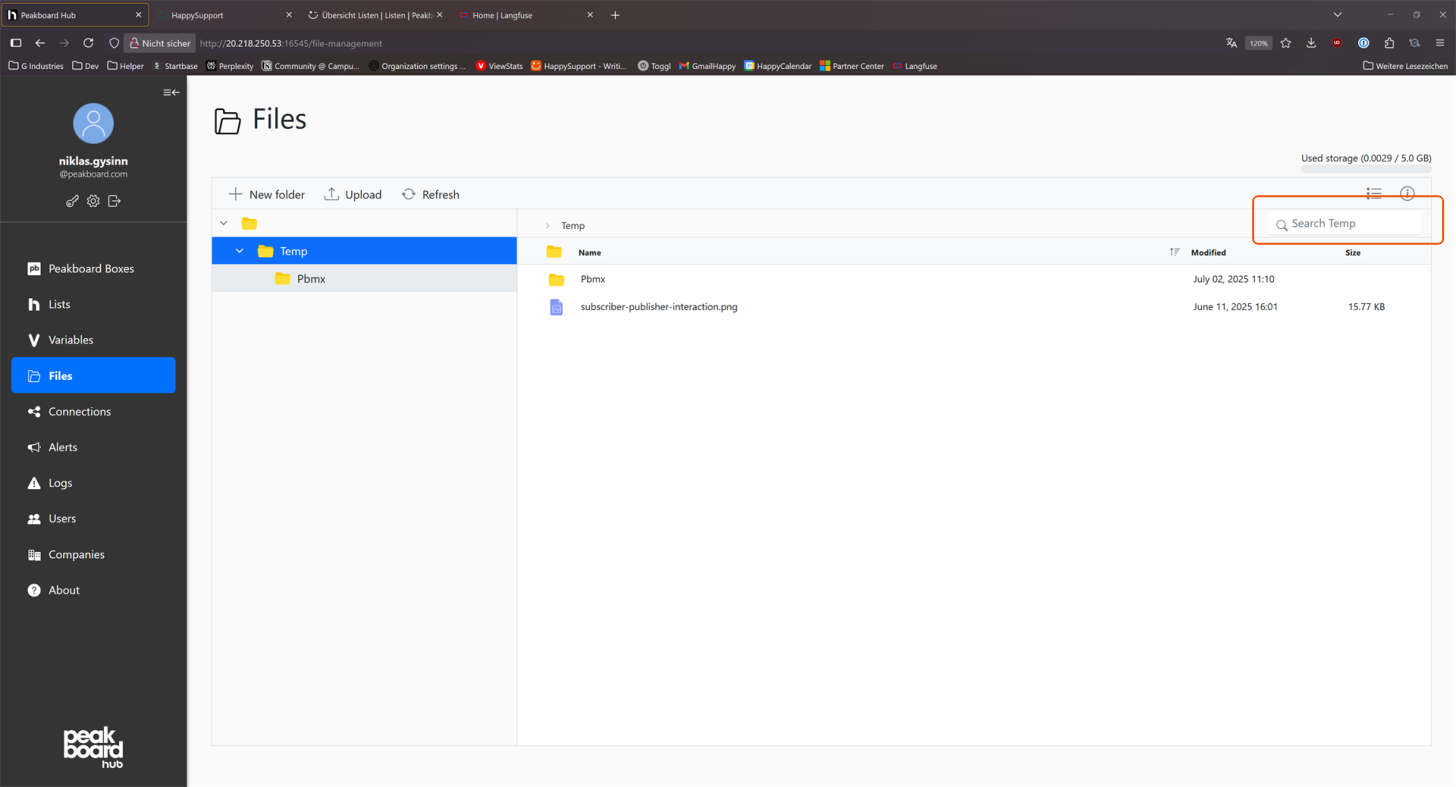
The main area displays the contents of the currently selected folder in table form — with columns for name, modification date, and size. The search field above the list finds files or subfolders within the currently selected folder.
Context Menu and Actions
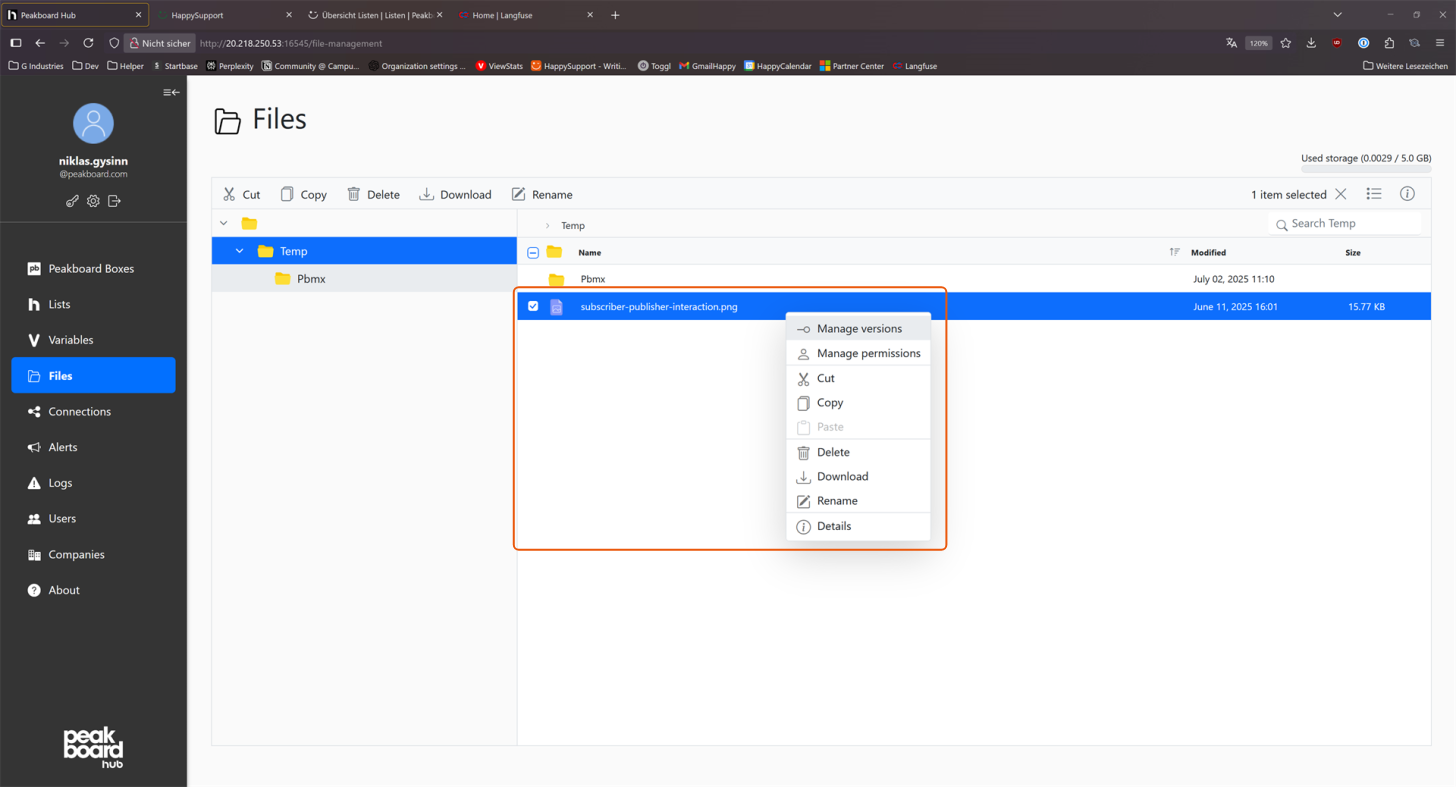
Select a file or folder by right-clicking or using the checkbox to open a context menu. The following actions are available:
- Manage permissions: Set access rights for user groups.
- Open: Open the folder or file.
- Cut, Copy, Paste: Move or duplicate entries.
- Delete: Remove selected files or folders.
- Download: Download files to your computer.
- Rename: Rename elements.
- Details: Show additional information about the entry.
- Manage version: Show the version history of files.
Version Management
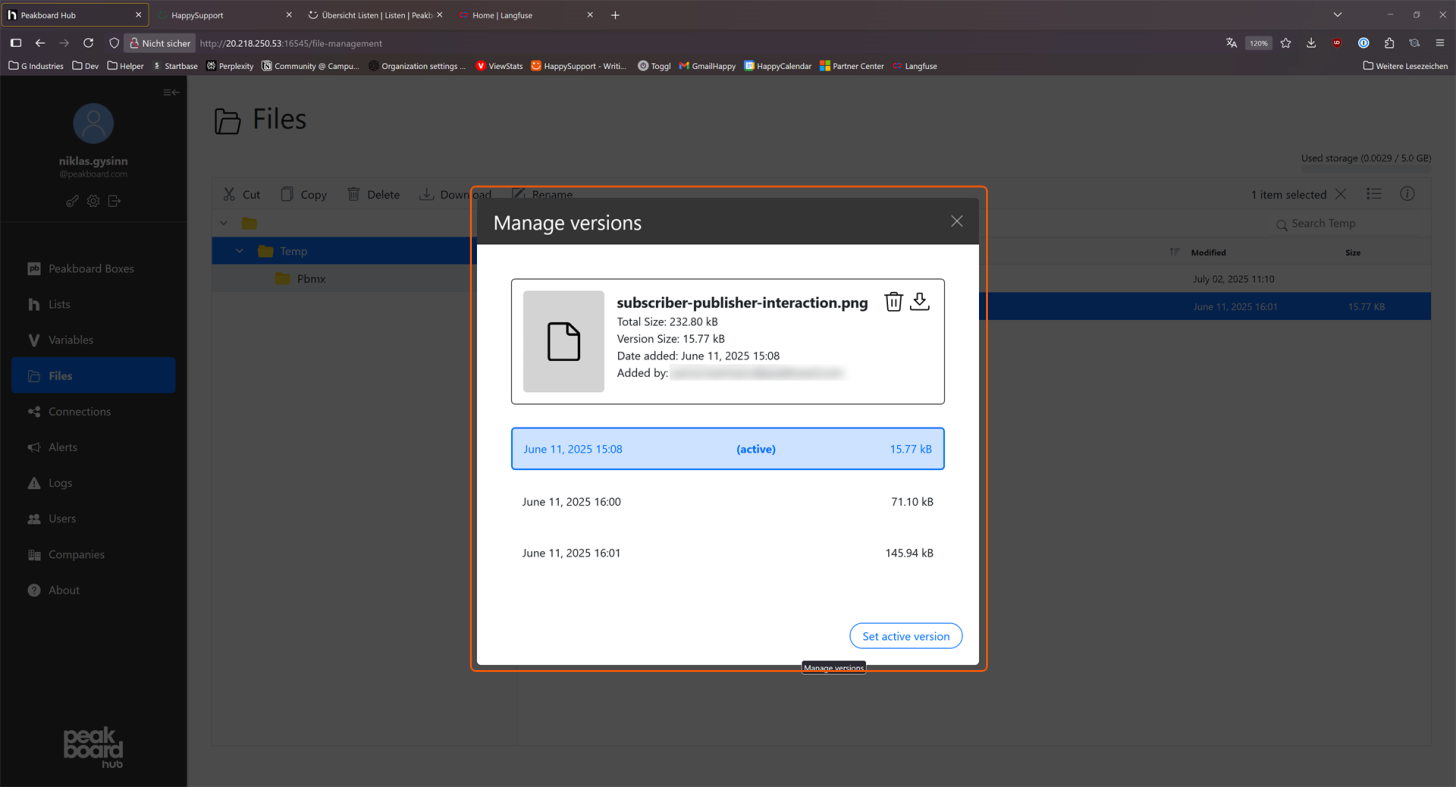
The context menu of a file offers the [Manage version] option. Here you can see all existing versions of the file including date and size.
- Set active version: Set any version as current if you want to revert to a previous state.
- You can download or delete individual versions.
Permission Management
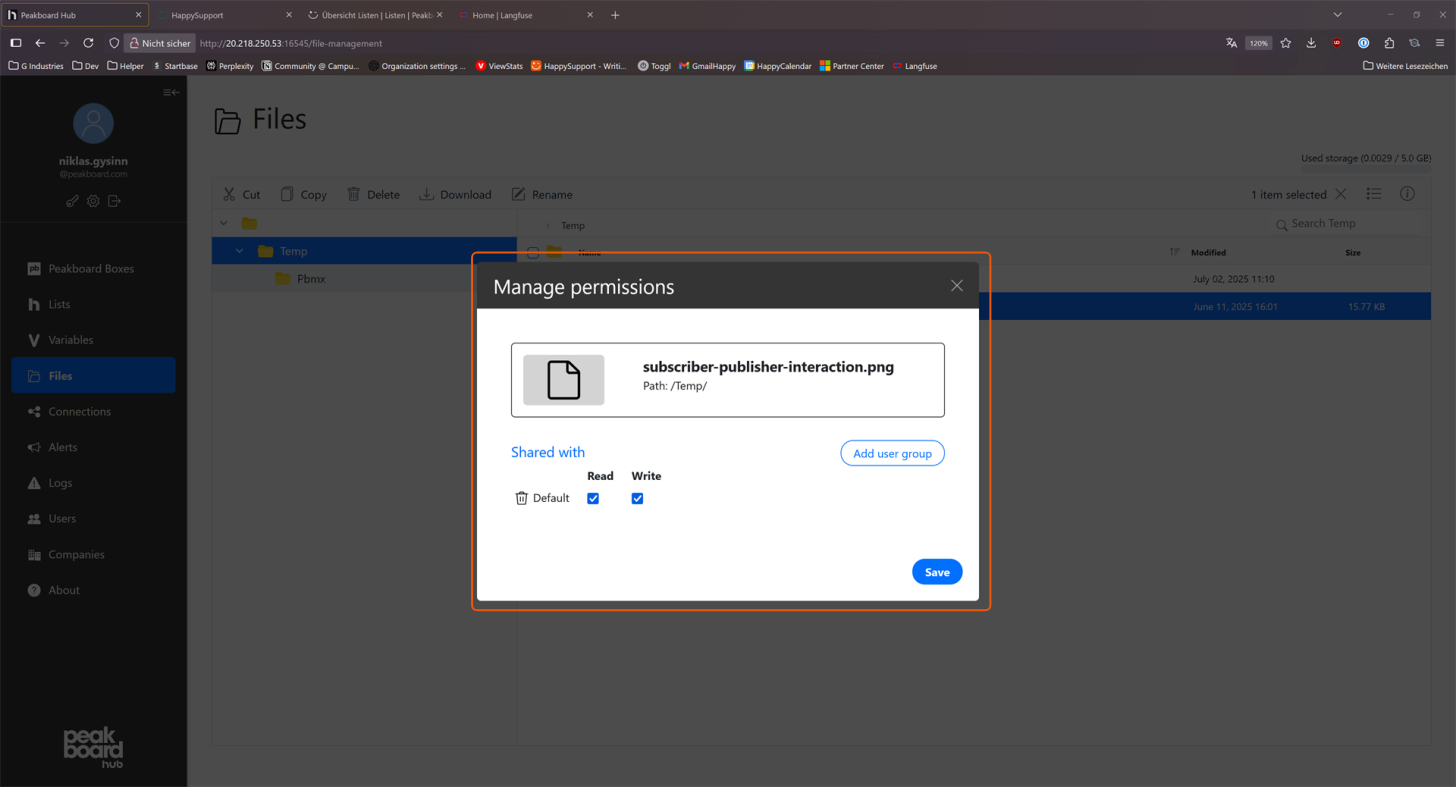
Under [Manage permissions] a popup opens showing all configured access rights for a file or folder.
- Read/Write rights: Use checkboxes to determine whether a user group can read, write, or both.
- Add user group: Add specific user groups to assign differentiated rights.
- Save: Save all changes directly in the popup.


