
Peakboard hub
Send alert
In this article you will learn how to send alerts from a Peakboard Box to a group connected with Peakboard Hub. You will create a button in your visualization that sends an alert message when clicked.
Set up Peakboard Hub connection
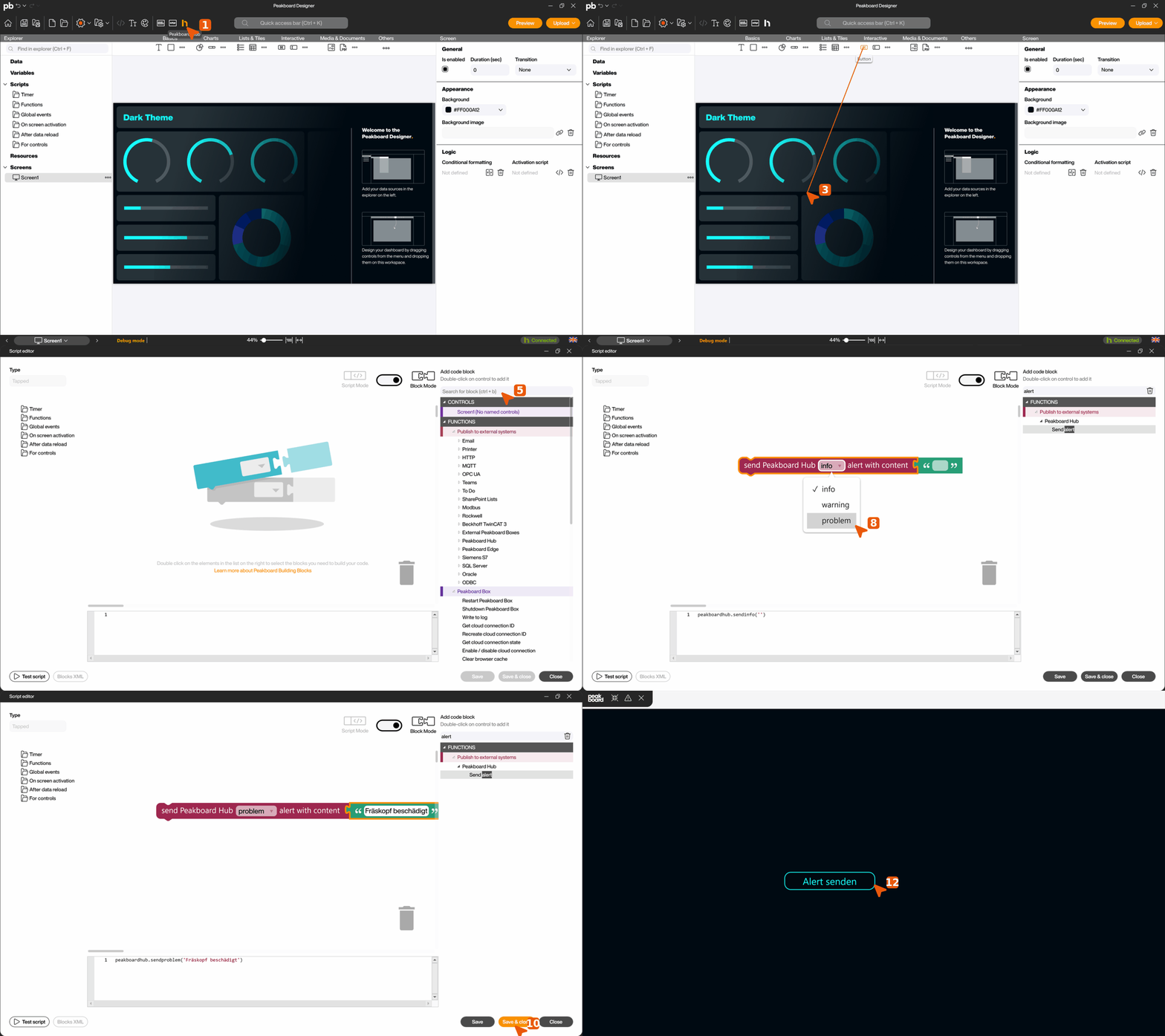
- Open Peakboard Hub connection: Click the Peakboard Hub icon in the toolbar to access connection settings.
- Enter and save connection data: Enter the Hub connection credentials, verify the visualization uses the correct connection, then click [OK].
Create and configure alert button
- Drag a [Button] from the [Interactive] section onto the visualization.
- Double-click the button to open the Script Editor.
- Search for the Alert block in the Script Editor.
- Drag the [Send alert] script from the right panel into the Script Editor.
- Select an alert type from the dropdown: Info (general information messages), Warning (warning notifications) or Problem (error or critical state messages).
- Enter the alert text in the text field.
- Click [Save & close] to save the script.
Test the visualization
- Upload the visualization to the Peakboard Box or use the preview function.
- Click the alert button to send the alert to the connected group.


