Peakboard hub
Migration from IIS to a Windows service
Earlier versions of the Peakboard Hub on premise ran as a site in IIS (Internet Information Services). The current setup installs the Peakboard Hub as its own Windows service instead. When you update an installation that still runs in IIS, the setup migrates it: the IIS site is replaced by the Windows service, and your database, settings and data are kept.
This article explains what changes, how to prepare and how to run the migration with the setup wizard or from the command line.
What changes
| Before (IIS) | After (Windows service) | |
|---|---|---|
| Hosting | IIS site and application pool PeakboardHub |
Windows service PeakboardHub (display name Peakboard Hub), runs as Local System, starts automatically (delayed), restarts after a failure |
| Program folder | C:\inetpub\PeakboardHub |
C:\Program Files\Peakboard\PeakboardHub (recommended — you can also stay in the old folder) |
| Data folder | Inside the program folder | C:\ProgramData\Peakboard\PeakboardHub |
| Ports and HTTPS certificate | Bindings of the IIS site | Endpoints in the appsettings.json of the program folder |
| Changing ports or the certificate | IIS Manager | Peakboard Hub Configurator (Windows Start menu) |
| Public API | IIS site PeakboardHubApi |
Windows service PeakboardHubApi |
IIS itself is no longer needed. The setup does not uninstall the IIS Windows feature — if no other application on the server uses it, you can remove it afterwards.
Before you start
- Plan a maintenance window. The Peakboard Hub is not available while the setup runs.
- Note the bindings of the IIS site. Open the IIS Manager, select the site of the Peakboard Hub and note its ports and HTTPS certificates (Bindings). You decide during the migration whether the Windows service takes them over.
- Check your HTTPS certificate. The Windows service can only use certificates from the Personal store of the local computer. A binding whose certificate is stored in the IIS Central Certificate Store, or whose certificate is no longer in the store, cannot be taken over — the Peakboard Hub is then reachable via HTTP only until you add a certificate with the Peakboard Hub Configurator.
- Check for shared ports. If the Peakboard Hub site shares a port with another IIS site (for example port 80 or 443 next to the Default Web Site), that port stays with IIS. The Windows service cannot use it.
- Back up your database. The setup offers a database backup before the update (enabled by default). An own backup does no harm either.
- Back up your files. The setup only backs up the database — the files of the Peakboard Hub are not part of it. Copy the folder of your installation, by default
C:\inetpub\PeakboardHub, to a safe place, together with any data folder you redirected elsewhere. It contains, among others:- the files uploaded to Files (folder
HubFileStorage) - the Hub Flows (folder
PeakboardHubFlows) - the box update packages (folder
Update) and the hosted Web Runtimes (folderPeakboardHubWebRuntimes) - the
appsettings.jsonwith the database connection and all other settings
Without this copy, you cannot go back to the previous version completely if the migration fails, see Going back to the previous version.
- the files uploaded to Files (folder
- Check whether Windows single sign-on is used. In the IIS Manager, select the site of the Peakboard Hub and open Authentication. If Windows Authentication is enabled, your users are signed in to the Peakboard Hub with their Windows account. This IIS setting is not carried over — you turn single sign-on on again after the migration, see Windows single sign-on.
- Run the setup with administrator rights.
Migration with the setup wizard
Download the latest Peakboard Hub on premise installation file and run it on the server of your existing installation. On the first page select Peakboard Hub (and Peakboard Hub Public API if it is installed on this server), then click [Next].
Step 1 — Select the existing installation
On the Installation Folders page select the folder of your existing installation, by default C:\inetpub\PeakboardHub. If the folder is the old default folder, a notice tells you that this is the installation’s IIS-era location and that clicking [Next] offers to move it.
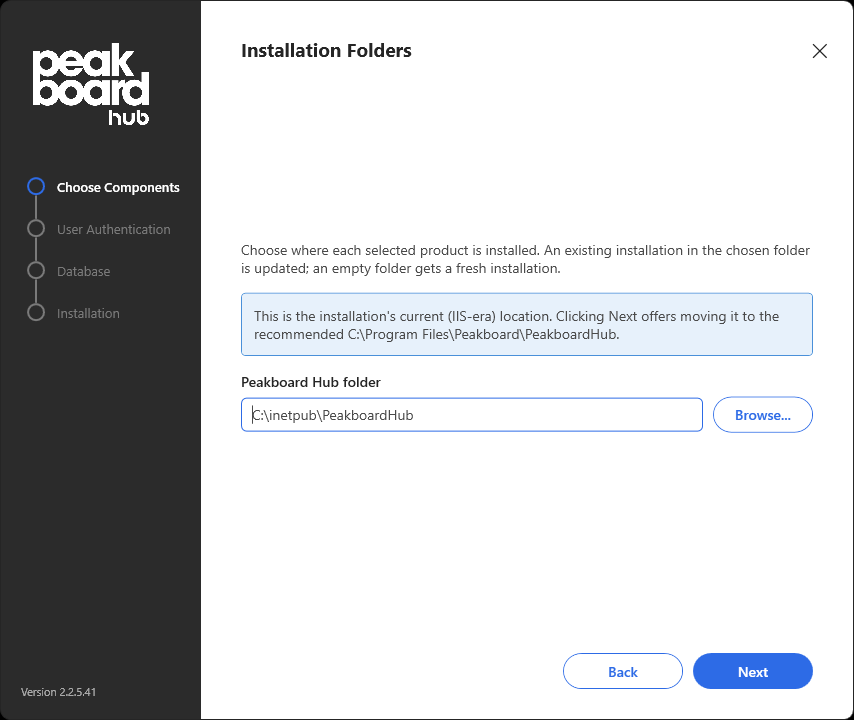
Important: Do not enter a new, empty folder here to “move” the installation. A different folder creates a second, independent Peakboard Hub next to the existing one, and the existing installation stays as it is. Select the existing folder and let the setup move it, as described below.
Step 2 — Move to the recommended location
When you click [Next], the setup asks Move to the recommended location?:
- [Yes] — The programs move to
C:\Program Files\Peakboard\PeakboardHuband the data (uploaded files, Hub Flows, box update packages, hosted Web Runtimes) to a data folder underC:\ProgramData\Peakboard. The folders are filled in on the page behind the dialog and can still be changed. - [No] — The Peakboard Hub stays in
C:\inetpub\PeakboardHub. It is still converted to a Windows service.
In both cases the installation keeps its service name, ports, certificates and database.
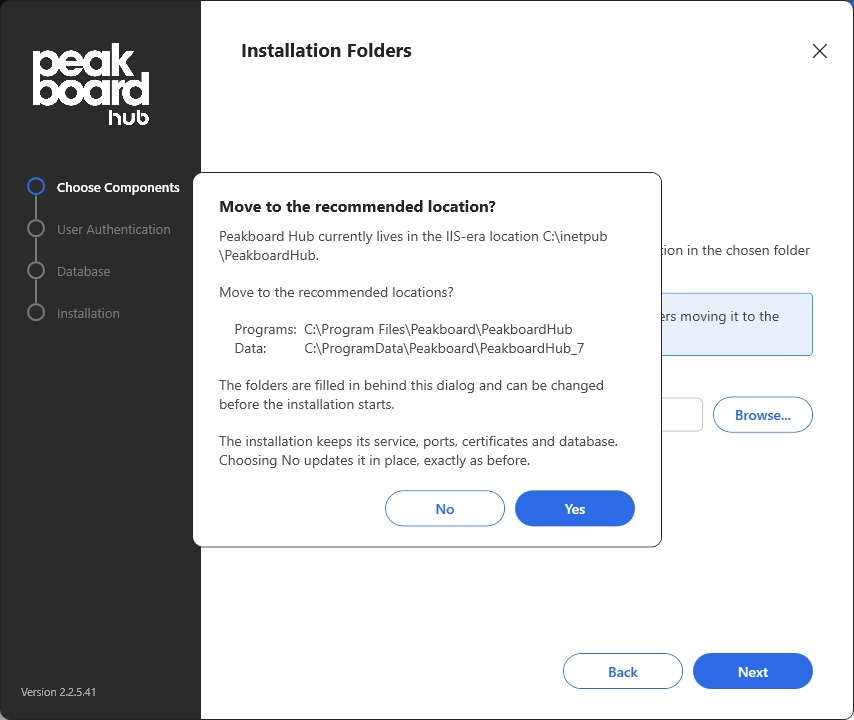
The data folder is normally C:\ProgramData\Peakboard\PeakboardHub. If that folder is already used by another installation, the setup adds a number, for example PeakboardHub_2 (the screenshot was taken on a test server with several installations).
Note: The move is only offered for the old default folder C:\inetpub\PeakboardHub. An installation in a custom folder is updated in that folder. From the command line you can move any IIS-era installation, see Migration from the command line, or move it by hand, see Moving the installation manually. The new folder must be on the same drive as C:\ProgramData.
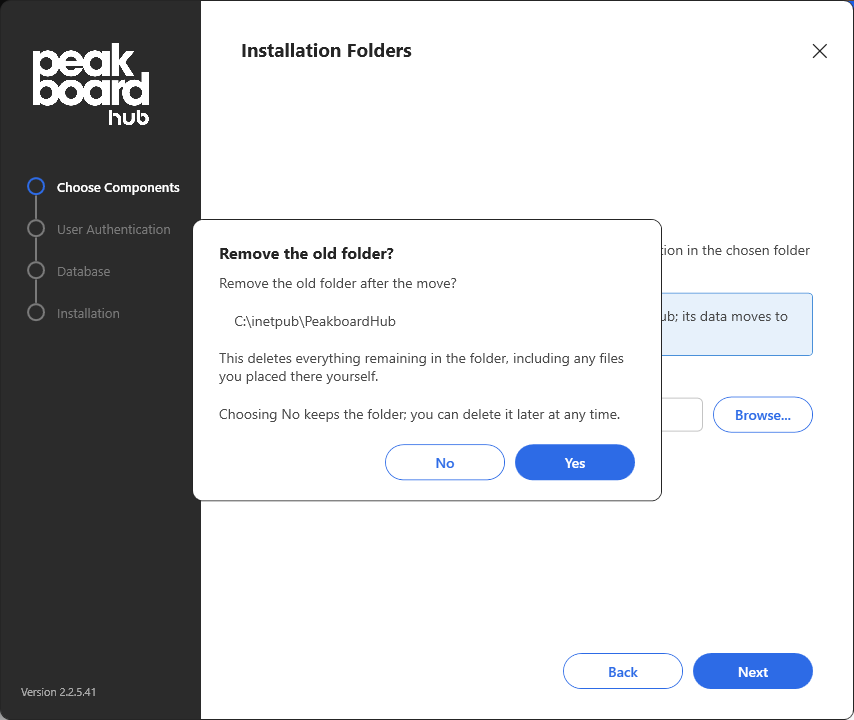
If you chose [Yes], the setup then asks Remove the old folder?:
- [Yes] — After the move, the old folder is deleted, including any files you placed there yourself.
- [No] — The old folder is kept. You can delete it later at any time. The setup makes sure that the kept folder can no longer be mistaken for an installation.
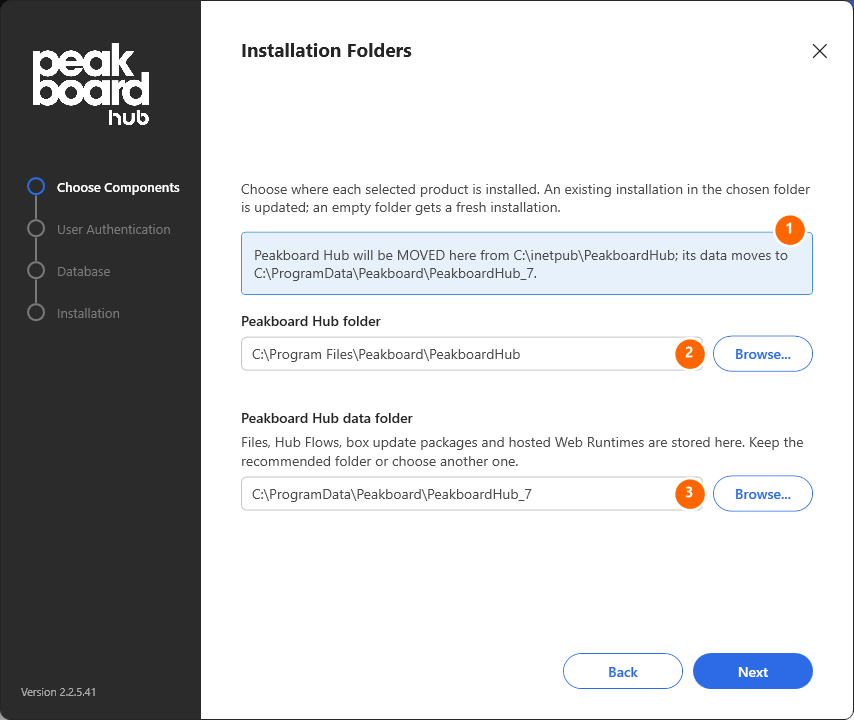
The Installation Folders page now shows where the Peakboard Hub moves to (1), the new program folder (2) and the new data folder (3). Data folders that you redirected to a different location in the past are not moved. Click [Next].
Step 3 — Components
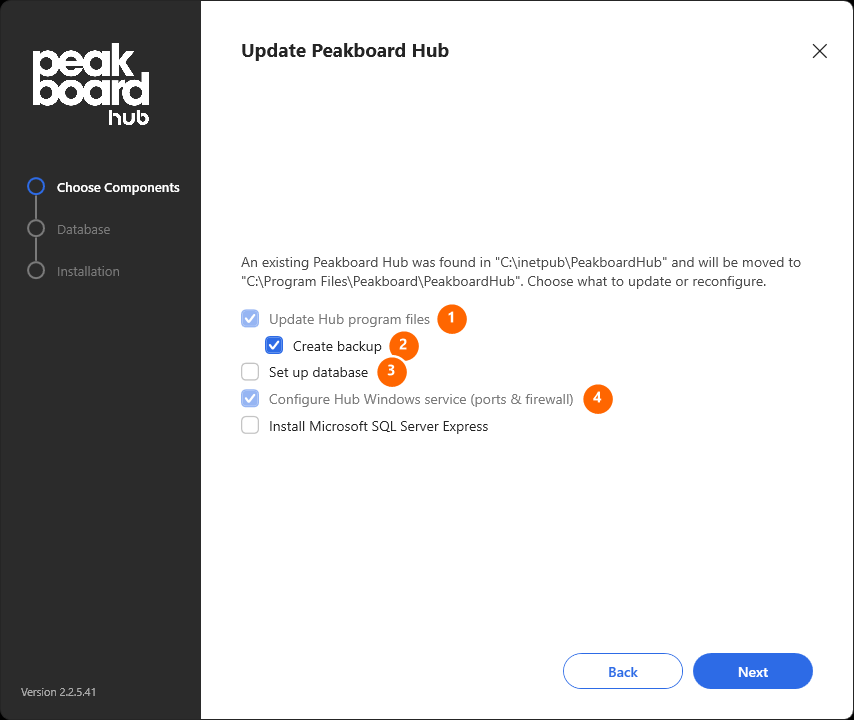
The Update Peakboard Hub page names the old and the new folder:
- Update Hub program files (1) — Always part of a migration.
- Create backup (2) — Backs up the database before the new program files are copied. Leave it enabled.
- Set up database (3) — Leave it unchecked. The Peakboard Hub keeps its current database connection.
- Configure Hub Windows service (ports & firewall) (4) — Always enabled for an installation that still runs in IIS, because the IIS site is replaced by the Windows service.
Click [Next].
Step 4 — Backup folder
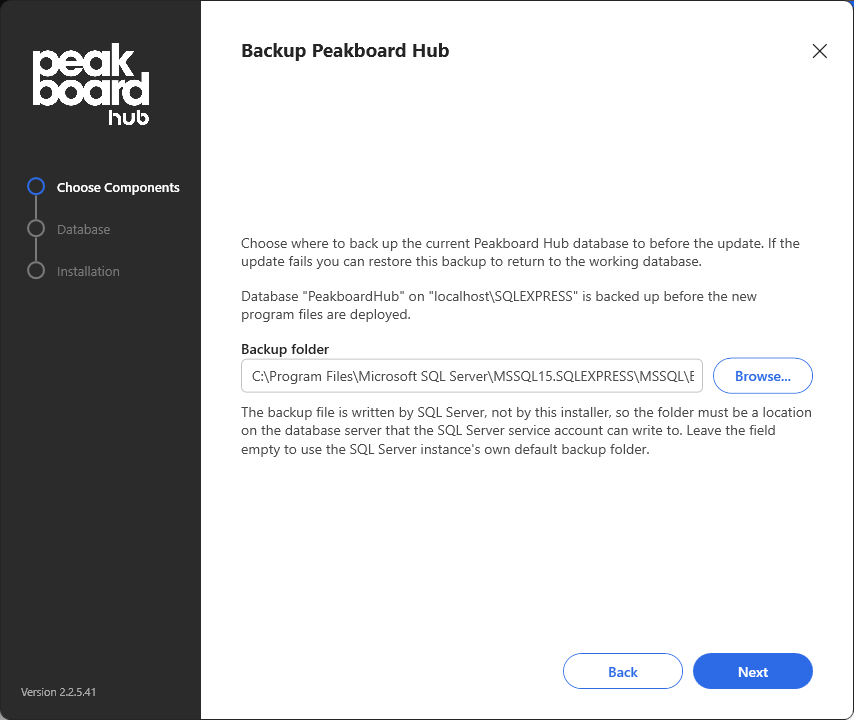
On the Backup Peakboard Hub page you choose where the database backup is written to. The backup file is written by the SQL Server, so the folder must be on the database server and writable by the SQL Server service account. Leave the field empty to use the default backup folder of the SQL Server instance. Click [Next].
Step 5 — Endpoints of the Windows service
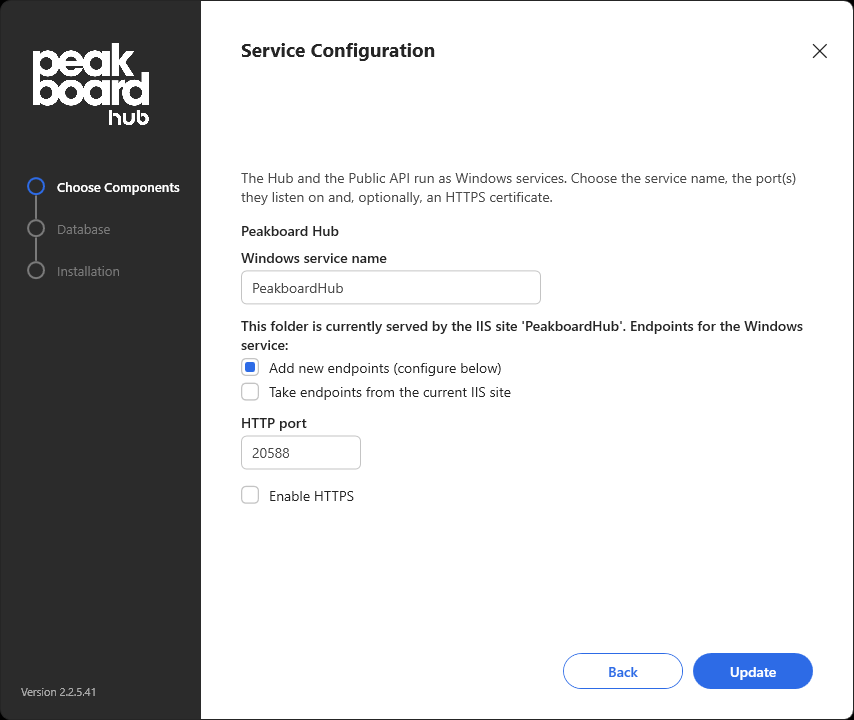
On the Service Configuration page the setup shows which IIS site currently serves the folder and asks where the endpoints of the Windows service come from:
- Add new endpoints (configure below) (1) — Preselected. Nothing is taken from IIS automatically; the Windows service only gets the HTTP port and the optional HTTPS settings you enter below.
- Take endpoints from the current IIS site (2) — Lists all bindings of the IIS site (3). Select the ones the Windows service should take over. Each binding has a link (4) that opens it in the browser, so you can check what it serves. Bindings that cannot be taken over are listed but disabled, together with the reason — for example a port that another IIS site uses, or a certificate that cannot be found in the certificate store.
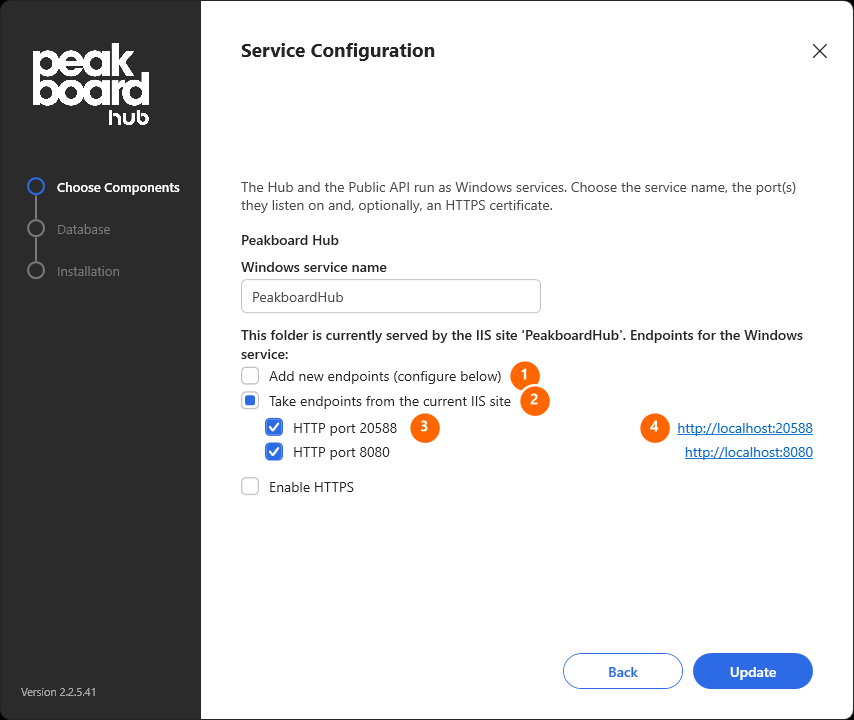
The first selected HTTP binding becomes the main port of the Windows service, every further selection an additional endpoint. At most 5 HTTP and 4 HTTPS endpoints can be taken over. An HTTPS binding keeps its certificate.
Please note: The IIS site and its application pool are deleted in both cases. If you choose Add new endpoints with a port other than the one the IIS site used, the Peakboard Hub is afterwards only reachable on the new port — update every client that connects to it, for example Peakboard Boxes.
Step 6 — Run the update
The button of the last page is called [Update]. Click it to start the migration. The setup stops the IIS site, copies the new program files, moves the folders if you chose to, creates and starts the Windows service, takes over the selected endpoints, opens the ports in the Windows Firewall and finally deletes the IIS site and its application pool.
When the migration has finished, the Installation finished page lists what was installed and — after a move — what moved where, together with a reminder of what you have to update yourself.
What the setup carries over
- The database connection, the authentication mode and all other settings in
appsettings.json. - The service identity, the ports and the HTTPS certificates you selected.
- All data folders. The setup also updates the corresponding settings in the database.
- One entry in Windows Apps & Features.
Not carried over is Windows single sign-on. In IIS it was a setting of the IIS site, which the migration deletes. After the migration it is turned off, see Windows single sign-on.
After the migration
The setup cannot reach anything outside the installation. After a move, update everything that refers to the old folder C:\inetpub\PeakboardHub:
- Backup jobs and their target and exclusion paths
- Antivirus or EDR exclusions
- Network shares and custom folder permissions
- Own scripts, scheduled tasks and monitoring checks
To change the ports or the HTTPS certificate later, use the Peakboard Hub Configurator from the Windows Start menu, see Installation.
Note: If the Peakboard Hub does not work correctly in the browser after an update — for example pages stay empty, buttons do nothing or the old version is still shown — the browser is probably still using files of the previous version from its cache. Reload the page without the cache: press [Ctrl + F5] (macOS: [Cmd + Shift + R]). If that does not help, delete the stored data of the Peakboard Hub address in the browser: open the site settings with the icon to the left of the address bar and delete the site data (cookies and stored data), then reload the page. Deleting the site data signs you out, so you have to sign in again afterwards.
Windows single sign-on
If your users were signed in automatically with their Windows account before the migration (Windows Authentication of the IIS site), turn single sign-on on again in the Peakboard Hub Configurator:
- Open the Peakboard Hub Configurator from the Windows Start menu.
- Go to Authentication.
- Under Windows single sign-on, enable Enable Windows SSO (Negotiate).
- Click [Apply changes]. The Peakboard Hub Configurator restarts the Peakboard Hub.
Single sign-on does not work over HTTP/2 or behind a reverse proxy. For the HTTPS endpoint you don’t have to do anything — the setup sets it to HTTP/1.1. The sign-in source (Local Users or AD Users) is carried over from appsettings.json and stays as it was.
Note: A browser that opened the Peakboard Hub on a port the Windows service no longer uses can still show the sign-in page from its cache, while nothing answers on that port any more (for example a “Gateway Timeout” message after signing in). Clear the site data of that address in the browser.
Migration from the command line
The migration can also run unattended. All arguments are described in Silent installation.
Update in place — the Peakboard Hub stays in its folder and becomes a Windows service:
PeakboardHubSetup.exe -Silent True -InstallPath "C:\inetpub\PeakboardHub"
Move the installation to the recommended folders and delete the old folders afterwards:
PeakboardHubSetup.exe -Silent True ^
  -InstallPath "C:\Program Files\Peakboard\PeakboardHub" ^
  -ApiInstallPath "C:\Program Files\Peakboard\PeakboardHubApi" ^
  -HubMigrateFrom "C:\inetpub\PeakboardHub" ^
  -ApiMigrateFrom "C:\inetpub\PeakboardHubApi" ^
  -RemoveOldFolders True
Important: The command line and the wizard handle the IIS bindings differently. From the command line, all bindings of the IIS site that can be reused are taken over by default. Pass -HubEndpointsFromIis False (Public API: -ApiEndpointsFromIis False) to take nothing from IIS and only use the ports given on the command line.
Moving the installation manually
If the setup does not offer the move — for example when it does not recognize the installation as an IIS-era installation, or when the Peakboard Hub was already updated to a Windows service in its old folder and should only now be moved to the recommended folders — you can move the installation by hand.
The steps use C:\inetpub\PeakboardHub as the old folder and the recommended folders as the new ones: C:\Program Files\Peakboard\PeakboardHub for the programs and C:\ProgramData\Peakboard\PeakboardHub for the data. Replace them with your own folders where they differ. Make the backups described in Before you start first, and run all steps with administrator rights.
- Look up the data folders. Open the Peakboard Hub in the browser and go to Settings. Note the value of Folder for storing files (section Files) and of Folder for storing active Hub Flow Applications (section Hub Flows). A relative path refers to a folder inside the program folder.
- Install the new version. Run the latest setup and select the existing folder on the Installation Folders page. If the Peakboard Hub still runs in IIS, it is converted to a Windows service in its current folder. If it already runs as a Windows service in the new version, skip this step.
- Check that the installation worked. The Installation finished page shows no errors, the Peakboard Hub service is running in the Windows Services (
services.msc), and you can sign in to the Peakboard Hub in the browser and see your boxes, files and Hub Flows. Continue only when everything works. - Move the data folders in the Hub settings. On the Settings page of the Peakboard Hub, set:
- Folder for storing files to
C:\ProgramData\Peakboard\PeakboardHub\HubFileStorage\ - Folder for storing active Hub Flow Applications to
C:\ProgramData\Peakboard\PeakboardHub\PeakboardHubFlows
When you save a new folder, the Peakboard Hub moves the existing content there itself. Running Hub Flows are stopped for the move and started again afterwards. Wait until the move has finished — the old folders are empty or deleted — before you continue.
- Folder for storing files to
-
Stop the service. Stop the Peakboard Hub service in the Windows Services, or from a command prompt:
sc.exe stop PeakboardHubIf you gave the service a different name during the installation, use that name here and in the following steps. You find it in the properties of the service under Service name.
- Move the program folder. Move the complete folder
C:\inetpub\PeakboardHubwith all its content, including theappsettings.json, toC:\Program Files\Peakboard\PeakboardHub. -
Remove the service. The service still points to the old folder. Delete it:
sc.exe delete PeakboardHub - Run the setup again in the new folder to create the service. Run the setup and select Peakboard Hub. On the Installation Folders page enter the new folder
C:\Program Files\Peakboard\PeakboardHub. On the Update Peakboard Hub page:- clear Update Hub program files — the files are already up to date
- leave Set up database unchecked
- Configure Hub Windows service (ports & firewall) is selected and cannot be changed, because no service exists for this folder yet
On the Service Configuration page the setup shows the default ports and HTTP settings. Adjust them, as well as the service name the installation had before, to your needs. Click [Update]. The setup creates and starts the Windows service, opens the ports in the Windows Firewall and registers the installation in Windows Apps & Features.
- Remove the old registry entries. The setup records every installation in the registry. The entries of the old folder remain and show up as a second Peakboard Hub in Apps & Features and in the Peakboard Hub Configurator — and their uninstaller would act on the old folder. Open the Registry Editor (
regedit) and export the keys before you delete them:- Under
HKEY_LOCAL_MACHINE\SOFTWARE\Peakboard\Hubfind the subkey whose valueInstallPathis the old folderC:\inetpub\PeakboardHub. Note its name (the installation ID) and delete the subkey. Do not delete the subkey whoseInstallPathis the new folder. - Delete
HKEY_LOCAL_MACHINE\SOFTWARE\Microsoft\Windows\CurrentVersion\Uninstall\<installation ID>with the noted name. - If the keys of older setup versions
HKEY_LOCAL_MACHINE\SOFTWARE\Peakboard HubandHKEY_LOCAL_MACHINE\SOFTWARE\Microsoft\Windows\CurrentVersion\Uninstall\Peakboard Hubstill exist and point to the old folder, delete them too.
- Under
- Check the result. Sign in to the Peakboard Hub again and check your boxes, files and Hub Flows. Then update everything that refers to the old folder, see After the migration. You can delete the old folder once it is empty.
The Public API is moved the same way with steps 5 to 9: the service is called PeakboardHubApi, the folders are C:\inetpub\PeakboardHubApi and C:\Program Files\Peakboard\PeakboardHubApi, the components are Update API program files and Configure API Windows service (ports & firewall), and its registry entries are under HKEY_LOCAL_MACHINE\SOFTWARE\Peakboard\Api (older setup versions: Peakboard Hub API). The Public API has no data folders of its own.
Going back to the previous version
Do not run an older setup to undo a migration. It does not see the migrated installation and would create a second IIS site on the same ports. To go back:
- Uninstall the migrated Peakboard Hub with its uninstaller (keep the data).
- Install the previous version.
- Restore the database backup from before the update.
- Restore the file backup from before the update (uploaded files, Hub Flows,
appsettings.jsonand the other data folders) into the folder of the previous installation.
Troubleshooting
| Problem | Cause and solution |
|---|---|
| The Peakboard Hub is only reachable via HTTP after the migration | The certificate of the HTTPS binding was in the IIS Central Certificate Store or no longer in the certificate store. The setup log names the binding. Add the certificate to the Personal store of the local computer and select it in the Peakboard Hub Configurator. |
| Users are no longer signed in automatically with their Windows account | Windows single sign-on was a setting of the IIS site and is not carried over. Enable it in the Peakboard Hub Configurator, see Windows single sign-on. |
| A port of the IIS site was not taken over | Another IIS site uses the same port. The setup log names that site. Use a different port for the Peakboard Hub. |
| The setup says the program files are incomplete and the service is disabled | The update failed while copying files. Run the same setup again to complete it. |
The setup log files are stored under C:\ProgramData\Peakboard\LocalState\Logs\Setup\.