
Data sources
Office 365 Connection
All Office 365 data sources – SharePoint Lists, Calendar, Outlook, Teams and To Do – use the same connection and authorization. It is described once on this page; the individual articles link here instead of repeating it.
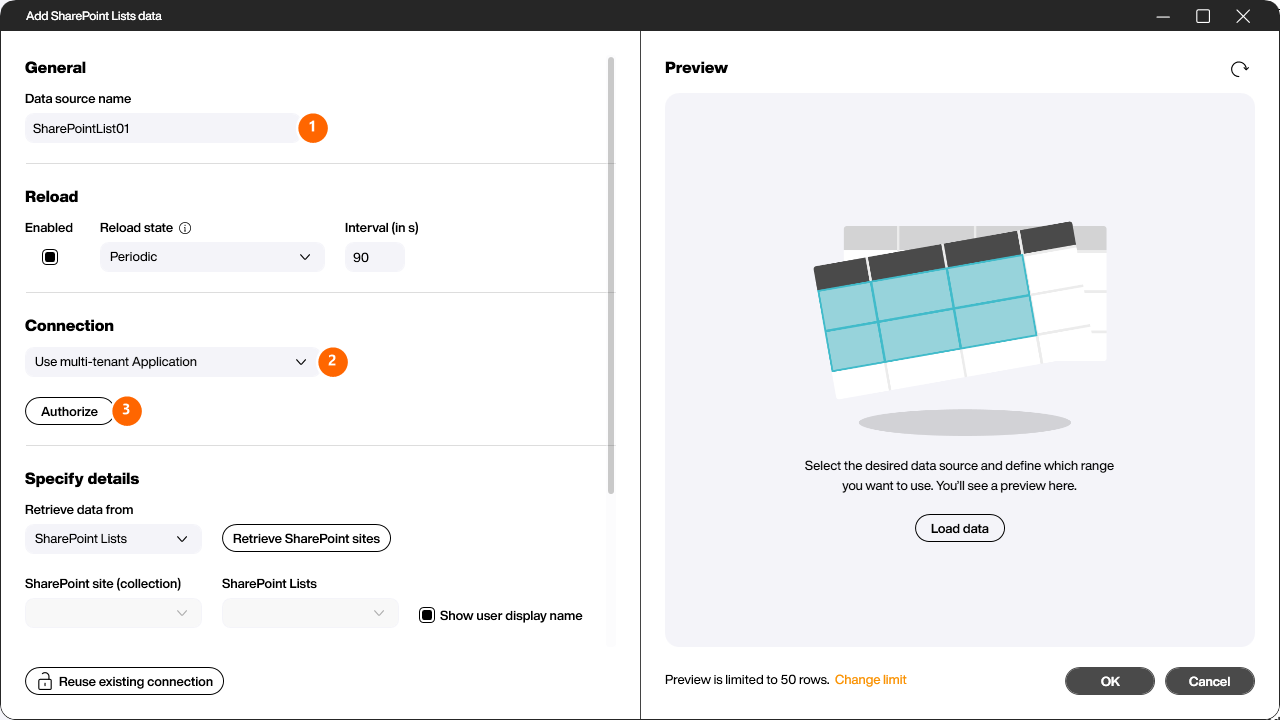
Sign-in uses modern Microsoft authentication (Microsoft Entra ID, OAuth). In the [Connection] section of the data source, give the data source a name (1), pick the authorization method (2) and then sign in via the [Authorize] button (3). Once authorized, the button shows [Is authorized]. Because sign-in happens through the regular Microsoft login window, multi-factor authentication (MFA) is supported – only an access token is stored in your project, never your user name and password. You can revoke that token at any time through the Microsoft 365 portal.
Multi-tenant vs. single-tenant application
The dropdown in the [Connection] section controls which Microsoft Entra ID application Peakboard authenticates against.
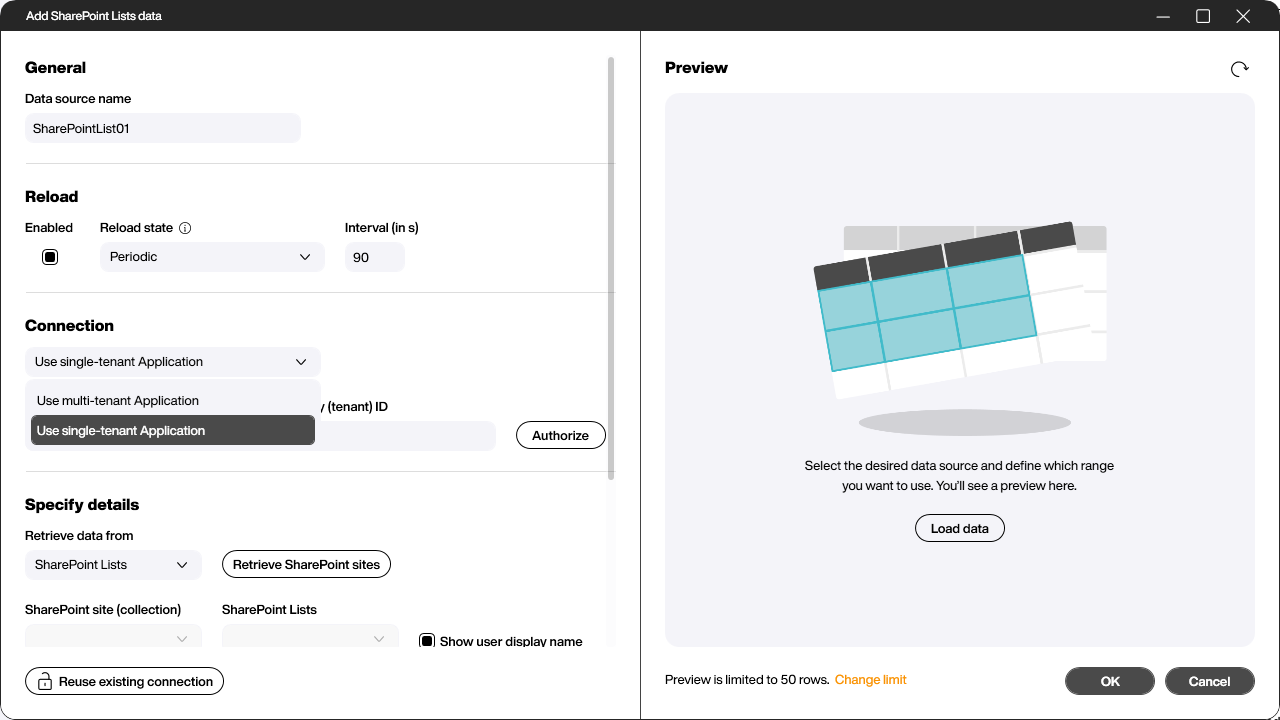
- Use multi-tenant Application – Peakboard uses a ready-made, multi-tenant application that Peakboard has already registered in Microsoft Entra ID. You don’t need to register your own app: a single click on [Authorize] is enough. Note: depending on your organization’s configuration, an administrator may have to grant a one-time consent to the Peakboard application (admin consent).
- Use single-tenant Application – You use your own app registration in your own Microsoft Entra ID directory (tenant). Authentication stays entirely within your organization and does not depend on any shared application.
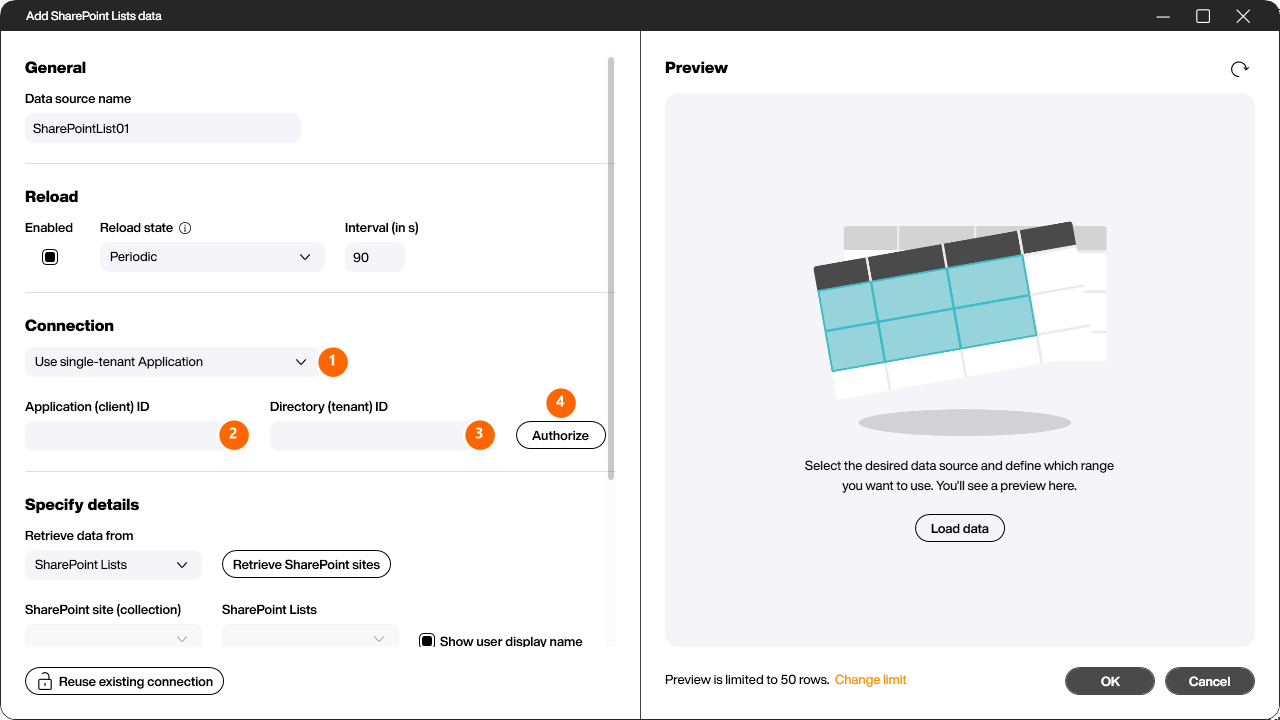
When you select [Use single-tenant Application] (1), you additionally enter the values of your own app registration: the [Application (client) ID] (2) and the [Directory (tenant) ID] (3). Then start the sign-in via [Authorize] (4).
Set up the app registration in Microsoft Entra ID
For the single-tenant variant you register the application yourself in Microsoft Entra ID once:
- In the Azure portal, open Microsoft Entra ID and choose App registrations → New registration. Give it a name and leave the remaining values at their defaults.
- Open API permissions and, under Microsoft Graph, add the delegated permissions your data source needs (for example
Tasks.ReadWritefor To Do orCalendars.Readfor the calendar). Then grant admin consent if your organization requires it. - Under Authentication, enable Allow public client flows. This is mandatory for desktop applications such as the Peakboard Designer.
- Finally, on the app’s Overview page you will find the [Application (client) ID] and the [Directory (tenant) ID], which you enter into the corresponding fields of the data source.
In short:
- Multi-tenant is the fastest route: one central application maintained by Peakboard that works across multiple organizations – no app registration of your own.
- Single-tenant gives you the most control: you register the application yourself in your directory, grant its permissions and don’t rely on a shared application.
Reuse an existing connection
Once you have authorized an Office 365 connection in a project, you don’t have to sign in again for every additional Office 365 data source. Click the [Reuse existing connection] button at the bottom of the dialog and pick the connection from the list – the new data source then shares the same authorized connection.


