
Data sources
Office 365 Teams
The Office 365 Teams data source lets you read the messages of a Microsoft Teams channel that is hosted on Microsoft 365. Sign-in uses modern Microsoft authentication (Microsoft Entra ID, OAuth) with a choice between a multi-tenant and a single-tenant application.
Setting up the data source
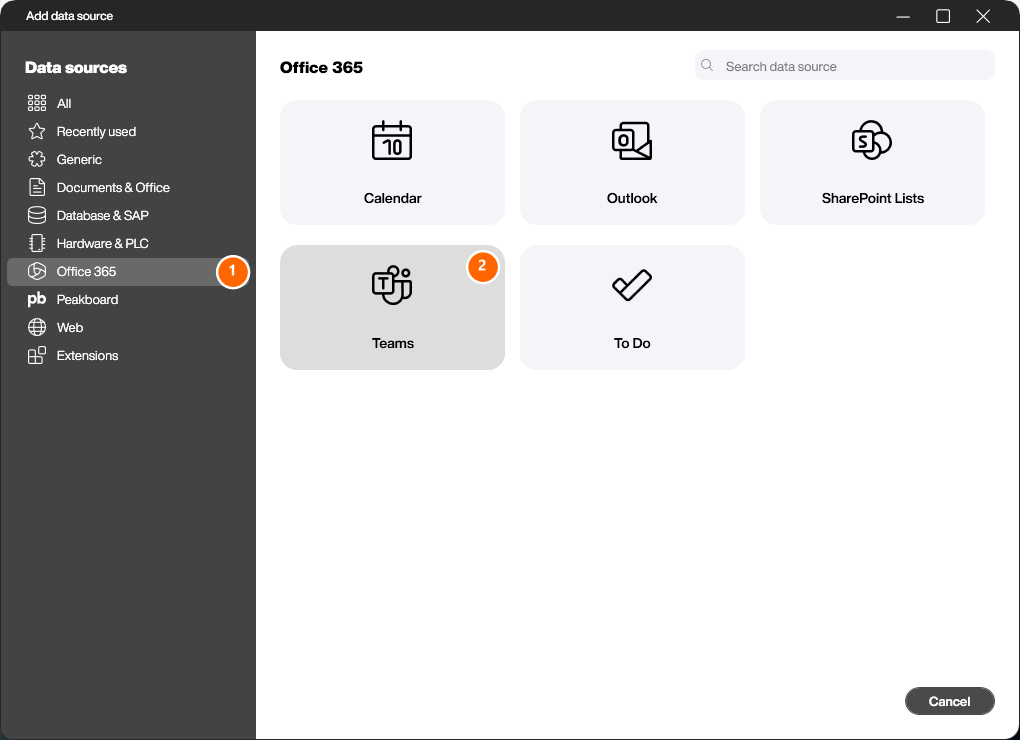
Right-click [Data] or click the […] button and choose [Add data source]. Switch to the [Office 365] category (1) and select the [Teams] data source (2).
Configure the connection
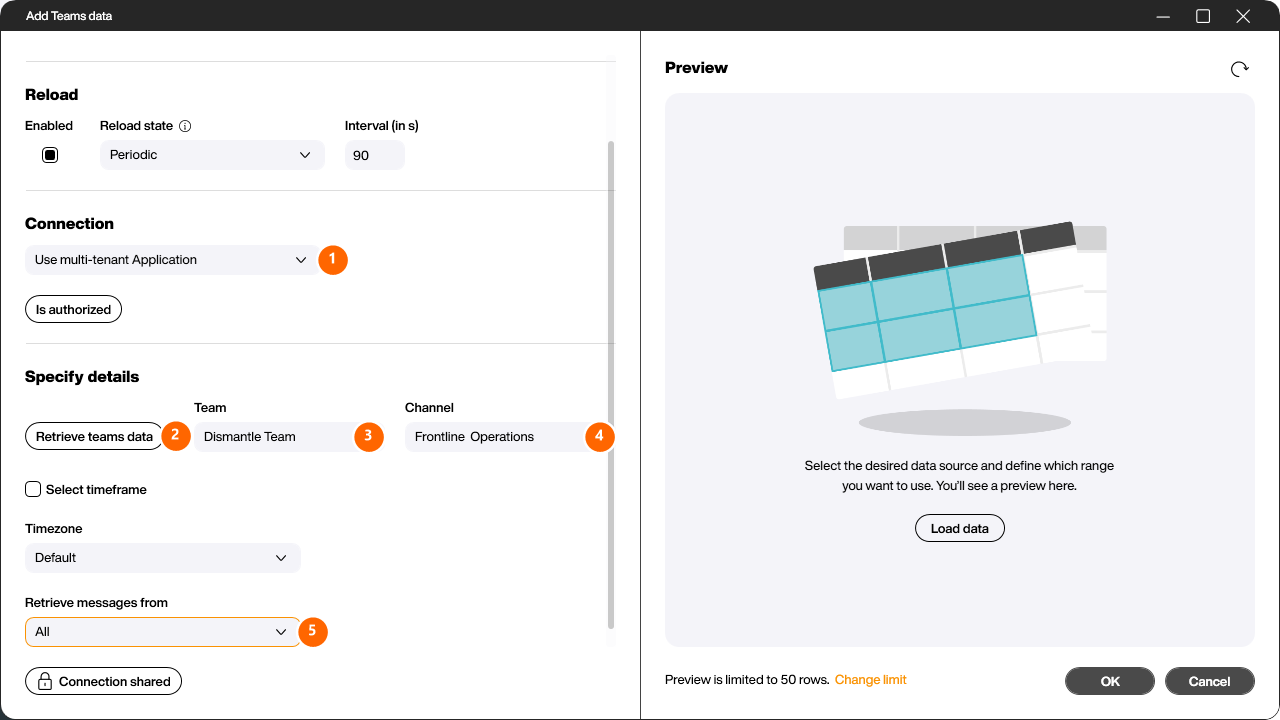
Give the data source a name, then set up the [Connection]. Picking the authorization method, signing in with [Authorize] and reusing an existing connection work the same for all Office 365 data sources and are described once here: Office 365 connection.
Specify details
Click [Retrieve teams data] (2) to load the teams and channels you have access to. Choose the team under [Team] (3) – in this example [Dismantle Team] – and the channel under [Channel] (4) – here [Frontline Operations]. Enable [Select timeframe] to restrict the messages to a date range; otherwise a default range is used, and with [Timezone] you set the time zone the dates are converted to.
With the [Retrieve messages from] dropdown (5) you decide which messages are loaded. The most common choice is All:
- Channel messages – only the top-level posts of the channel.
- Replies – only the replies to those posts.
- All – the top-level messages plus all their replies. This is the most common option and gives you the complete conversation.
Load data and output columns
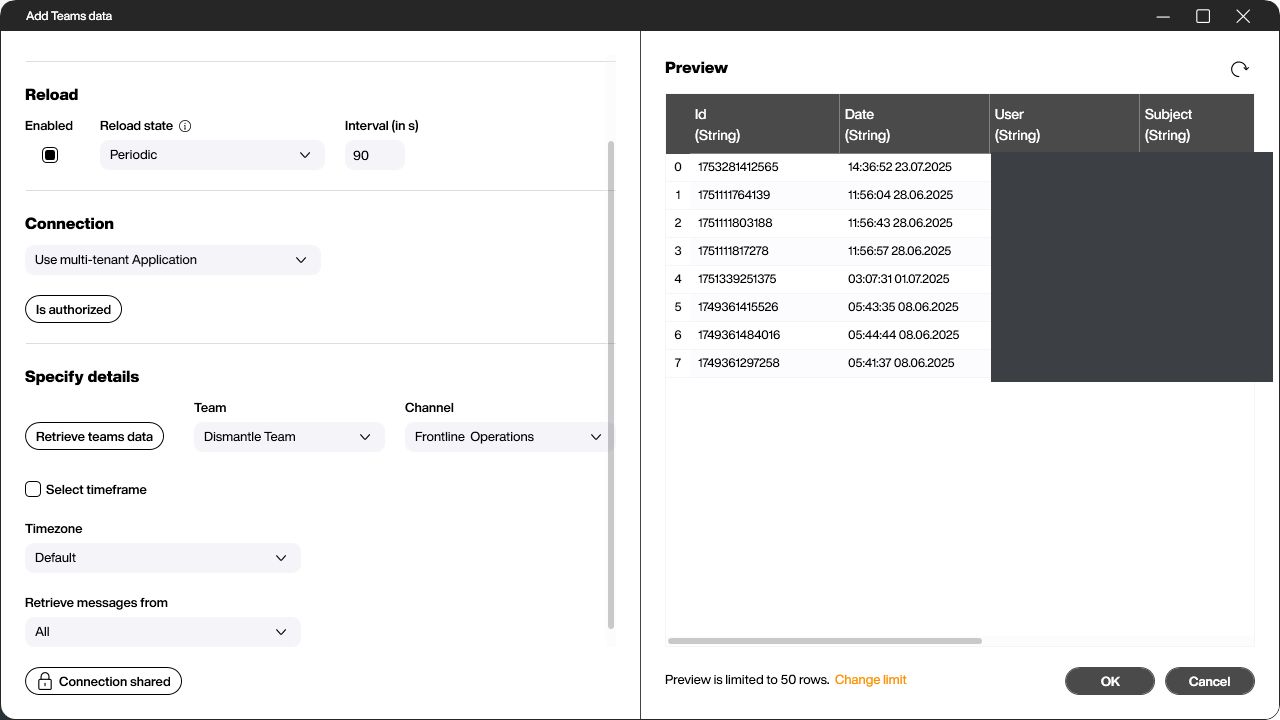
Click [Load data] to display the preview. The result is a list containing one line per message (and, in the [All] mode, per reply) with the following columns (the user names and subjects are blanked out in this screenshot):
- Id – the unique identifier of the message or reply.
- Date – the time the message was created.
- User – the display name of the author.
- Subject – the subject of the message. Teams posts can have a subject; for simple messages it is often empty.
- Message – the actual message body / content.
- Parent – for a reply, the [Id] of the top-level message it belongs to. For a top-level channel message this column is empty – so you can use it to tell a reply apart from a main message.
Click [OK] to create the data source. It then appears in the Explorer under [Data] and can be linked to controls like any other data source.


