
Data sources
BACnet
BACnet (Building Automation and Control Networks) is an open, vendor-independent communication protocol for building automation. It is primarily used for connecting HVAC systems (heating, ventilation, air conditioning), lighting, access control, and other building services equipment. Peakboard acts as a BACnet/IP client and can query the values of individual objects (e.g. temperatures, setpoints, states) live and display them on a dashboard. More information about BACnet can be found at bacnet.org.
Add the data source
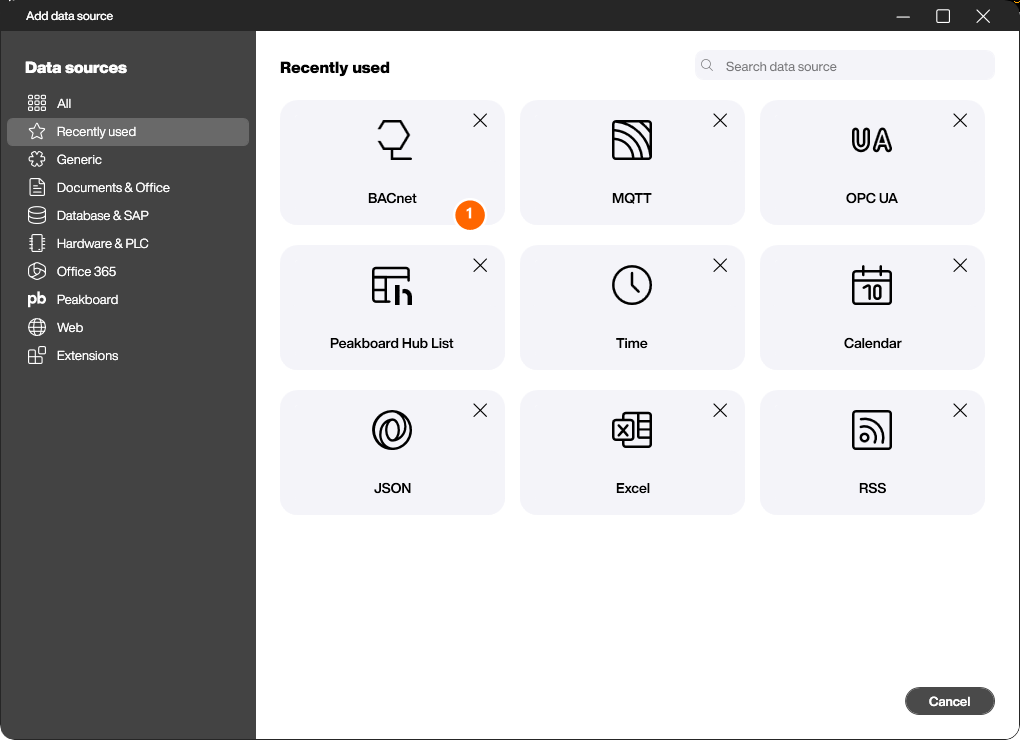
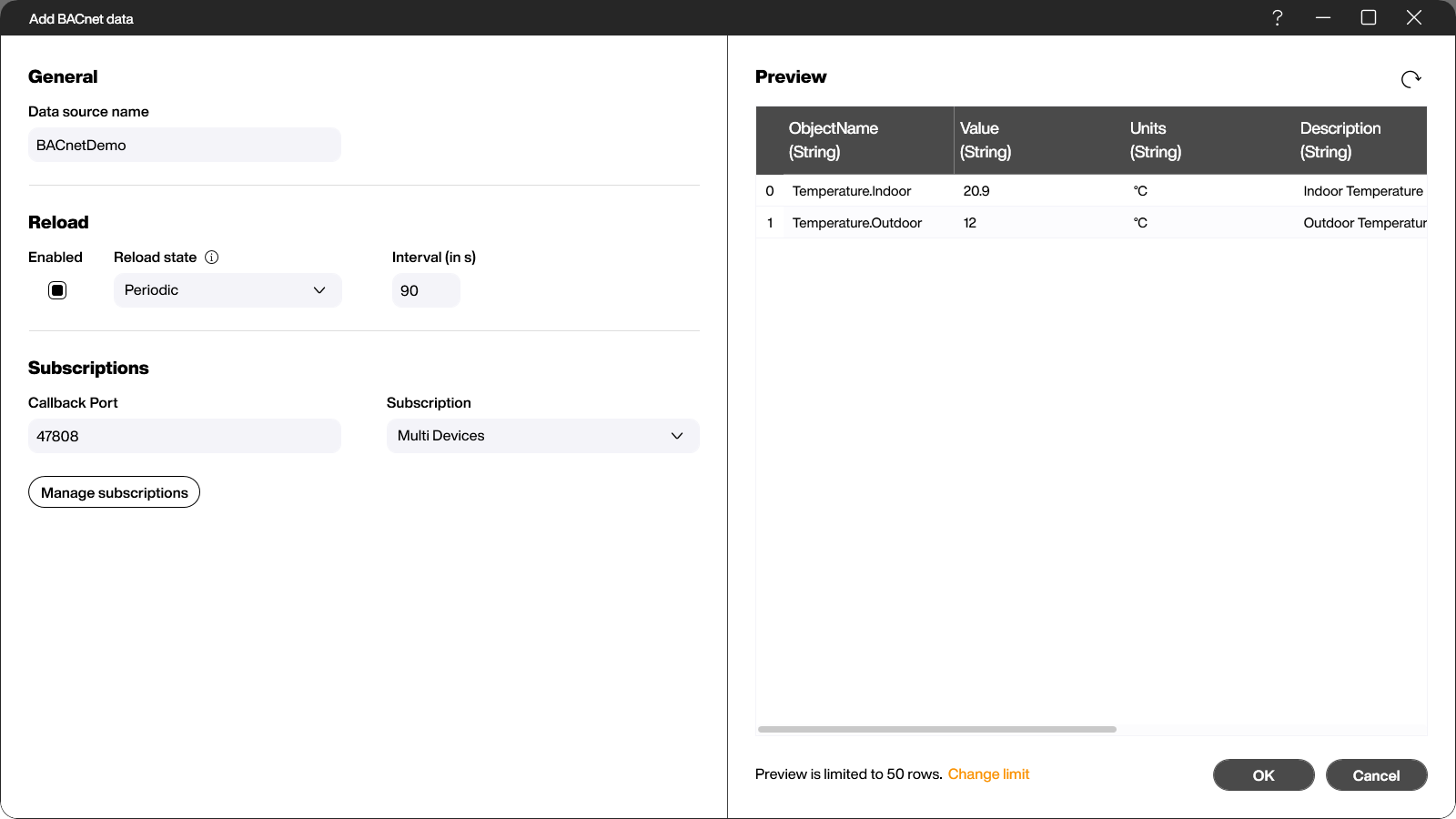
To connect the BACnet data source, select the data source [BACnet] under [Add Data Source]. (1)
Configure the connection
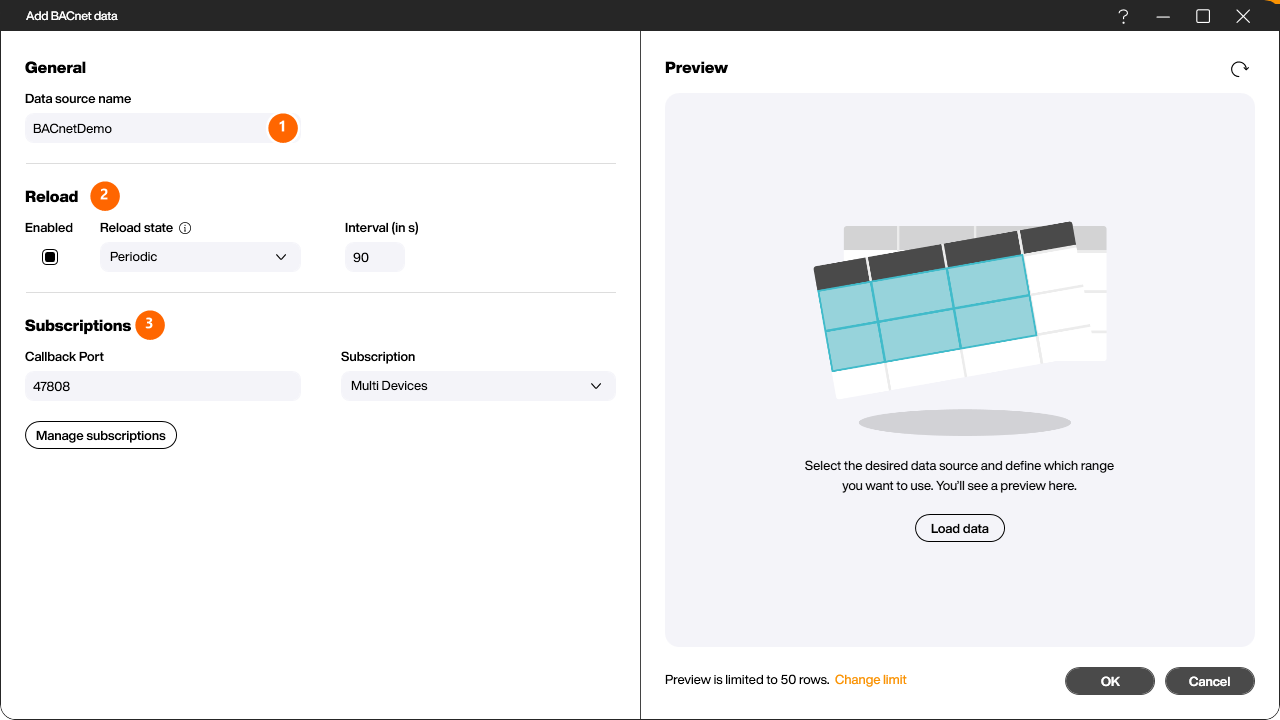
In the dialog that follows you first assign a name to the data source in the [General] section (1).
In the [Reload] section (2) you define whether and at which interval (in seconds) the data source is refreshed automatically. With [Reload] enabled, Peakboard periodically polls the values defined in the subscriptions.
In the [Subscriptions] section (3) you configure the connection to the BACnet network:
- Callback Port: The local UDP port on which Peakboard listens for BACnet responses (default:
47808). - Subscription: The operating mode of the data source:
- Multi Devices – several devices and objects can be subscribed to at the same time.
- Single Device – the data source is bound to exactly one device (useful when device IP and device ID should be set dynamically, e.g. via a script).
Manage subscriptions
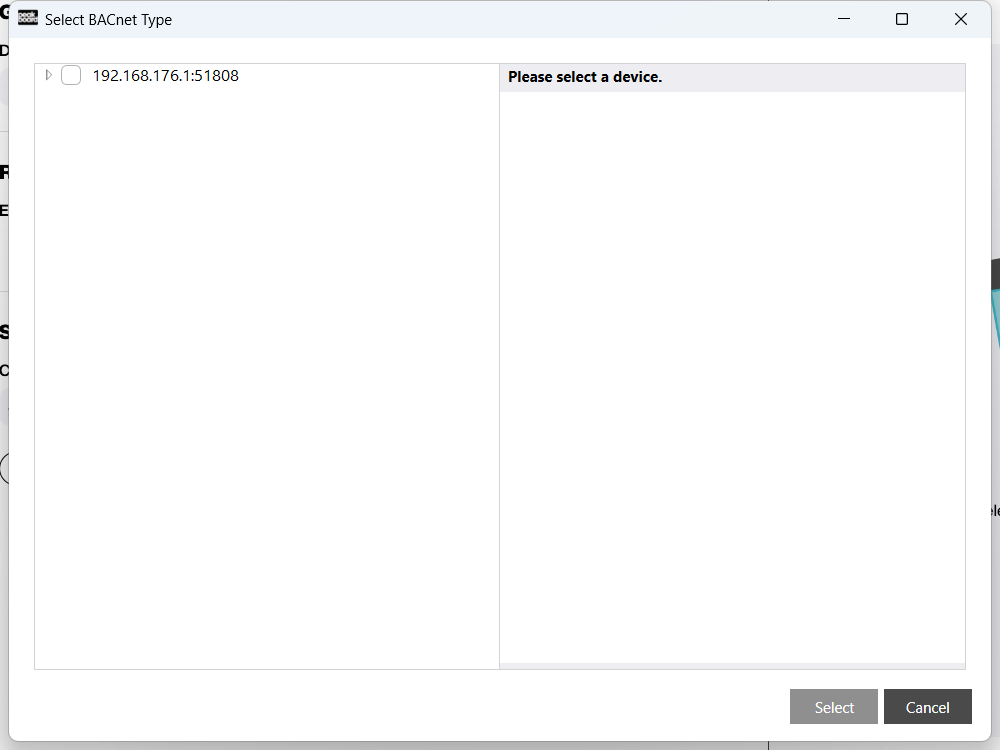
The [Manage subscriptions] button opens the [Select BACnet Type] dialog. Peakboard automatically scans the network for reachable BACnet devices and displays them as a tree. Each entry shows the IP address and callback port of the device.
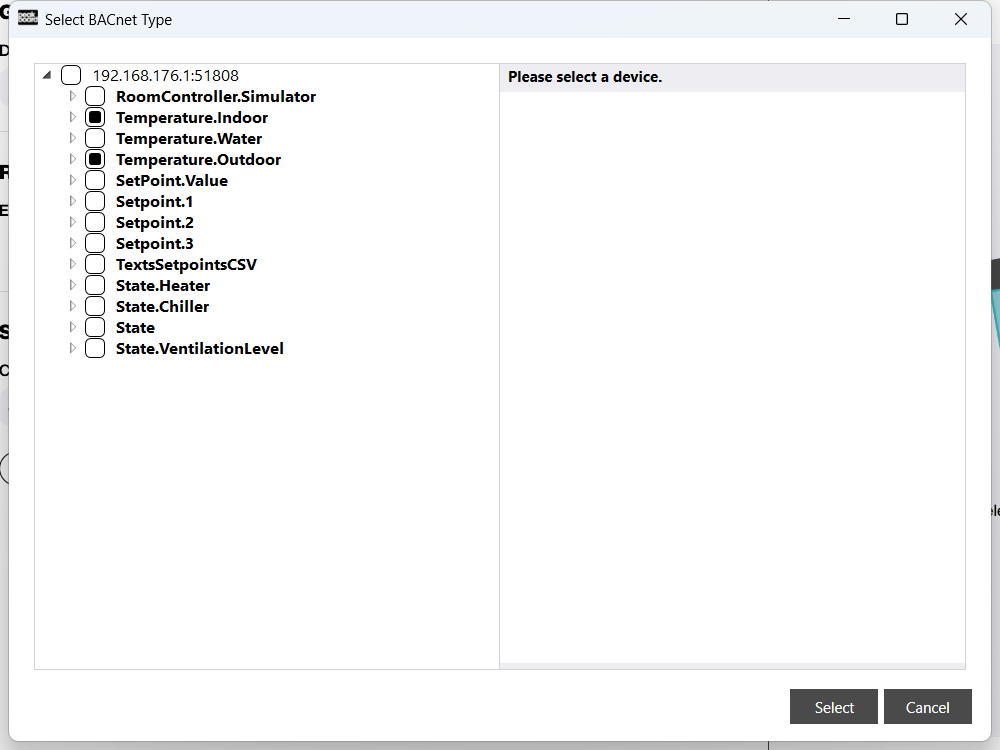
Expand a device with the arrow next to it to reveal the individual objects it offers (e.g. Temperature.Indoor, Temperature.Outdoor, SetPoint.Value). Tick the objects whose values you want to use in Peakboard and confirm with [Select].
Load preview data
Back in the BACnet dialog, click [Load data] to generate a preview of the values that are currently being read. Each subscription produces one row with the object name, the current value, the unit, and a description. This lets you verify on the spot that the connection is working.
Click [OK] to create the data source. It then appears in the explorer under [Data] and can be bound to any control (e.g. linear gauge, chart, table), just like any other data source.



