Controls
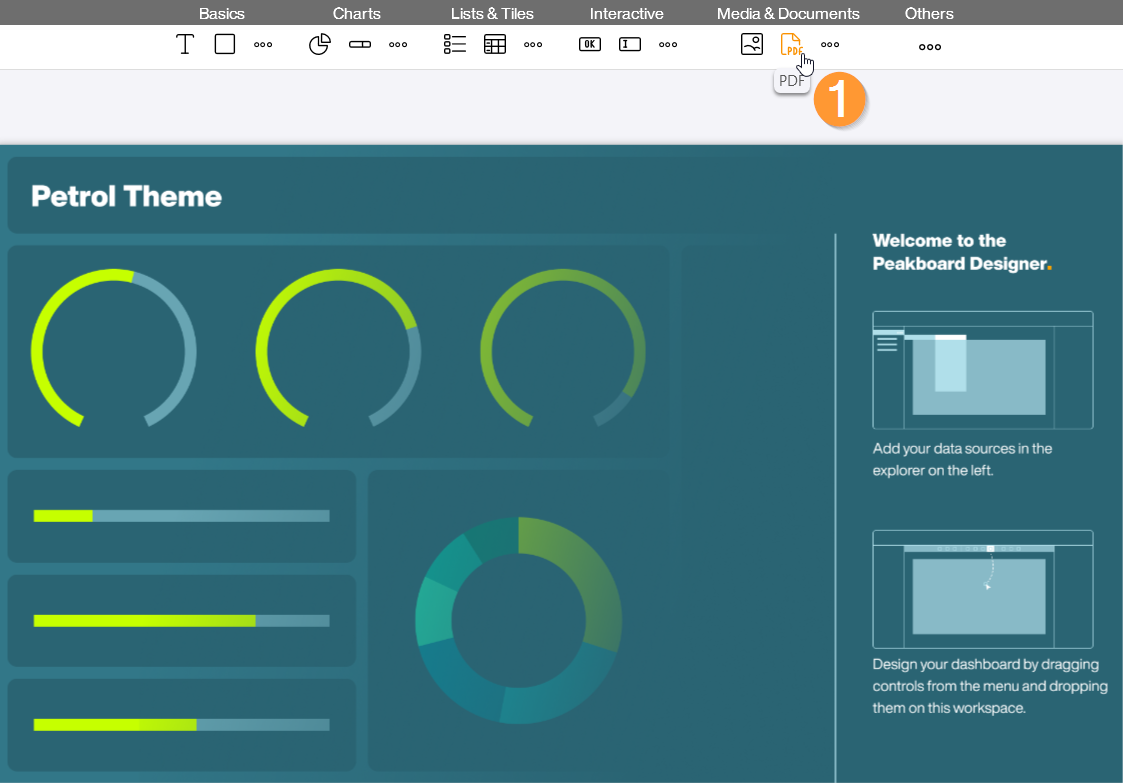
The PDF Viewer control allows you to integrate PDF documents such as shift schedules, reports, or technical drawings directly into your visualization. It supports multi-page documents and offers specific functions to dynamically navigate through pages or exchange documents at runtime. You can find the PDF Viewer in the Peakboard Designer in the Media & Documents group (1). Drag and drop the icon into your designer or place it on your workspace with a double-click.
Configuration and Properties
1 Data Source and PDF Selection
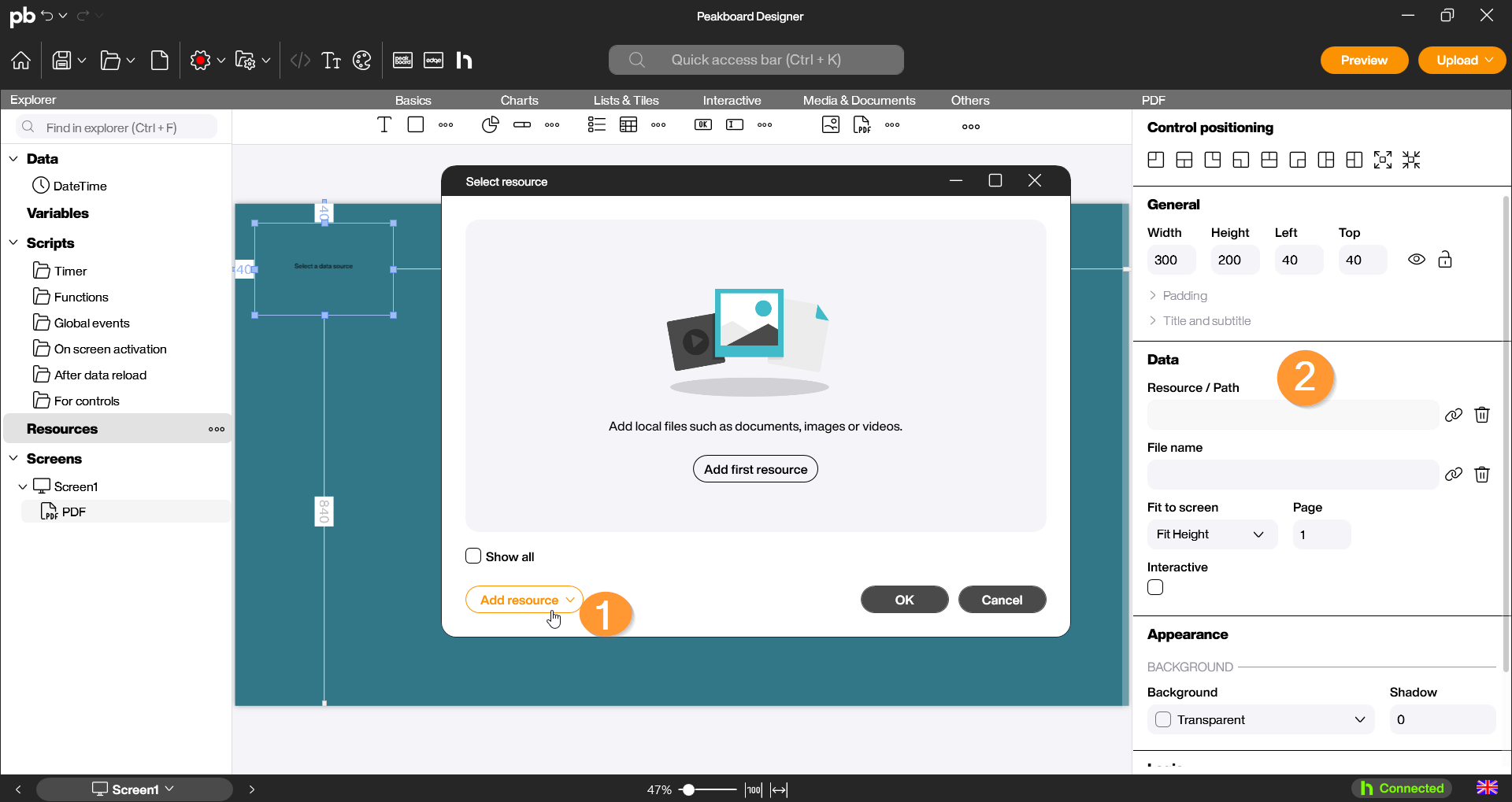
A PDF Viewer can be filled with content in various ways. Double-click the control to open the configuration dialog:
- Add Resource: Select a PDF file from your local resources or other storage locations that is permanently stored in the application (1).
- Dynamic Linking (Data Binding): Link the control to a data source or a variable that contains a path or a URL to the PDF. The document will then be loaded automatically at runtime (2).
2 Appearance and Control
In the properties on the right side, you can precisely control the behavior and representation:
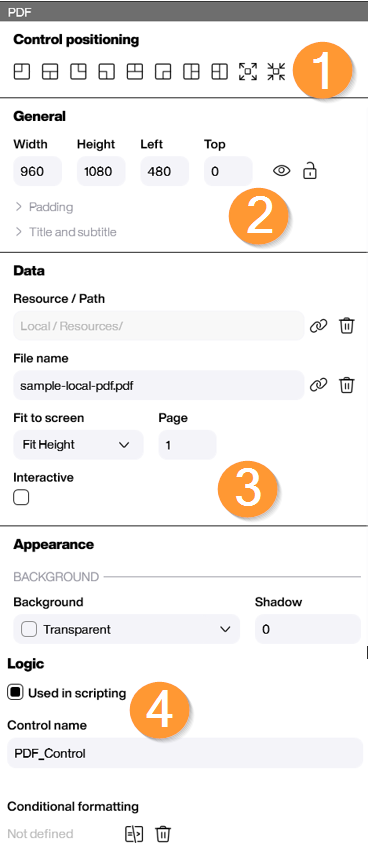
- Control Positioning (General): Define the alignment of the element on the workspace. Use the first eight symbols to quickly place the control at corners or side centers, while the ninth symbol fills the entire available area. The last icon centers the element. (1)
- General: Use the Width, Height, Left, and Top fields to precisely define the size of the PDF via the manual input fields. Below that, you define an internal padding for the document within its frame, and a title can also be assigned to appear above the control. (2)
- Page (Data): Here you can specify which page of the document should be displayed by default when the visualization starts (3).
- Use in scripts (Logic): Give the control a unique name to control it later via script (e.g., for changing pages) (4).
- Conditional Formatting (Logic): Use conditional formatting to control the visibility of the control based on specific events.
Scripting
The PDF Viewer offers specific commands to flip through the pages of a document.
Example One: Automatic PDF Page Switch
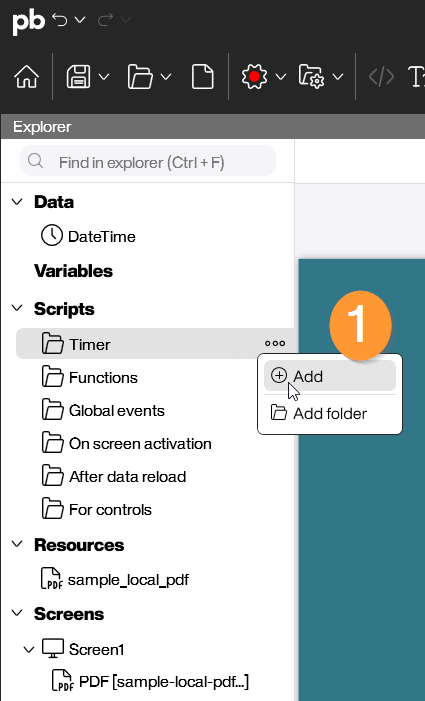
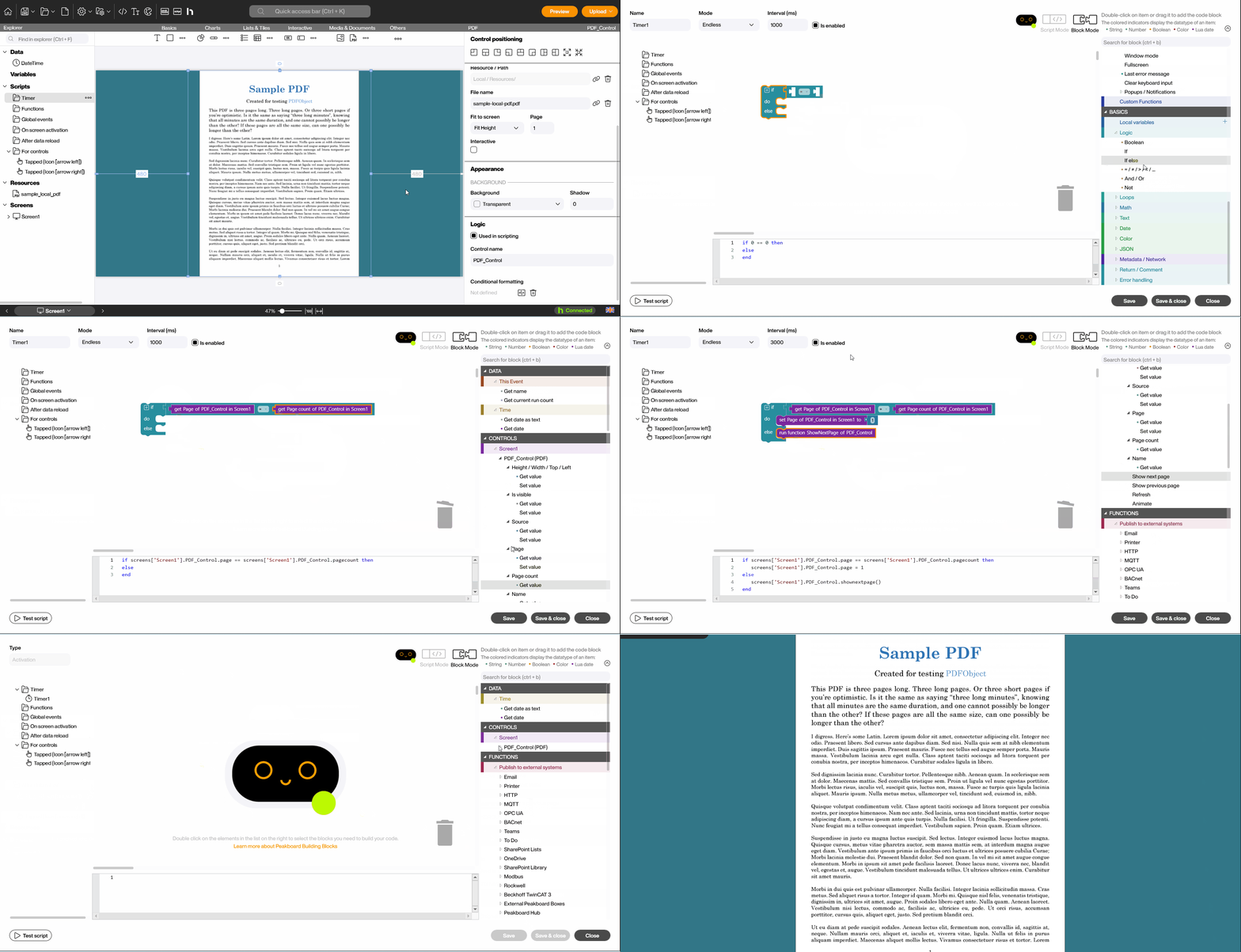
In this first example, we use a timer script to create an automatic page switch in the preview or runtime. First, give your PDF control a name under “Use in scripts.” Then, add a new timer script to the visualization, which you can find on the left side of the designer.
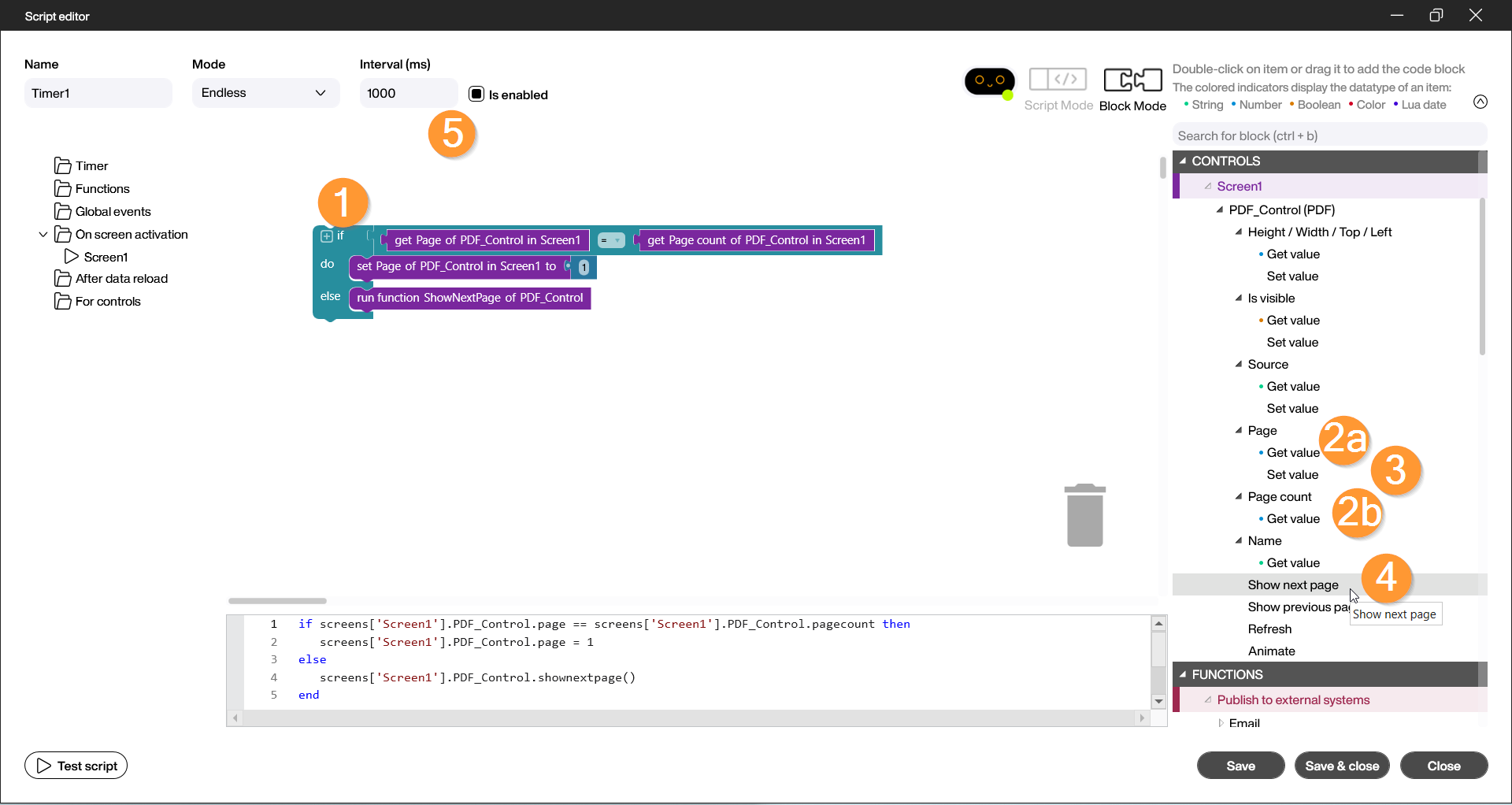
Steps in the Script Editor:
- Select the “if-then” block from the Basics section under Logic.
- Under the “Page” category of your PDF control, select the “get page of” block and place it in the first empty field.
- Under the “Page Count” category of your PDF control, select the “get page count of” block and place it in the adjacent field in the editor.
- Under the “Page” category of your PDF control, select the “set page of” block and place it at the “do” position of the block.
- Under the category of your PDF control, select the “run function ShowNextPage of” block.
- Under Interval at the top of this window, the time interval for the page switch can be set in milliseconds.
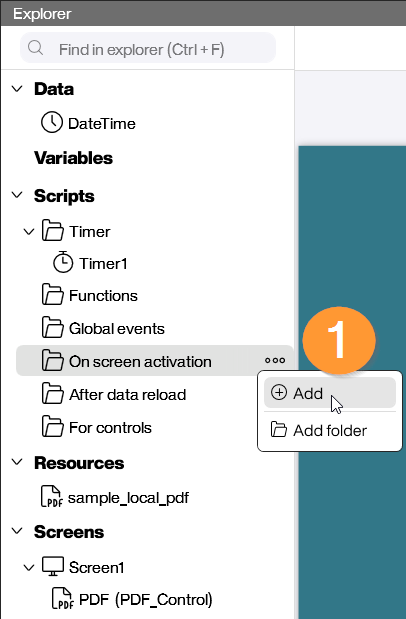
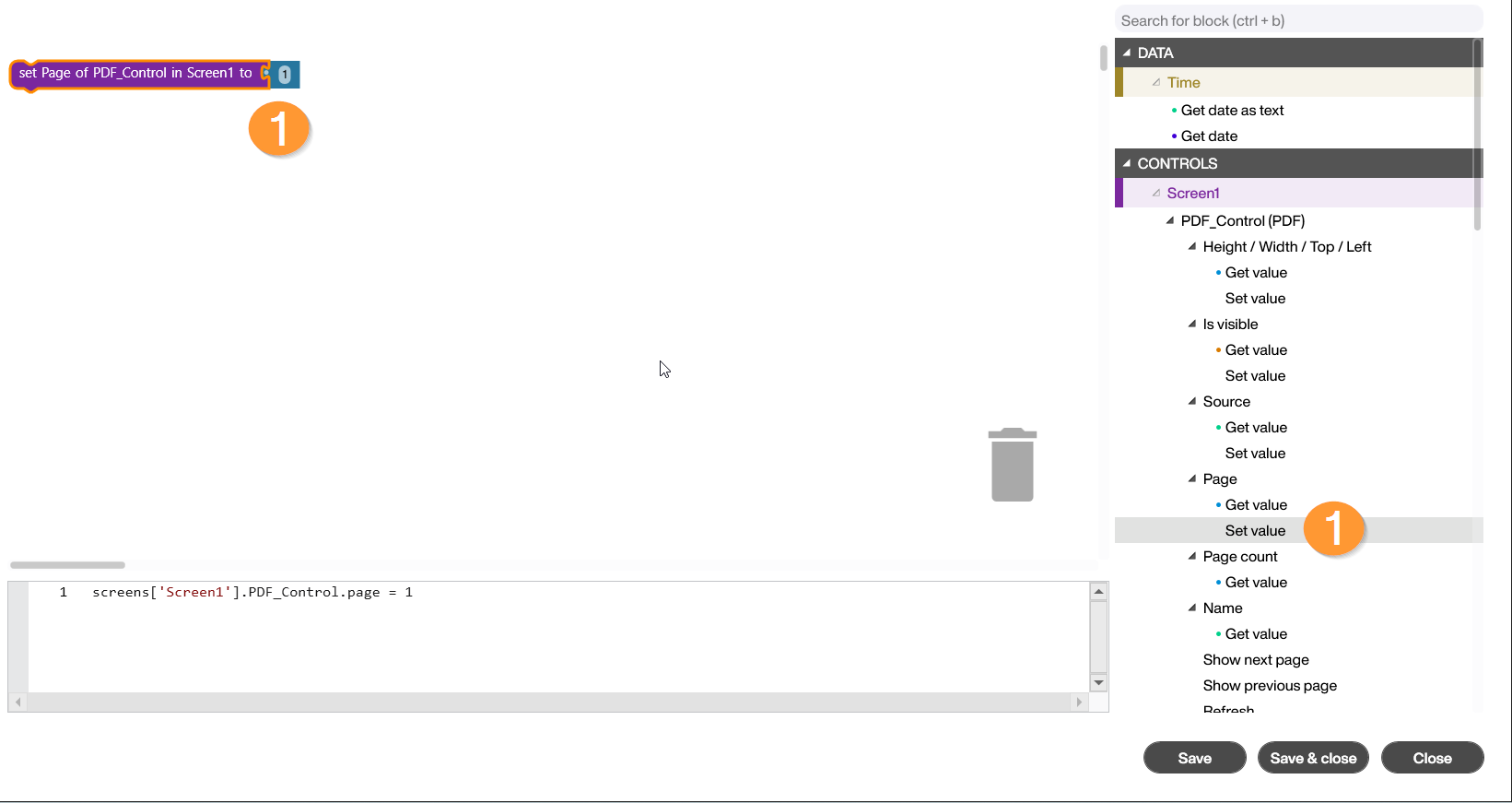
To ensure that the visualization always starts with the first page, create a “Screen activated” script on the left side of the designer. Simply select the “set page of” building block under the “Page” category of your PDF Viewer and drag it into the editor.
Start the preview and check if the pages switch correctly and if the selected interval is accurate.
Example Two: Switch PDF Pages via Buttons
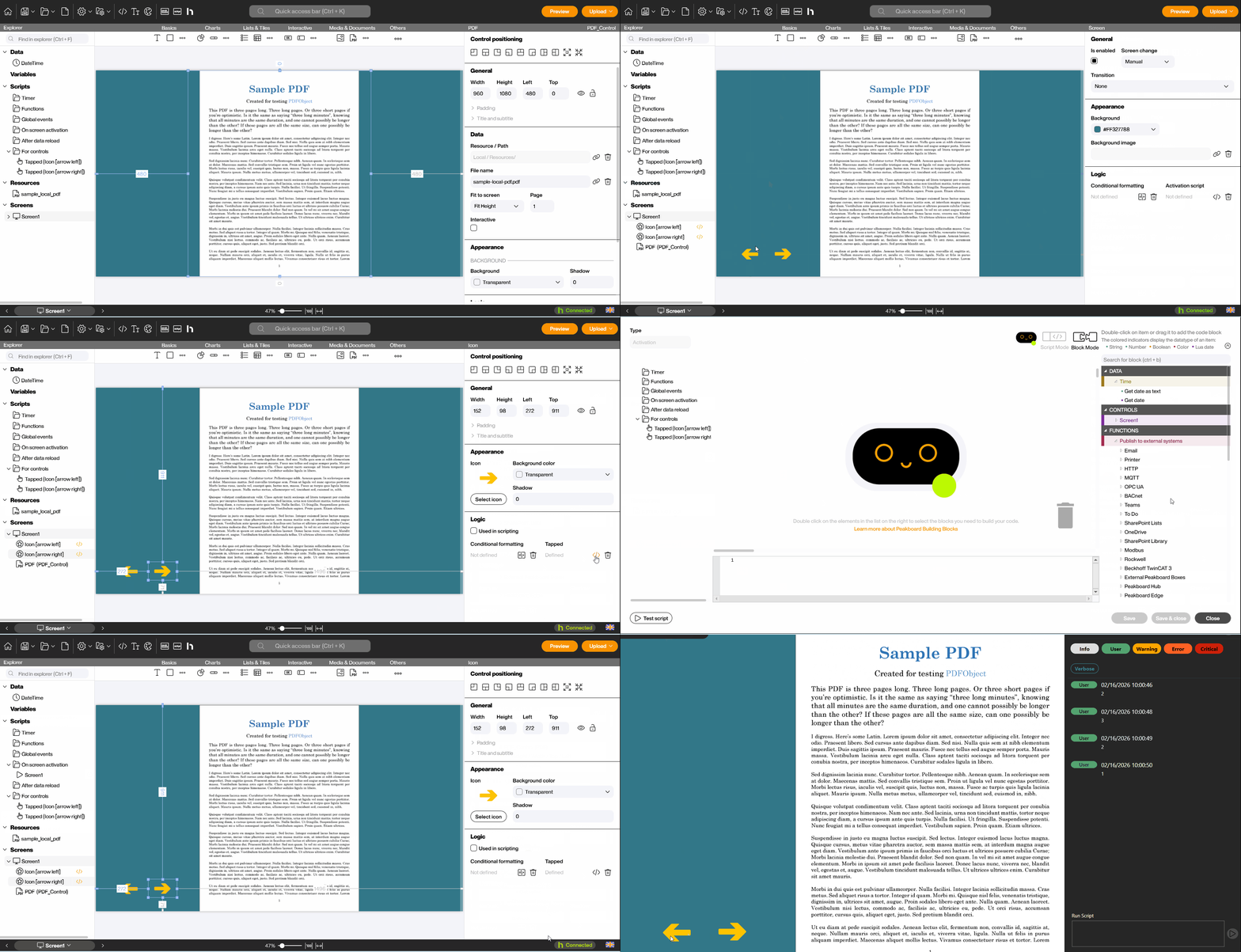
! Important: Use either a timer script or a button scrip, a button script cannot be controlled smoothly while a timer script is active. The “On Screen Activation” script can be retained.
In this example, we use two buttons (“Next” and “Back”) to manually flip through a PDF manual.
Steps in the Script Editor:
- Place two button controls from Interactive or two icons from Basics onto the workspace in the designer.
- Activate “Use in scripts” for the PDF control.
- Open the script editor of the “Next” button under Tapped.
- Select the “shownextpage” block under the category of your PDF control.
- Repeat the process for the “Back” button using the “showpreviouspage” block.
- Optionally, add the “Write to log” block and the “get page of” block from your PDF control’s “Page” category to log the page change. Start the preview, test the buttons, and check the Log (second icon from the left) to see if the return value is correctly displayed after triggering.
In this video, the first example is illustrated again, showing how the script is built and tested for functionality:
In this video, the second example is demonstrated, showing how the buttons are inserted, scripted, and verified: